


For customers to find your business online, ranking on Google is key. Because 49% of shoppers start their search for a product or service on Google.
Google not only dominates local business searches. It’s also the gateway for global exposure. Making your business discoverable by Google allows the search engine to direct both local and international customers to your site.
Considering that approximately 74% of in-store shoppers search online for store-related information before visiting, online visibility is vital for your business.
To boost online visibility, optimize your website for search engines—using relevant keywords and a mobile-friendly design—and maintain an accurate, up-to-date business listing.
That’s where your Google Business Profile, or GBP, comes in. It looks like this:
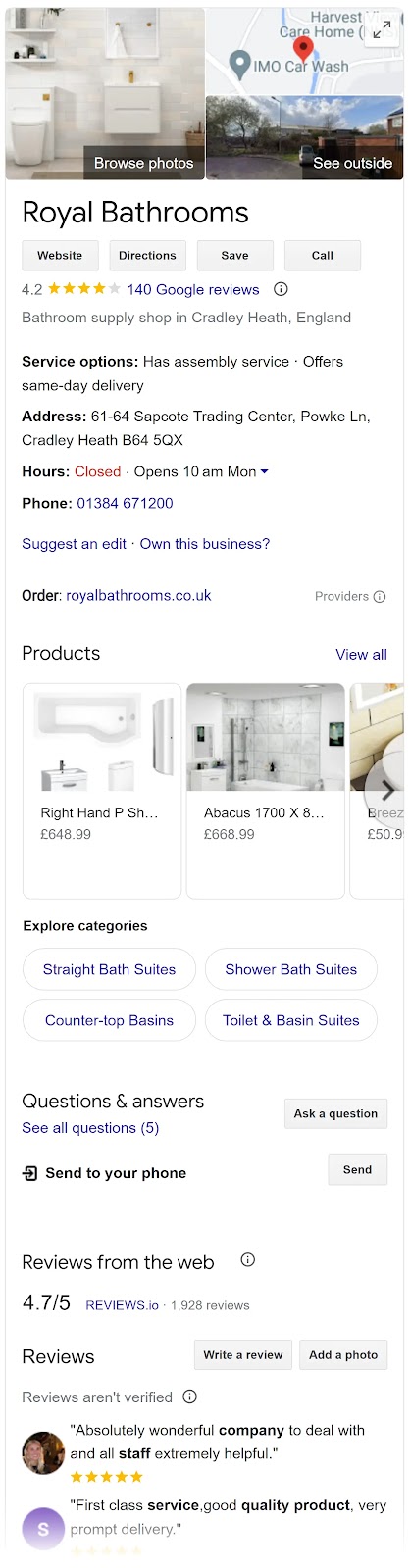
This profile pops up when someone looks you up or searches for your products or services on Google Search or Google Maps. Bridging the gap between an online presence and your store’s physical location.
Why Is It Important for Businesses to Show Up on Google Maps?
Although consumers rely heavily on online organic searches to find local businesses, Google Maps has an added advantage because it addresses local search queries specifically.
Say you provide dry cleaning services. When someone searches for dry cleaning in their area on Google Maps, they’ll be able to see a listing with your address, hours of operation, and contact details. All pulled from the information you entered into your Google Business Profile.
Visibility and accessibility on Google Maps complements your GBP, local, and overall SEO strategy.
While a general Google Search helps users discover your business online, Google Maps targets those searching in your immediate area and vicinity—effectively capturing local demand.
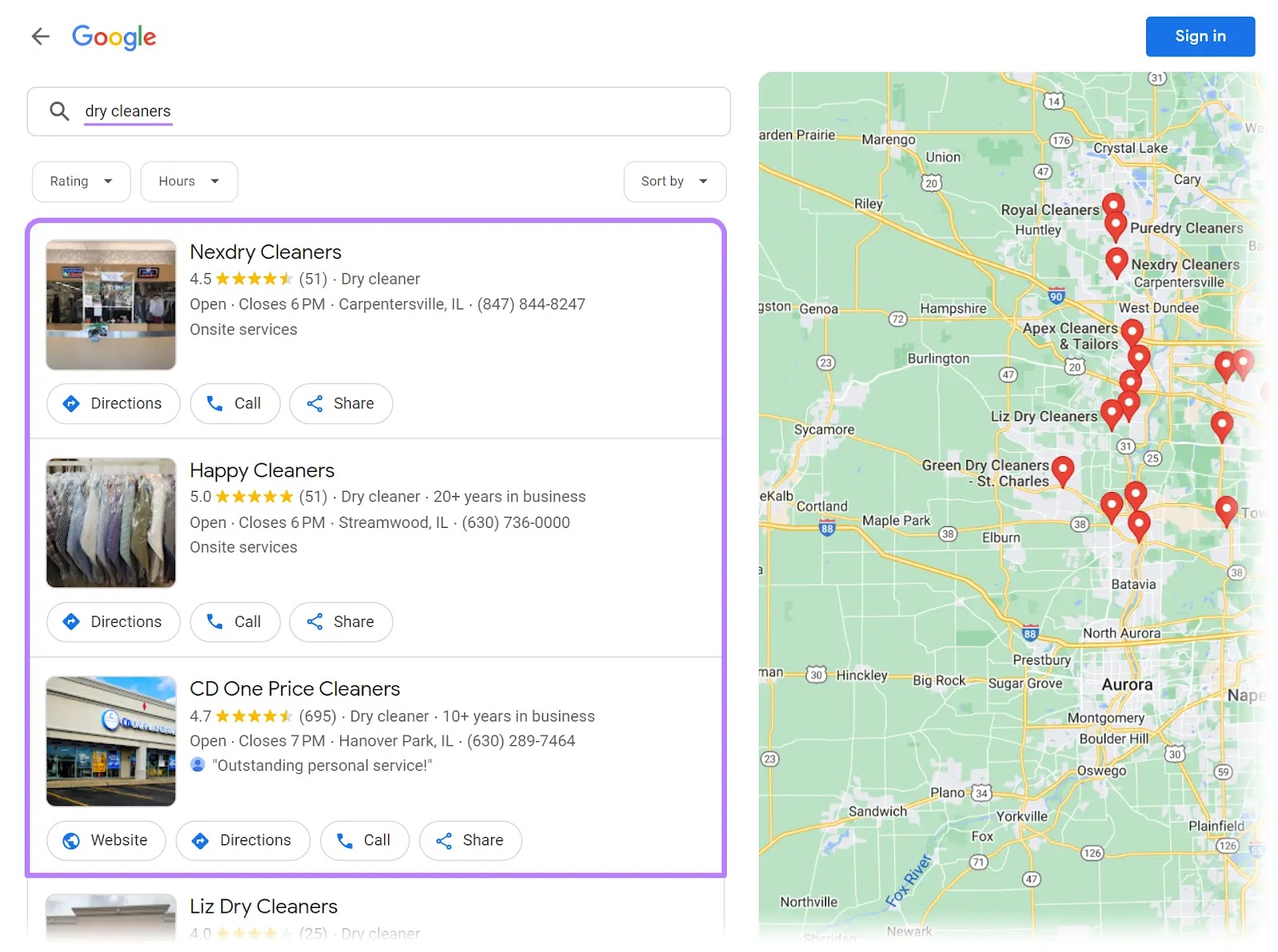
Essentially, showing up on Google Maps can significantly increase your business’s foot traffic and local sales.
Further reading: 8 Google Maps Marketing Tactics to Drive Local Business
Your business will be visible only if you set up your Google Business Profile correctly. If you’ve created one but still aren’t showing up on Google, there may be many reasons why.
Possible Reasons Why Your Business Isn’t Showing Up on Google
1. You Need to Claim an Existing Business Profile
Your business might not appear on Google Maps if you still need to claim your GBP listing.
An unclaimed listing means the business information is present on Google Maps but still needs to be verified or managed by the business owner.
Both claiming and verifying your business listing are essential for managing your online presence and ensuring the accuracy of your information.
To check and claim ownership of your business, follow some simple steps:
Step 1: Sign in to GBP
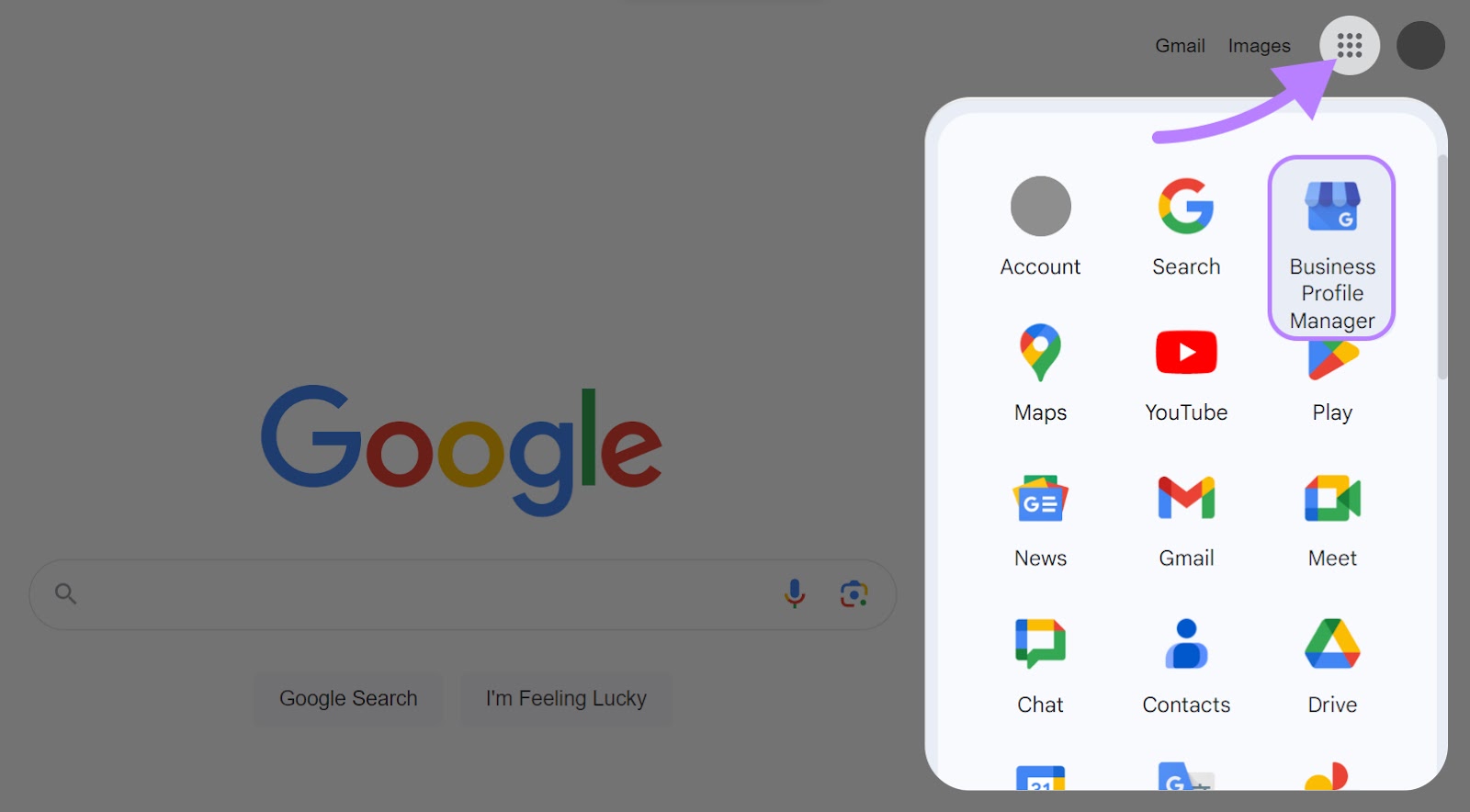
Log in to GBP on your desktop or the mobile app using your Google Account. Click the Google apps button next to your profile icon, and find “Business Profile Manager” in the top-right corner of the menu.
Step 2: Claim existing ownership of a verified Google Business Profile
If you own and have verified your business, Google will redirect you to the GBP dashboard. If not, move on to step three to claim your business.
Step 3: Access your business profile
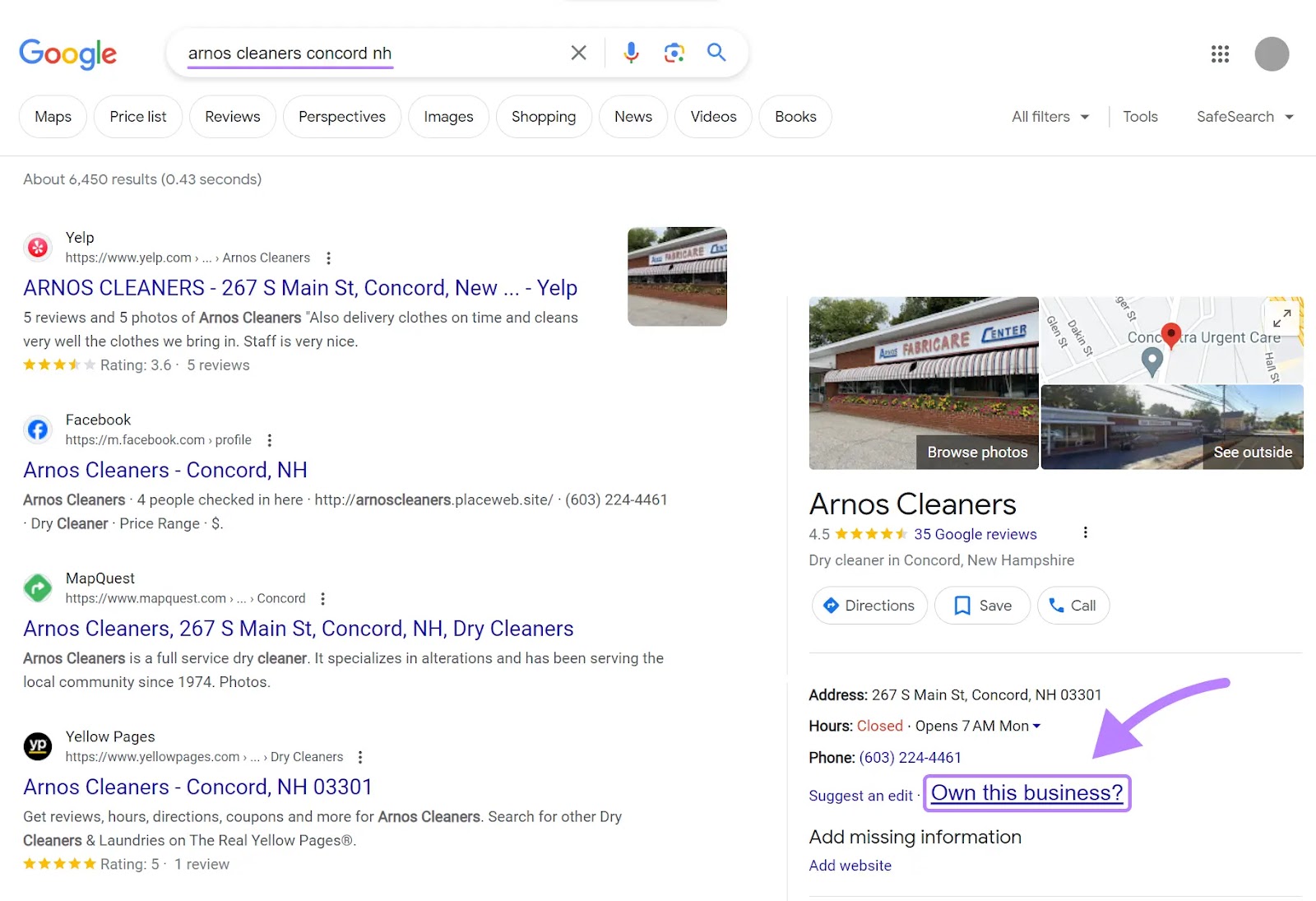
Search for your business name and location on Google.com. If your profile appears on the right-hand side, click “Own this business?”
Step 4: Request for claim
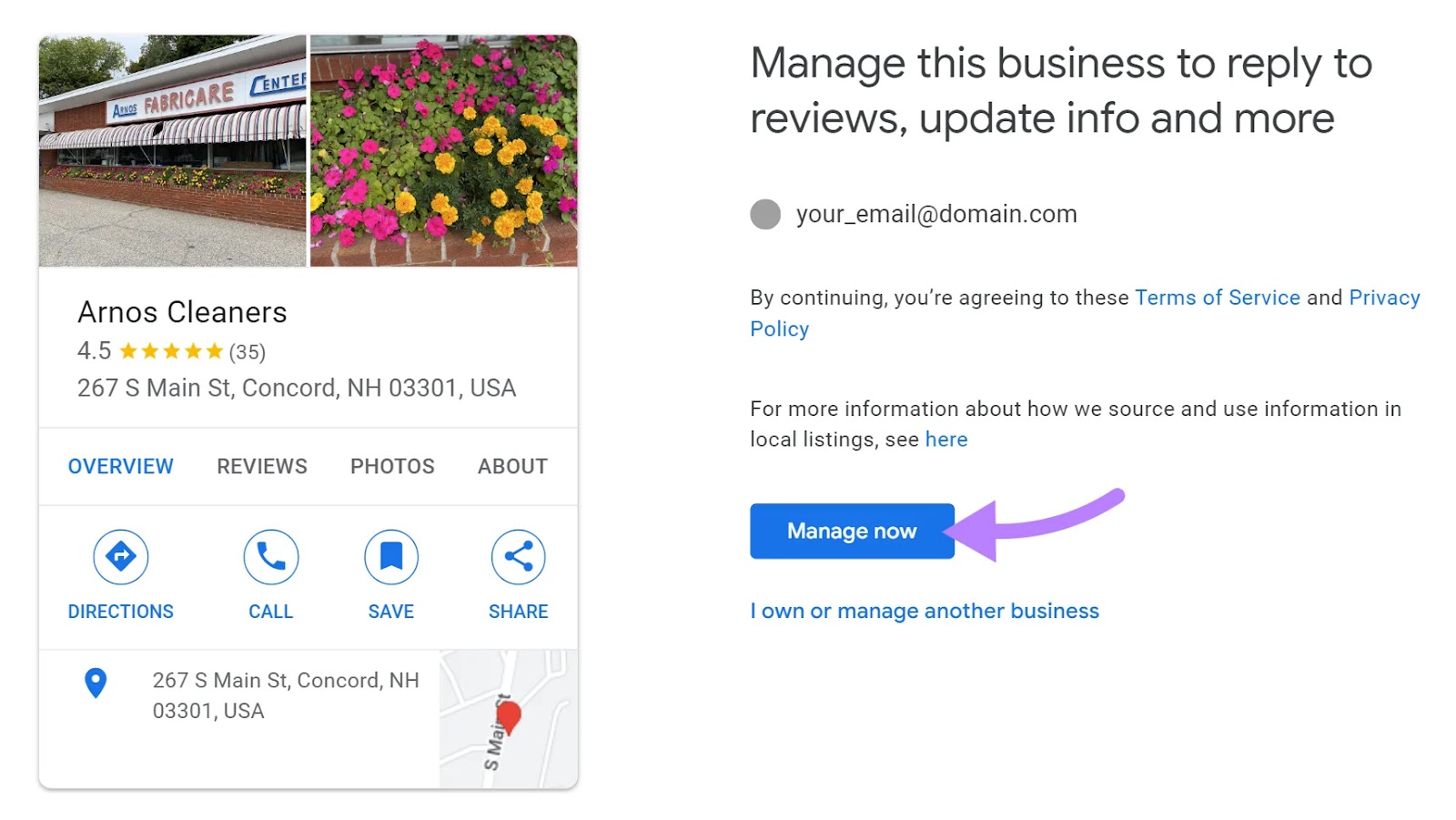
A prompt will appear on the screen. Click “Manage now.”
If someone else has already claimed this business, you might see something like this:
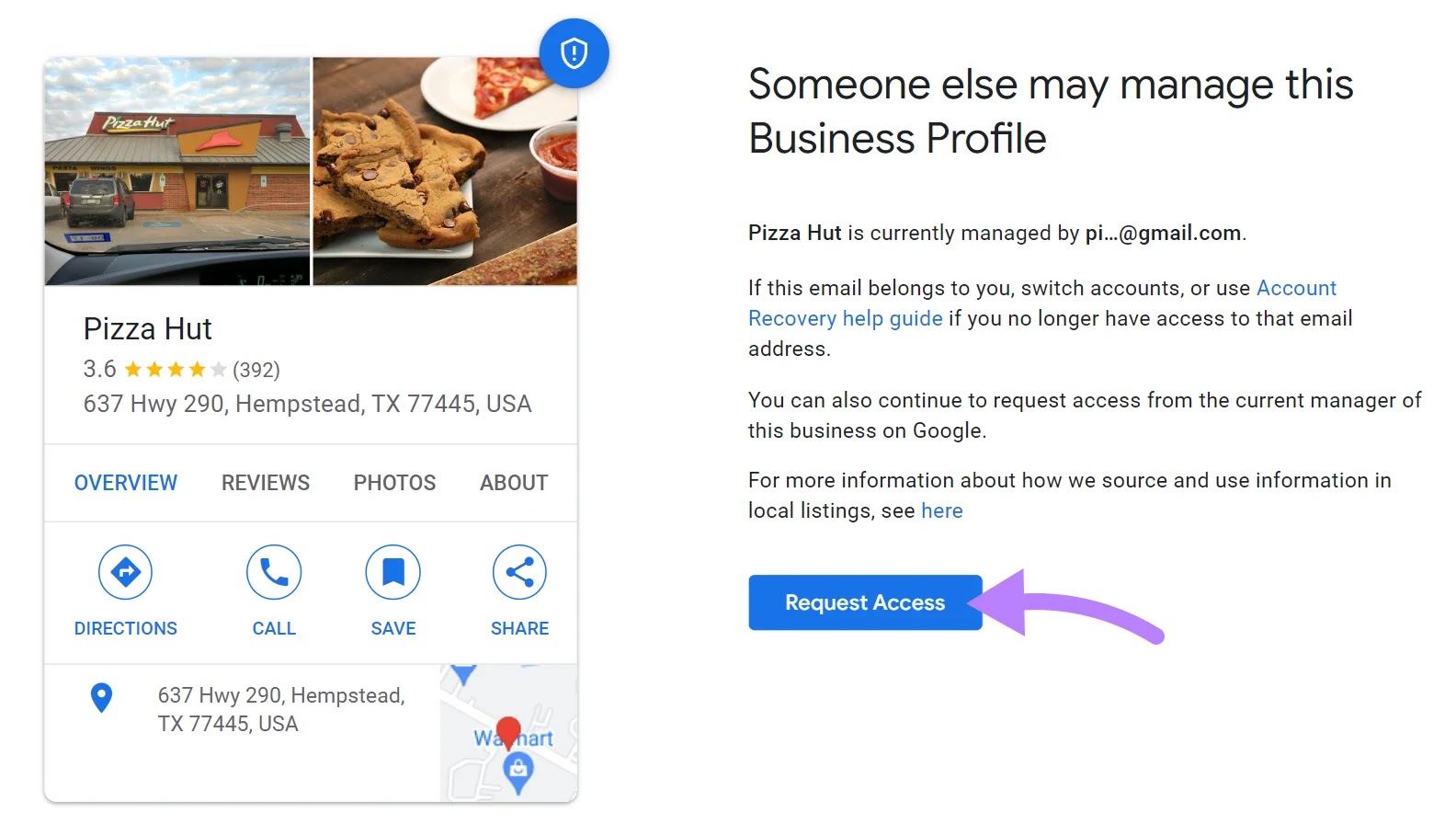
Click “Request Access.” Google will then ask about your level of ownership.
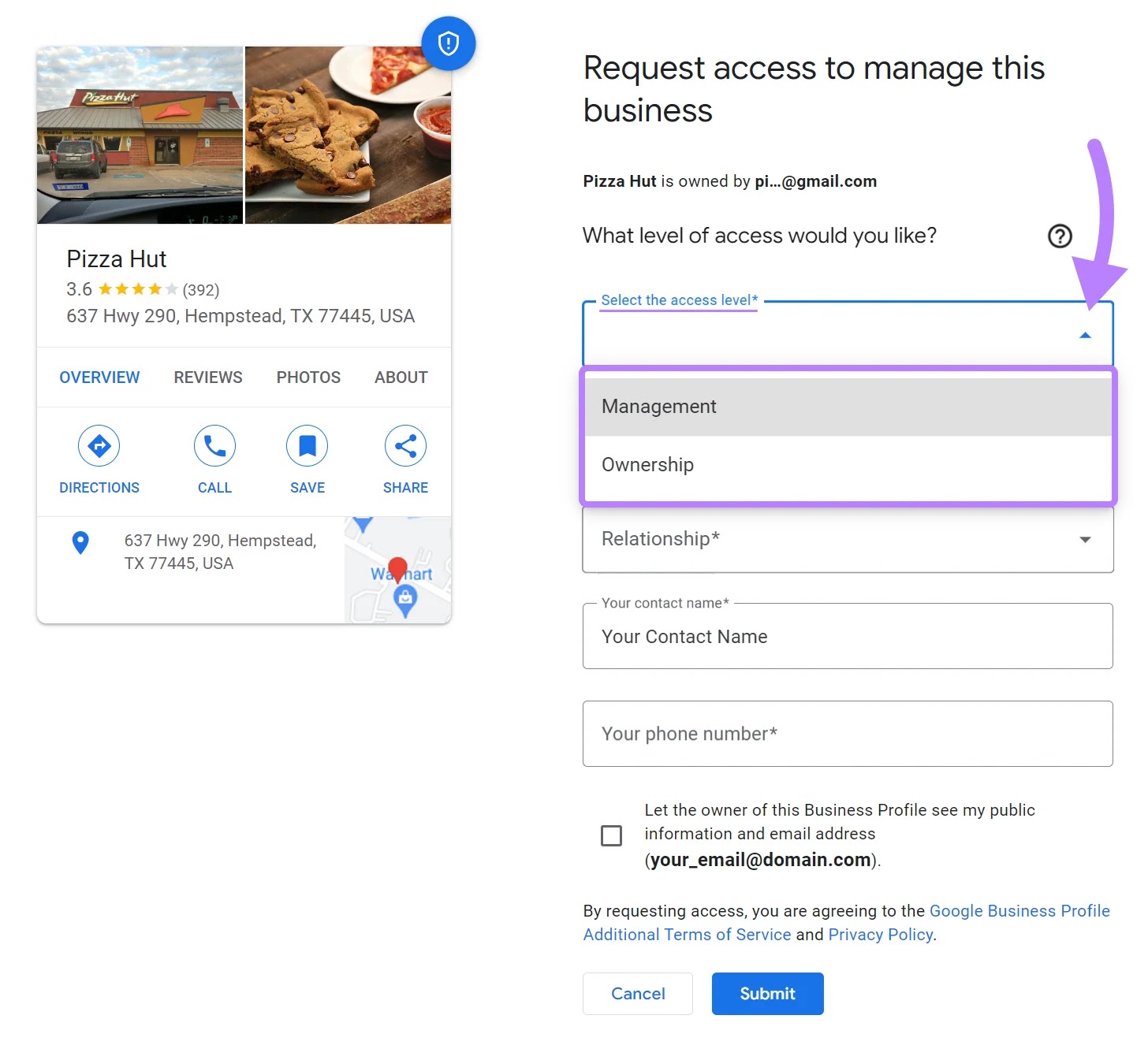
Fill in the required fields, and tick the option to let the business owner see your details.
If you don’t select this option, you won’t be able to move forward. Once done, hit “Submit.”
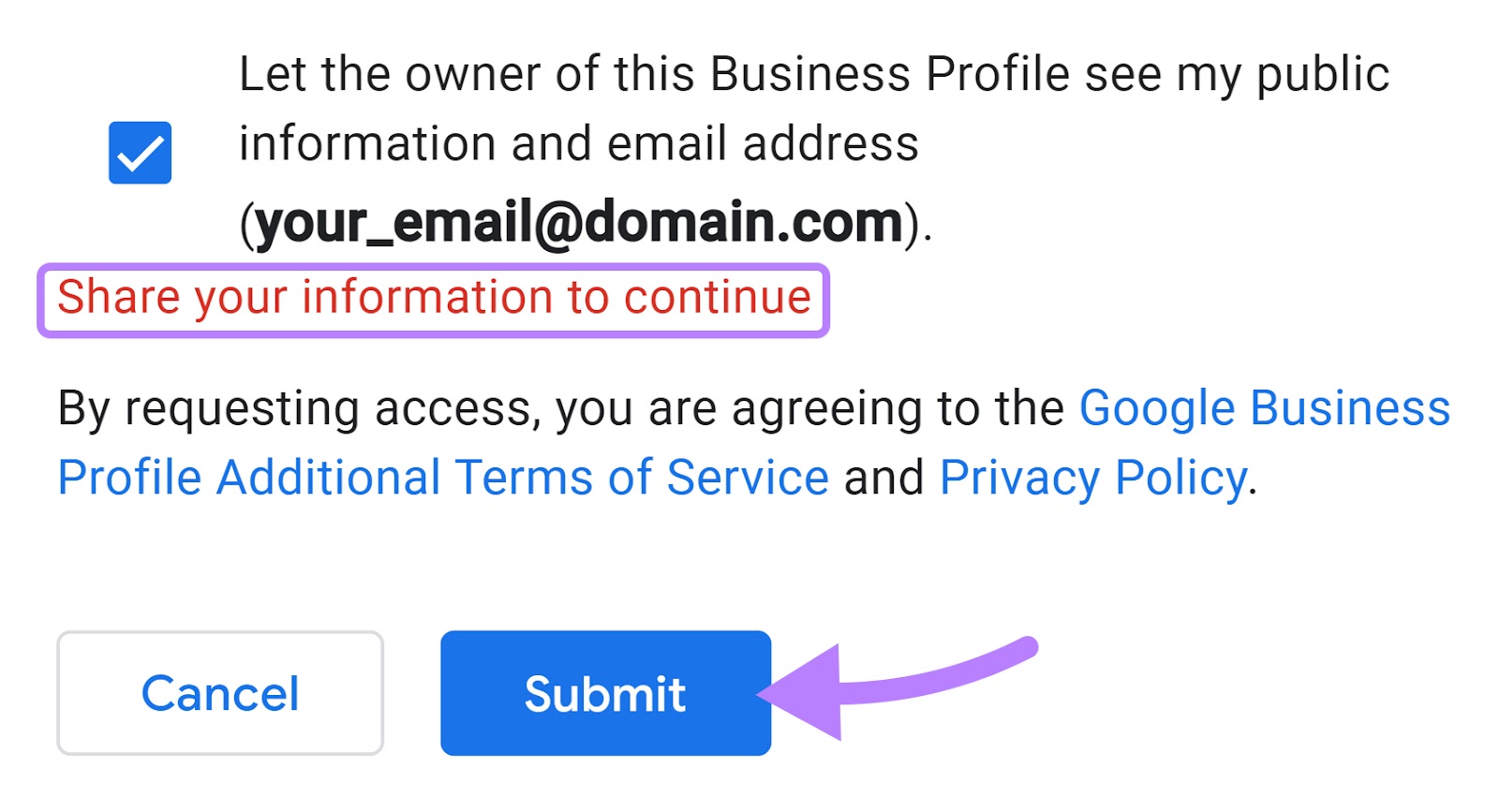
You will then get a confirmation prompt. And a date of when you should get ownership of your business profile if the current owner doesn’t respond.
Click “Done” and wait until you get access to your GBP.
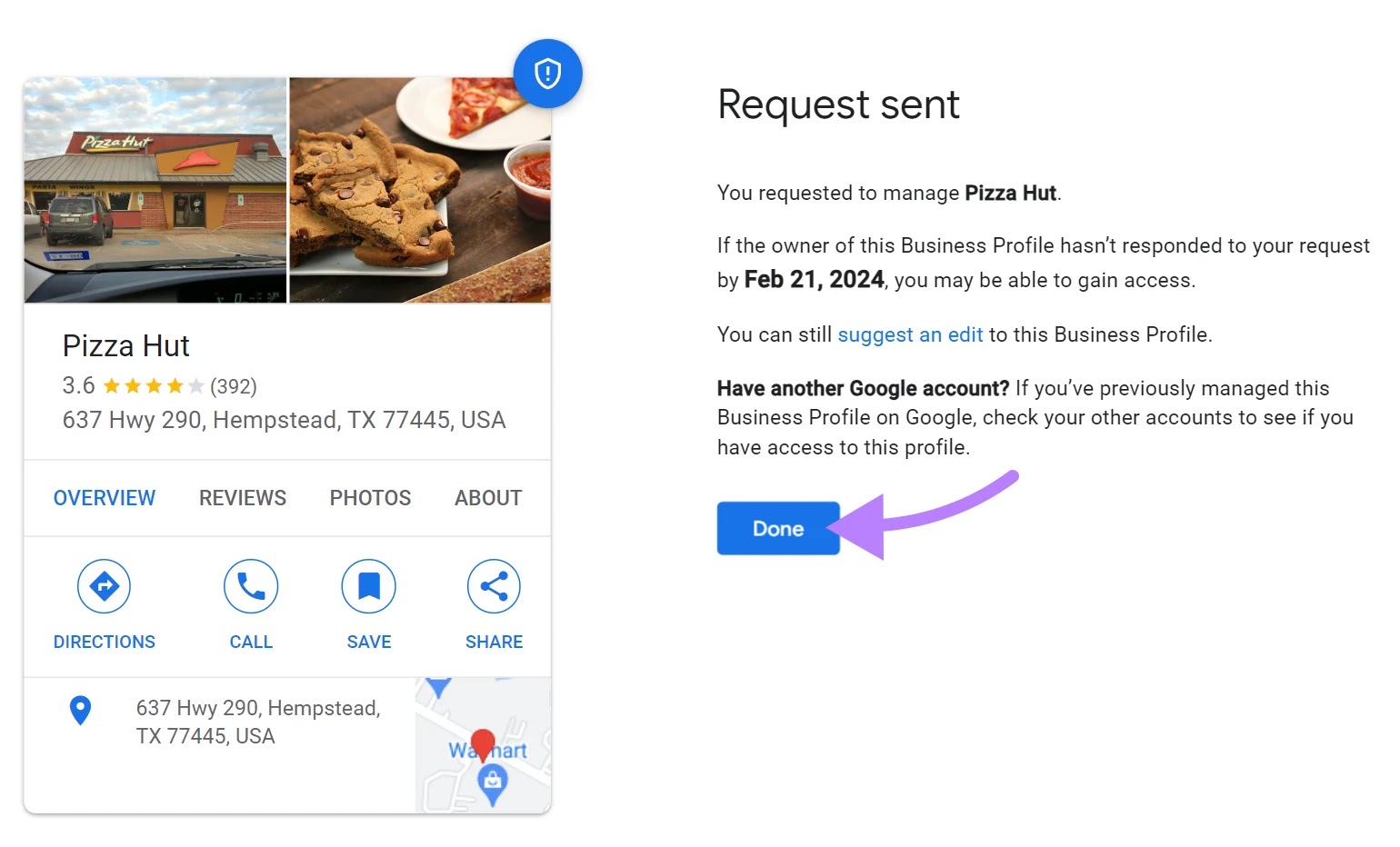
Further reading: Request ownership of a Business Profile by Google Support.
Step 5: Verify business ownership
After you click “Manage now,” the app will prompt you to provide ownership information.
Depending on your business type and circumstances, you may get instant validation or receive a verification code.
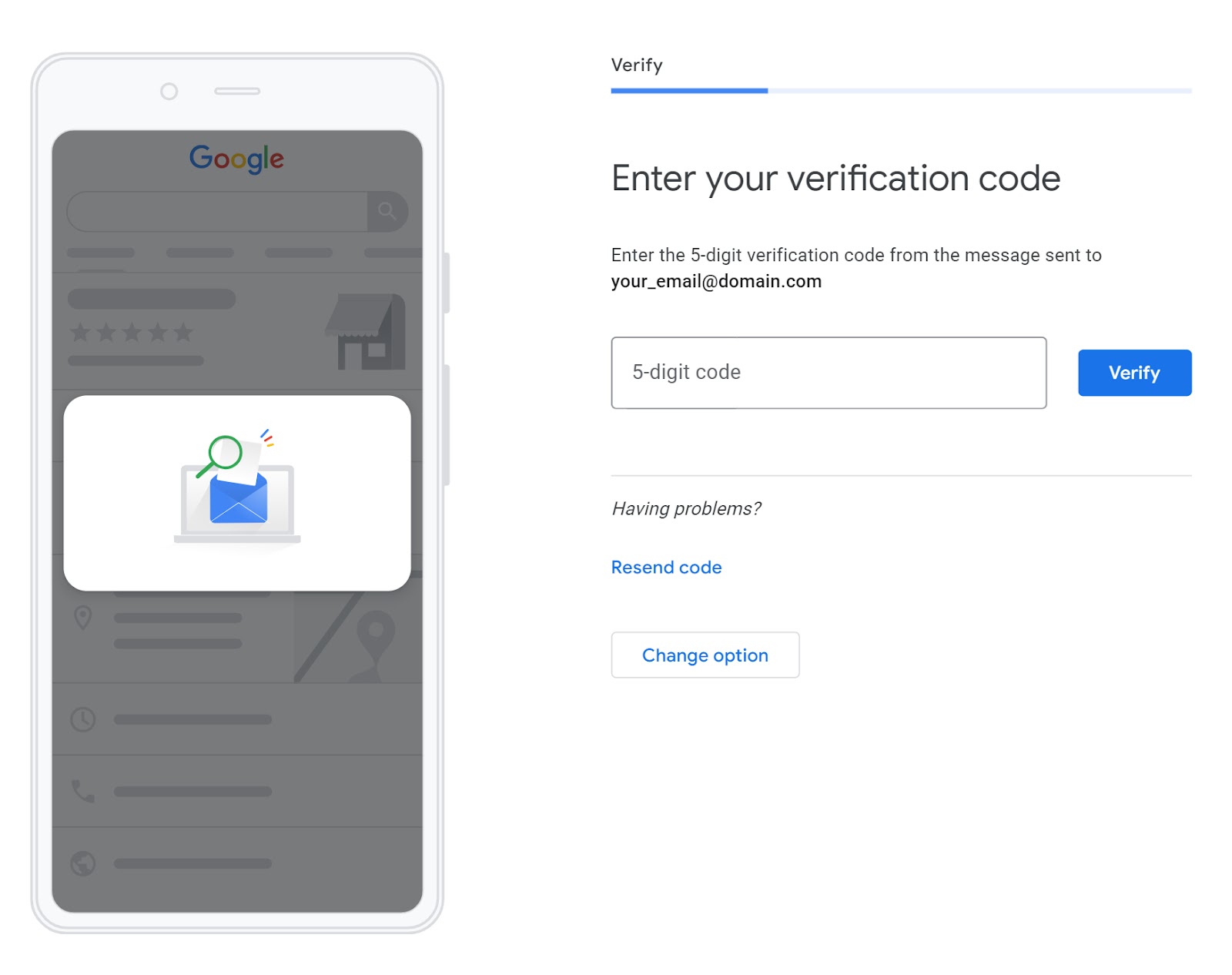
If a verification code is required, you may receive it via regular mail, email, or text. Enter the code into your Google Business dashboard to complete verification.
Then, you’ll gain full ownership of your Google Business Profile.
2. Your Listing Is Not Verified on Google Maps
Google prioritizes verified businesses to ensure reliability and accuracy in its listings.
Verification can be a part of the initial setup process or it can be completed afterward for existing profiles.
To verify your existing Google Business Profile, follow these steps:
- Log in: Access your profile at google.com/business and follow Google’s verification steps
- Verification method: Choose a verification option (phone, text, email, or video)
- Enter the code: Follow the instructions to verify, typically entering a code sent to you
- Review period: Verification reviews can take up to seven business days
- Confirmation: Once verified, you’ll receive a confirmation of your profile’s status
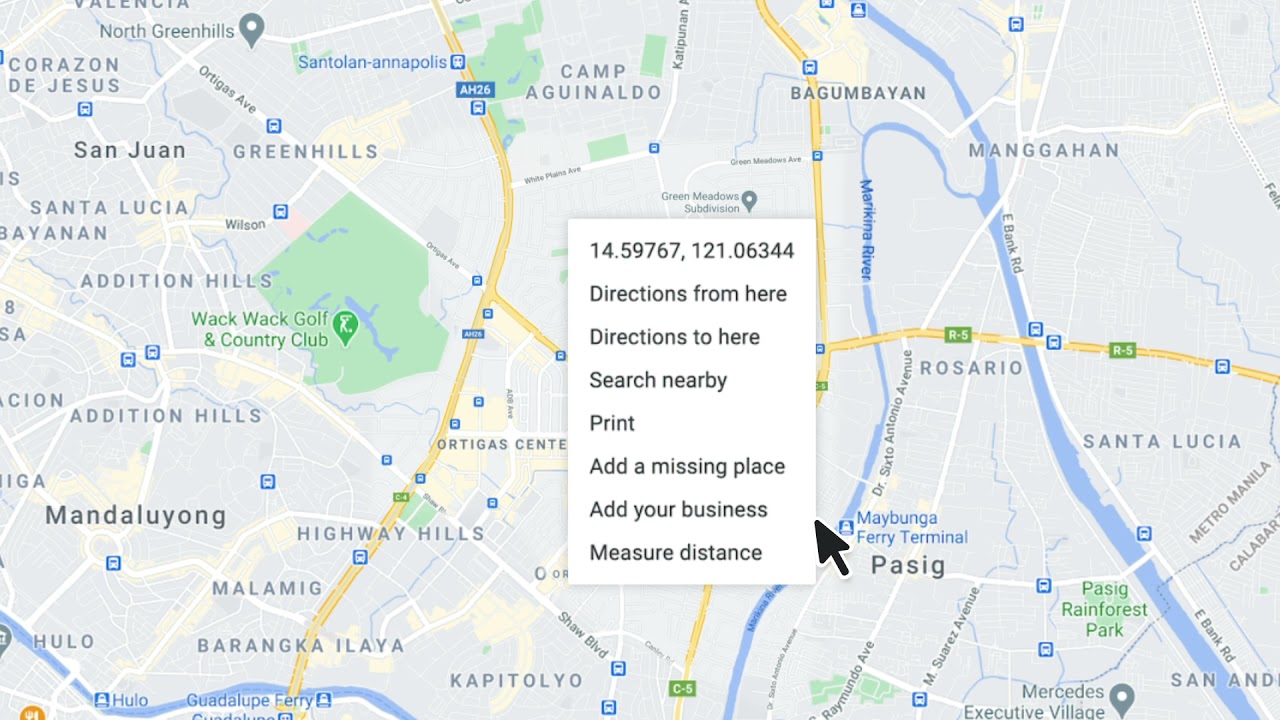
Here’s a video that sums up the GBP verification steps:
Further Reading: Learn more about setting up a Google Business Profile.
3. Your Website Is Not Optimized
Effective website optimization plays a significant role in enhancing your business’s visibility in organic search results. Which positively influences how your business appears on both Google Maps and Search.
Google’s algorithms consider various factors on a website to determine its relevance and authority. Like relevant content, mobile-friendliness, and user experience. These factors contribute to how well your business ranks in organic search results.
A higher ranking in search results can lead to better visibility in local searches, including on Google Maps.
It’s a key step toward improving your online visibility, particularly if you’re a new business with a limited online presence.
Efforts to optimize both your website and Google Business Profile are interconnected, as both elements can contribute to your overall online visibility.
Here’s a quick optimization checklist for your website:
- Homepage clarity: Make sure your homepage clearly explains your business and offerings
- Regular updates: Keep your website updated with relevant information about your products and services
- SEO: Follow SEO best practices sitewide, including using relevant keywords, meta tags, and mobile-friendly design
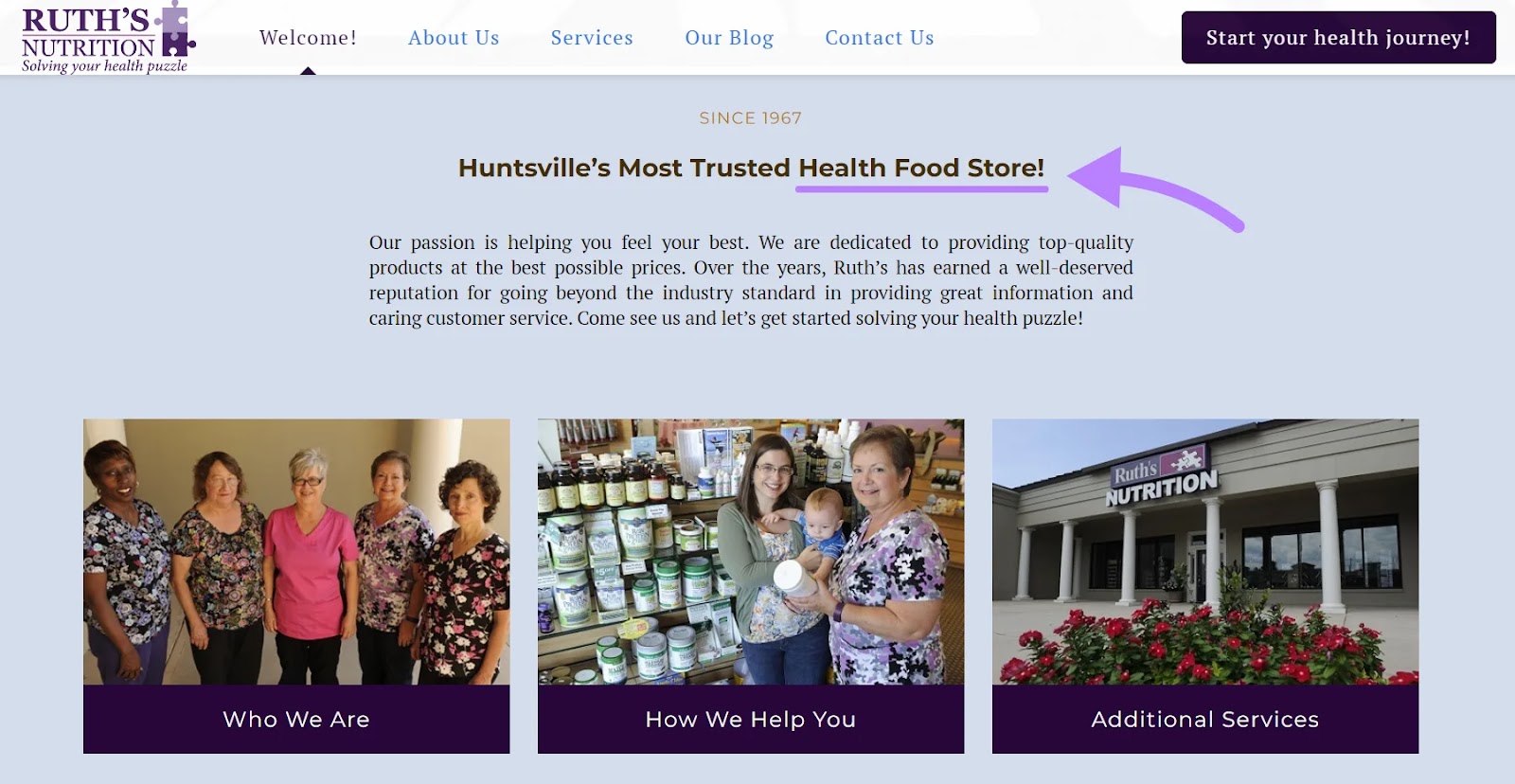
Consider Ruth’s Nutrition’s GBP as an example.
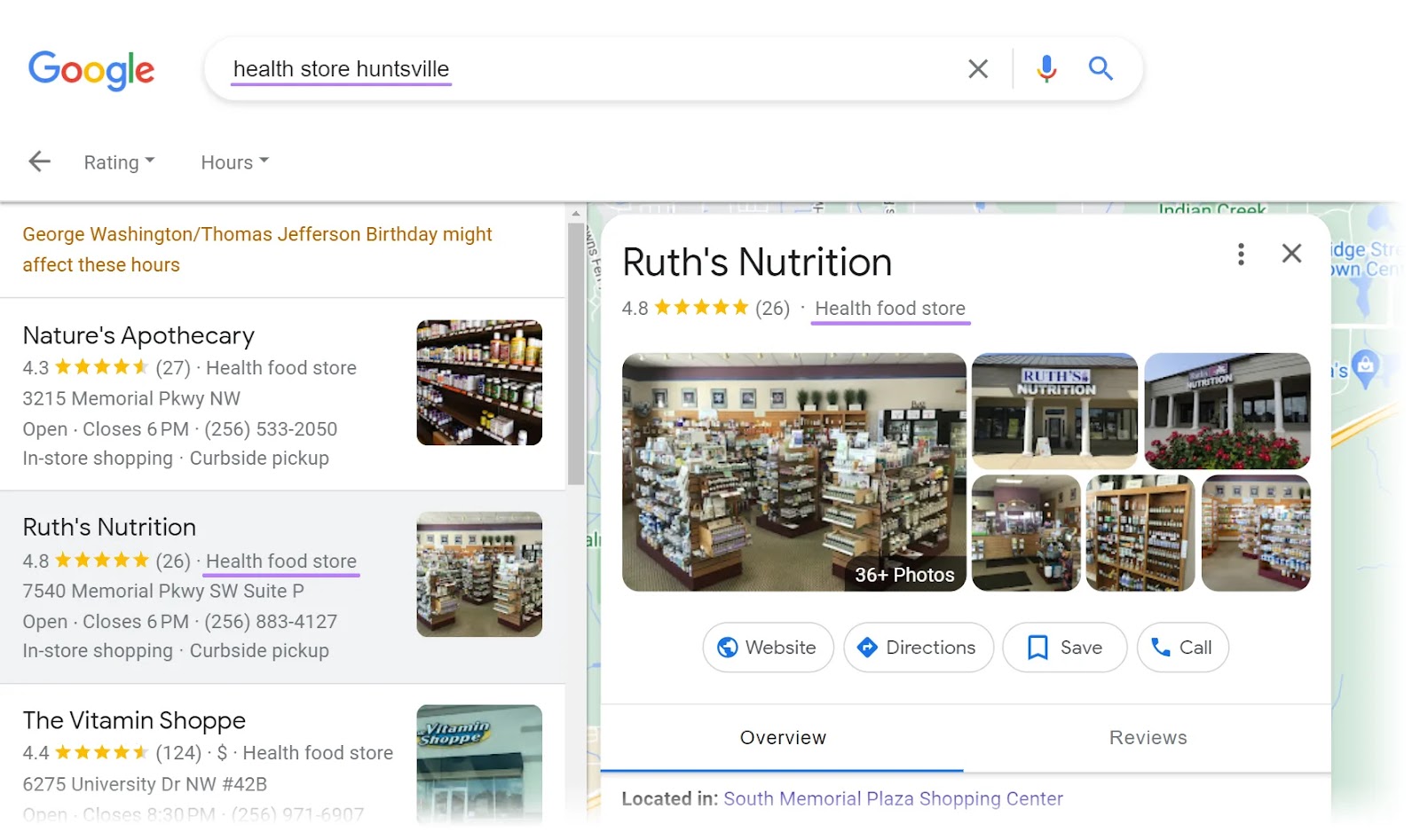
The business uses similar keywords across its profile and website to connect both platforms.
Pro tip
Regular updates and local SEO strategies can improve your search rankings and attract more customers.
4. Your Website Uses Too Few, Too Many, or the Wrong Keywords
Using too few keywords may lead to poor discoverability. Using irrelevant or incorrect keywords can attract the wrong audience. Or no audience at all.
Consider The Philadelphia Flower Market, which often appears in the top search results for the keyword “florist shop” for users located in that city.
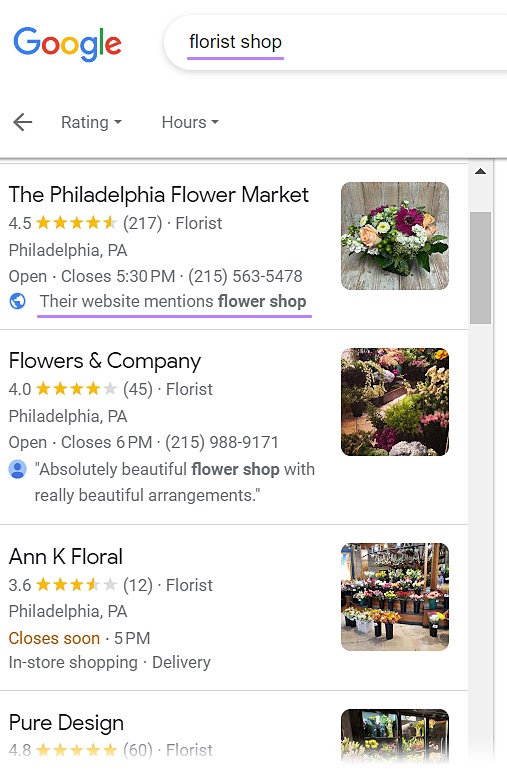
The website content includes a variation of the specific search query, “flower shop.”
By including relevant keywords in its website content, The Philadelphia Flower Market aligns more closely with users’ search intent. And signals a relevant connection to search engines.
Meanwhile, the GBP listing uses the terms “florist,” “flowers,” and “market.”