Why Is My Business Not Showing Up on Google? [+ Solutions]

For customers to find your business online, ranking on Google is key. Because 49% of shoppers start their search for a product or service on Google. 

Google not only dominates local business searches. It’s also the gateway for global exposure. Making your business discoverable by Google allows the search engine to direct both local and international customers to your site.

Considering that approximately 74% of in-store shoppers search online for store-related information before visiting, online visibility is vital for your business. 

To boost online visibility, optimize your website for search engines—using relevant keywords and a mobile-friendly design—and maintain an accurate, up-to-date business listing. 

That’s where your Google Business Profile, or GBP, comes in. It looks like this:
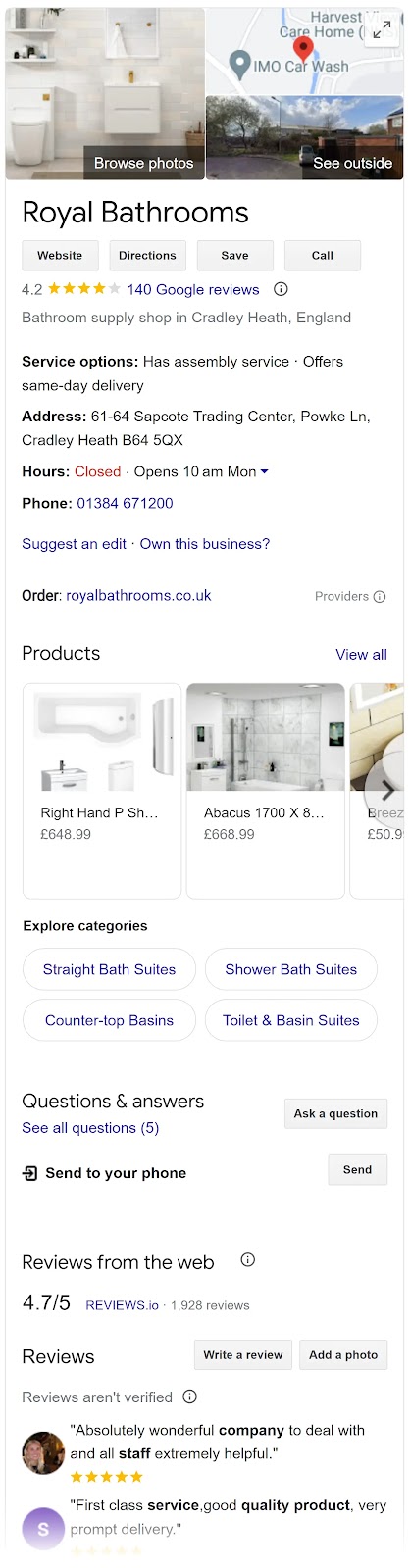
Google Business Profile for "Royal Bathrooms"

This profile pops up when someone looks you up or searches for your products or services on Google Search or Google Maps. Bridging the gap between an online presence and your store’s physical location.

Why Is It Important for Businesses to Show Up on Google Maps?

Although consumers rely heavily on online organic searches to find local businesses, Google Maps has an added advantage because it addresses local search queries specifically. 

Say you provide dry cleaning services. When someone searches for dry cleaning in their area on Google Maps, they’ll be able to see a listing with your address, hours of operation, and contact details. All pulled from the information you entered into your Google Business Profile. 

Visibility and accessibility on Google Maps complements your GBP, local, and overall SEO strategy. 

While a general Google Search helps users discover your business online, Google Maps targets those searching in your immediate area and vicinity—effectively capturing local demand.
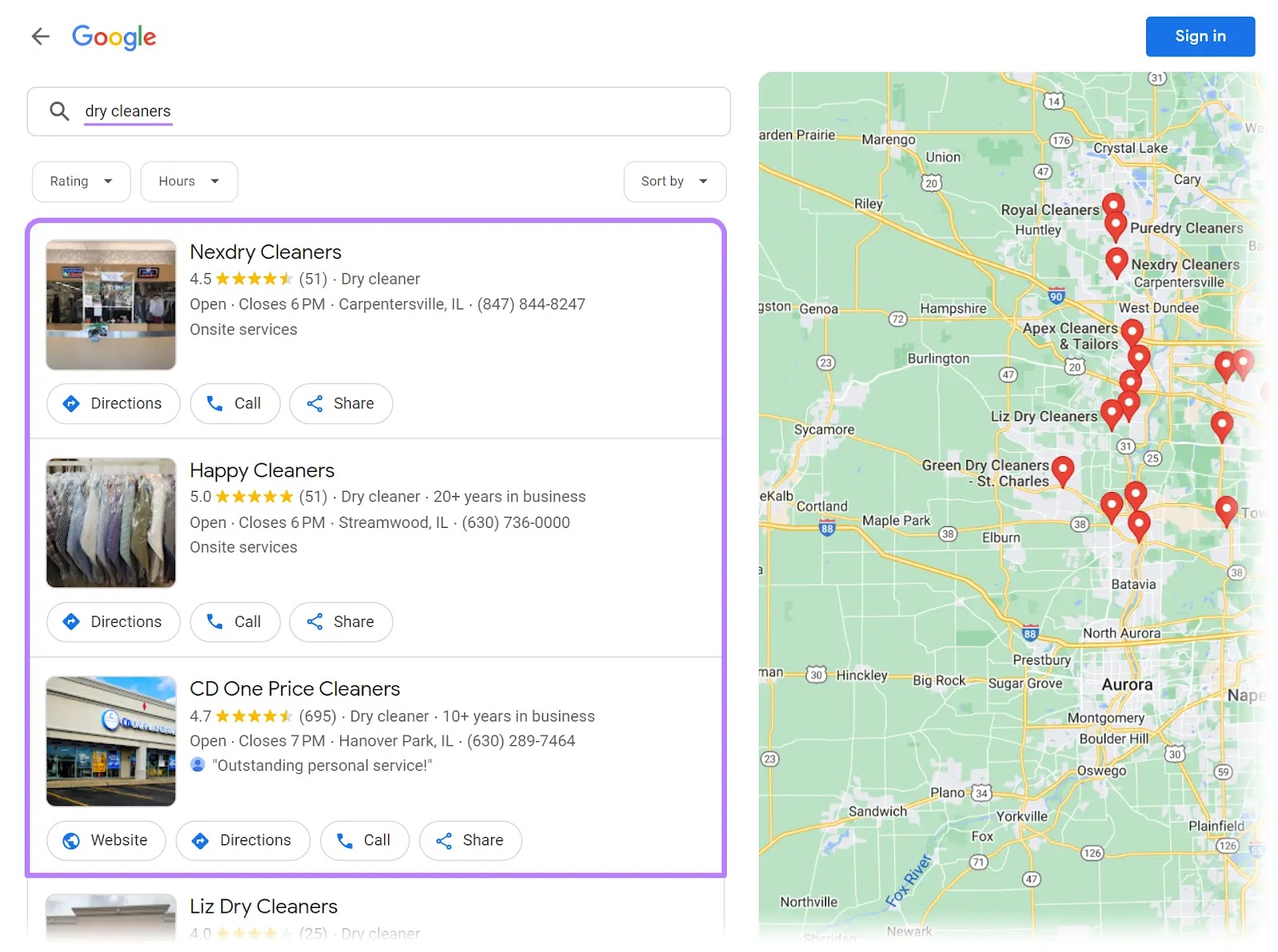
Google Maps results for "dry cleaners"

Essentially, showing up on Google Maps can significantly increase your business’s foot traffic and local sales.

Further reading8 Google Maps Marketing Tactics to Drive Local Business

Your business will be visible only if you set up your Google Business Profile correctly. If you’ve created one but still aren’t showing up on Google, there may be many reasons why. 

Possible Reasons Why Your Business Isn’t Showing Up on Google

1. You Need to Claim an Existing Business Profile

Your business might not appear on Google Maps if you still need to claim your GBP listing. 

An unclaimed listing means the business information is present on Google Maps but still needs to be verified or managed by the business owner. 

Both claiming and verifying your business listing are essential for managing your online presence and ensuring the accuracy of your information. 

To check and claim ownership of your business, follow some simple steps: 

Step 1: Sign in to GBP 

Log in to GBP on your desktop or the mobile app using your Google Account. Click the Google apps button next to your profile icon, and find “Business Profile Manager” in the top-right corner of the menu.
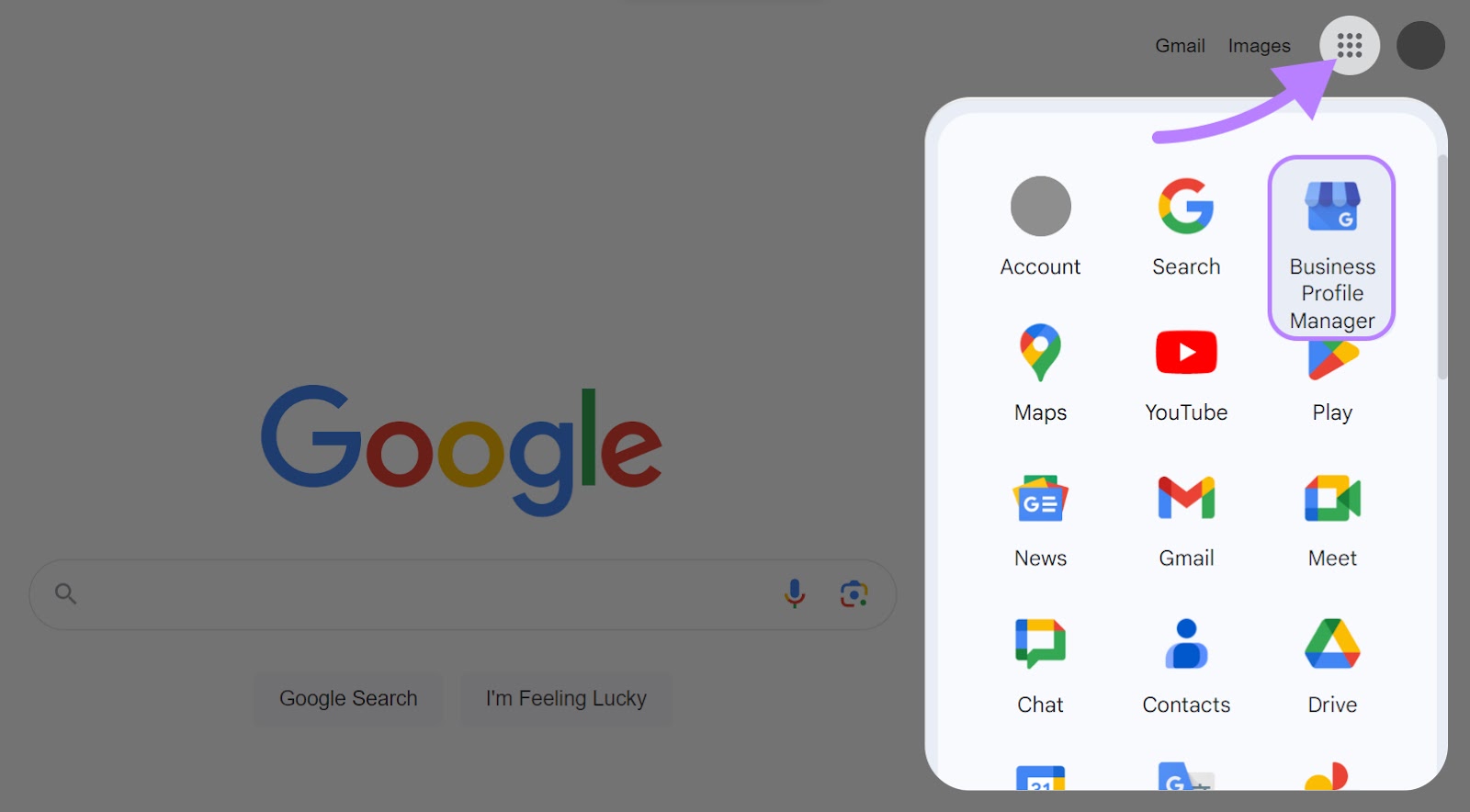
“Business Profile Manager” selected from Google apps

Step 2: Claim existing ownership of a verified Google Business Profile

If you own and have verified your business, Google will redirect you to the GBP dashboard. If not, move on to step three to claim your business.

Step 3: Access your business profile

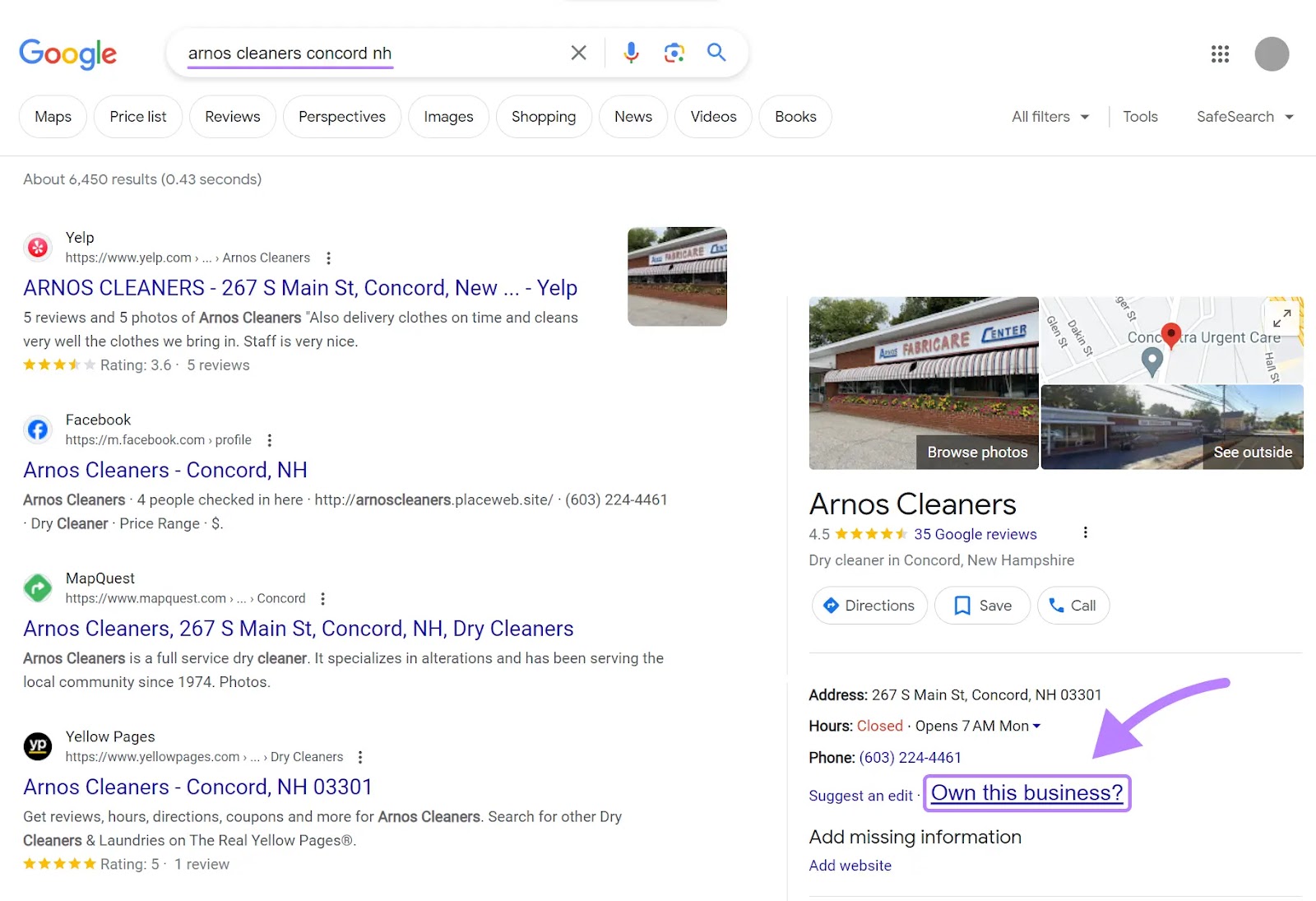
Search for your business name and location on Google.com. If your profile appears on the right-hand side, click “Own this business?

“Own this business?” link highlighted under "Arnos Cleaners" business on Google

Step 4: Request for claim 

A prompt will appear on the screen. Click “Manage now.”
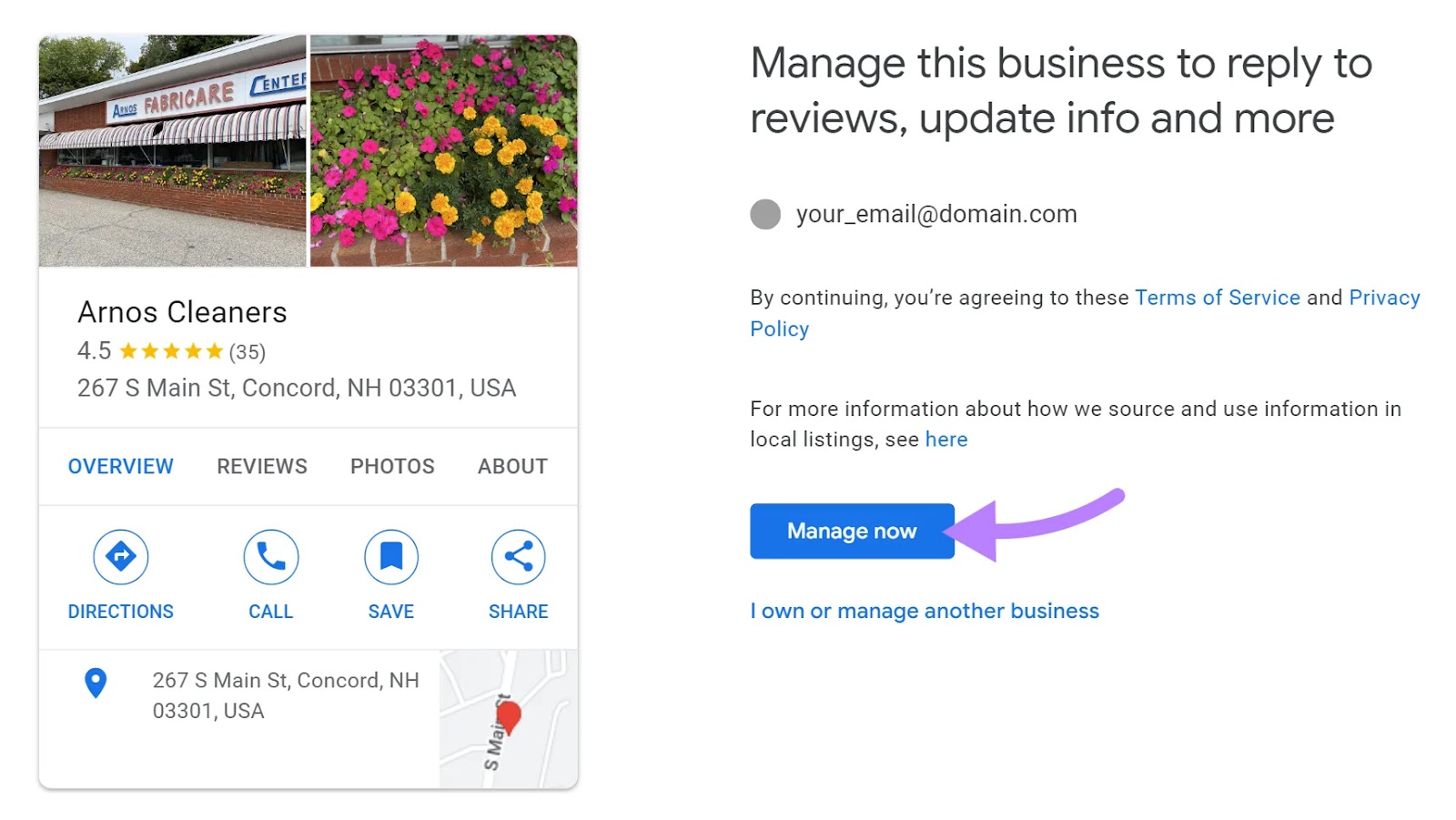
“Manage now" selected for "Arnos Cleaners" business

If someone else has already claimed this business, you might see something like this:
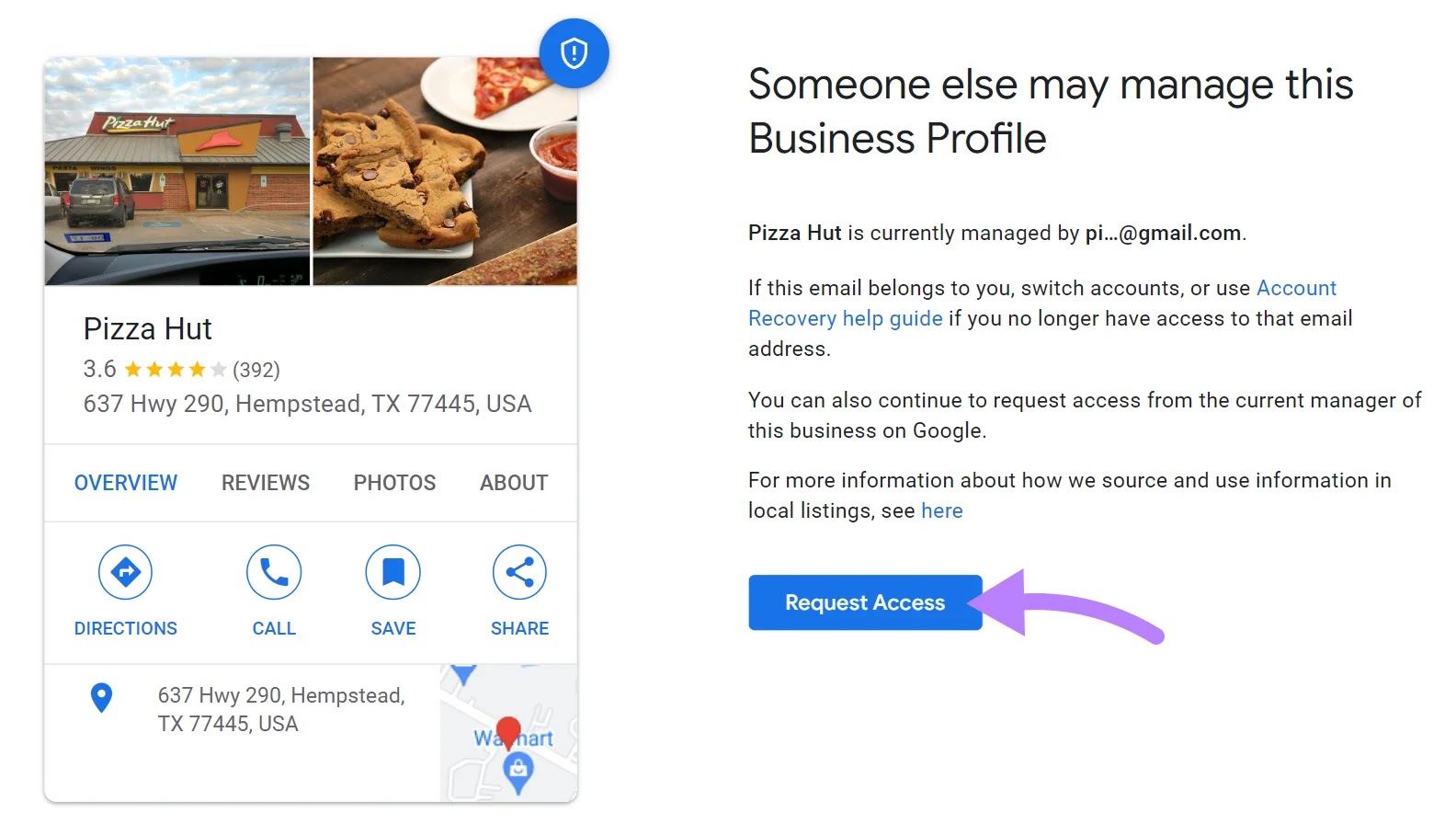
"Someone else mat manage this Business Profile" screen

Click “Request Access.” Google will then ask about your level of ownership.
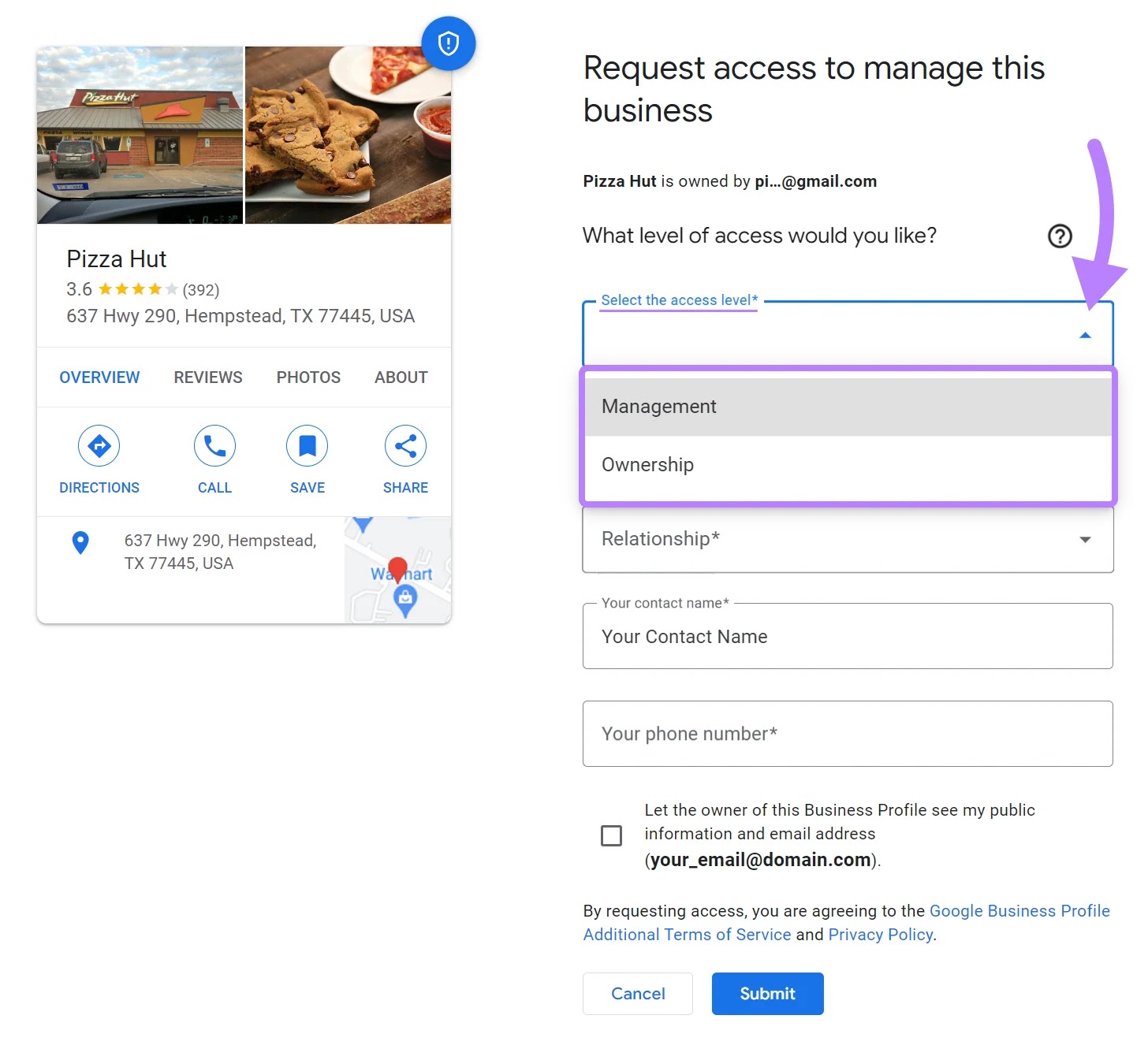
"Request access to manage this business" form in GBP

Fill in the required fields, and tick the option to let the business owner see your details.

If you don’t select this option, you won’t be able to move forward. Once done, hit “Submit.”
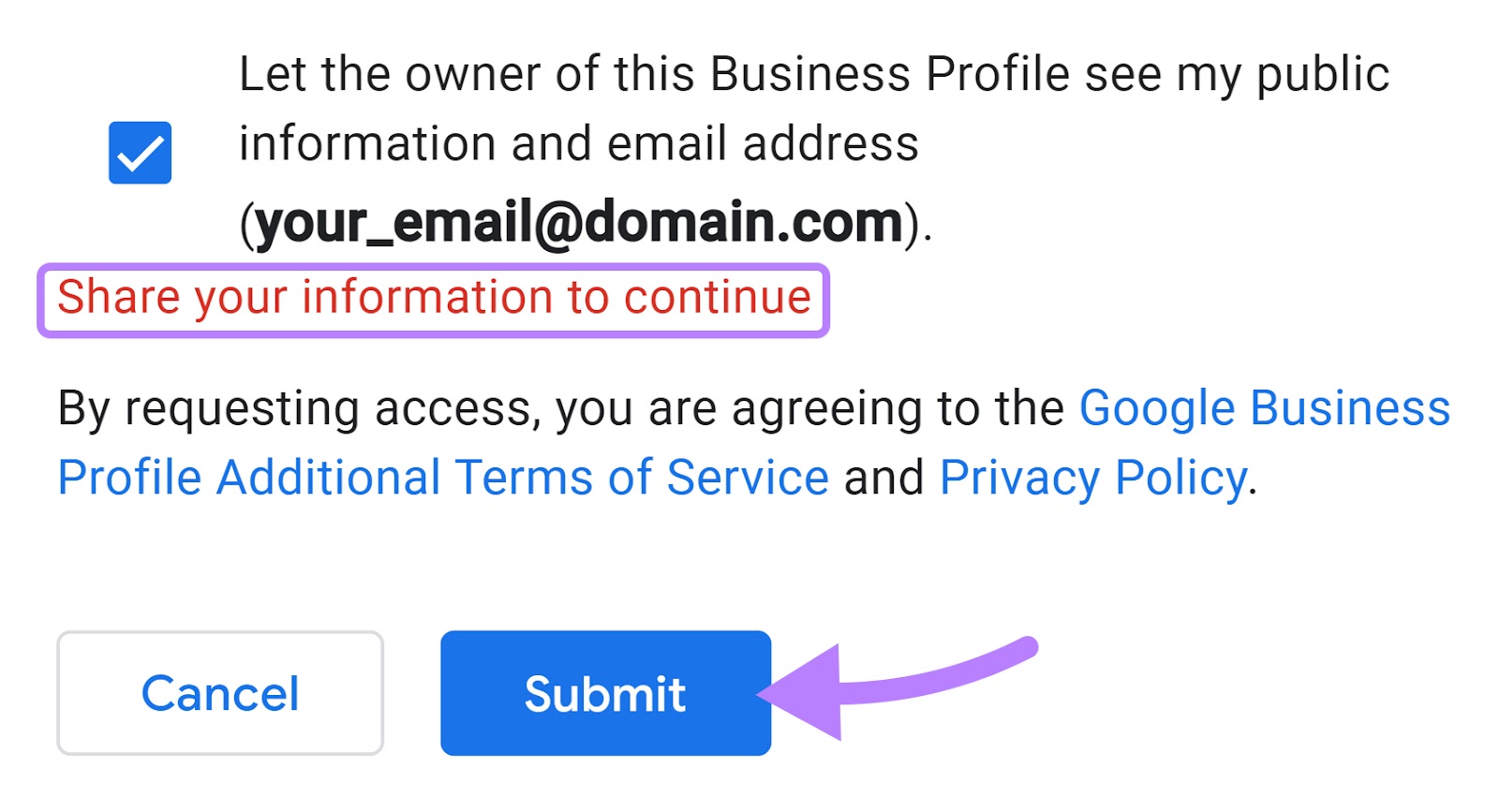
Submit your request to Google

You will then get a confirmation prompt. And a date of when you should get ownership of your business profile if the current owner doesn’t respond.

Click “Done” and wait until you get access to your GBP.
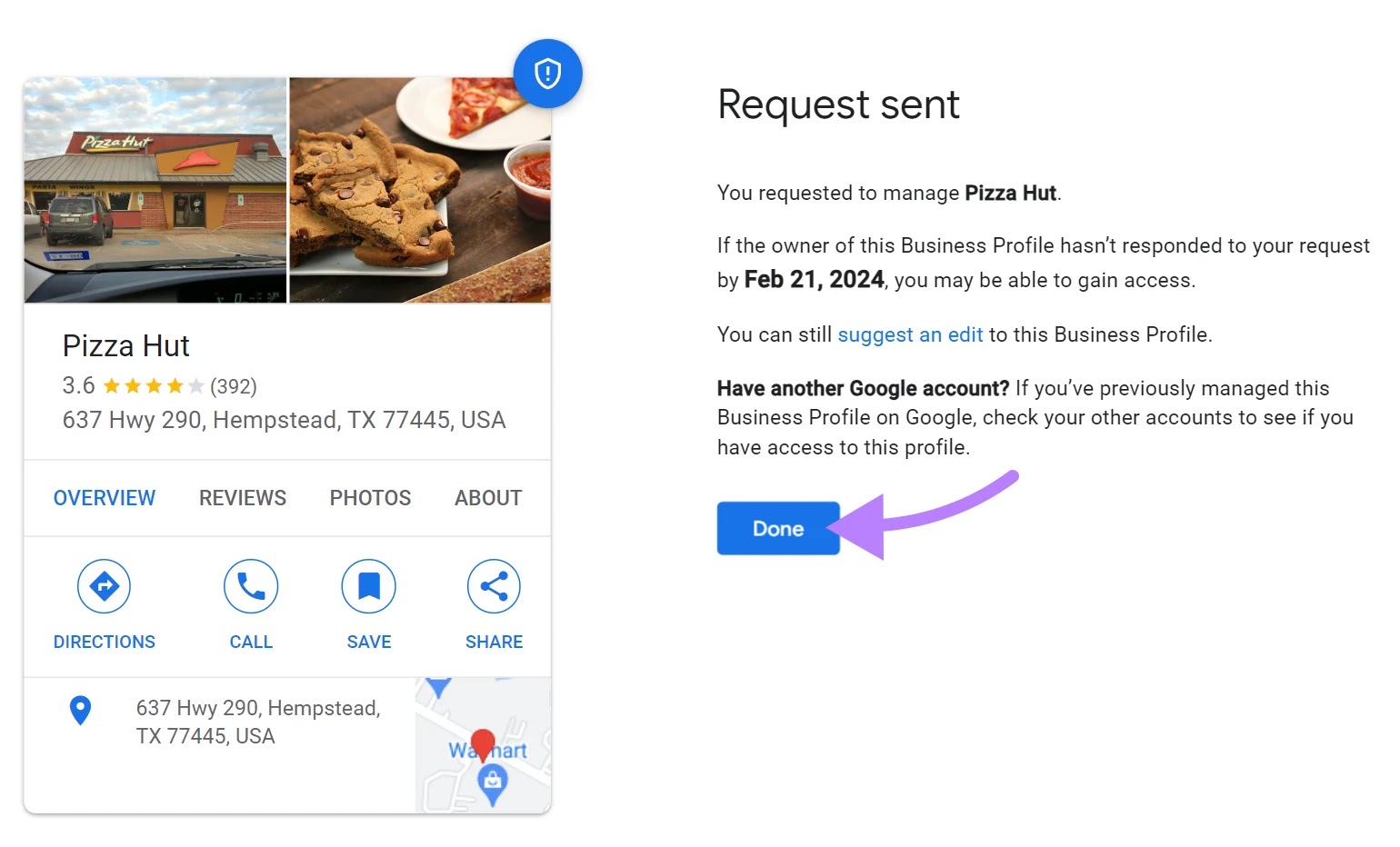
"Request sent" screen on Google

Further readingRequest ownership of a Business Profile by Google Support.

Step 5: Verify business ownership 

After you click “Manage now,” the app will prompt you to provide ownership information.

Depending on your business type and circumstances, you may get instant validation or receive a verification code.
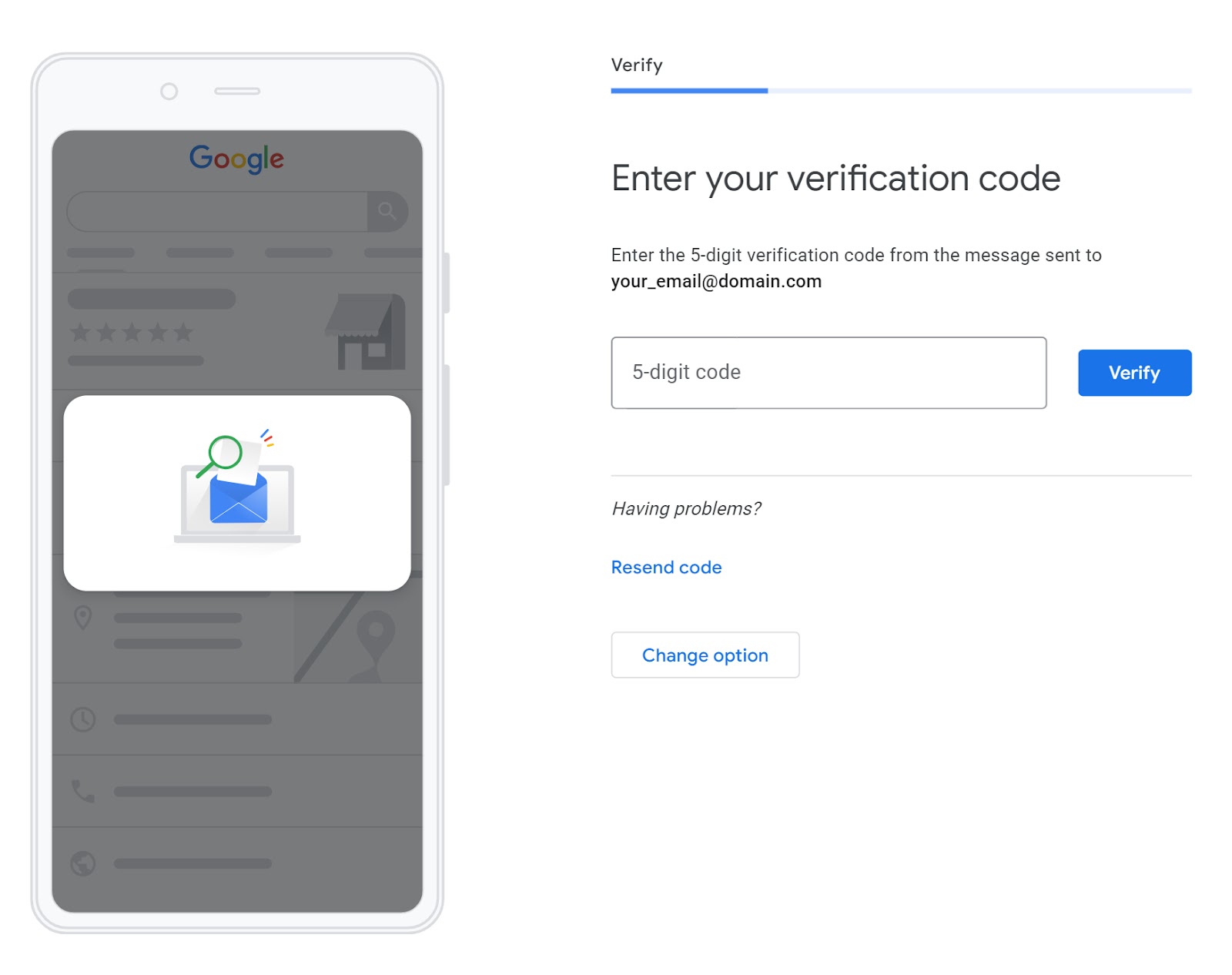
"Enter your verification code" screen in GBP

If a verification code is required, you may receive it via regular mail, email, or text. Enter the code into your Google Business dashboard to complete verification.

Then, you’ll gain full ownership of your Google Business Profile.

2. Your Listing Is Not Verified on Google Maps 

Google prioritizes verified businesses to ensure reliability and accuracy in its listings.

Verification can be a part of the initial setup process or it can be completed afterward for existing profiles.

To verify your existing Google Business Profile, follow these steps:

  • Log in: Access your profile at google.com/business and follow Google’s verification steps
  • Verification method: Choose a verification option (phone, text, email, or video)
  • Enter the code: Follow the instructions to verify, typically entering a code sent to you
  • Review period: Verification reviews can take up to seven business days
  • Confirmation: Once verified, you’ll receive a confirmation of your profile’s status

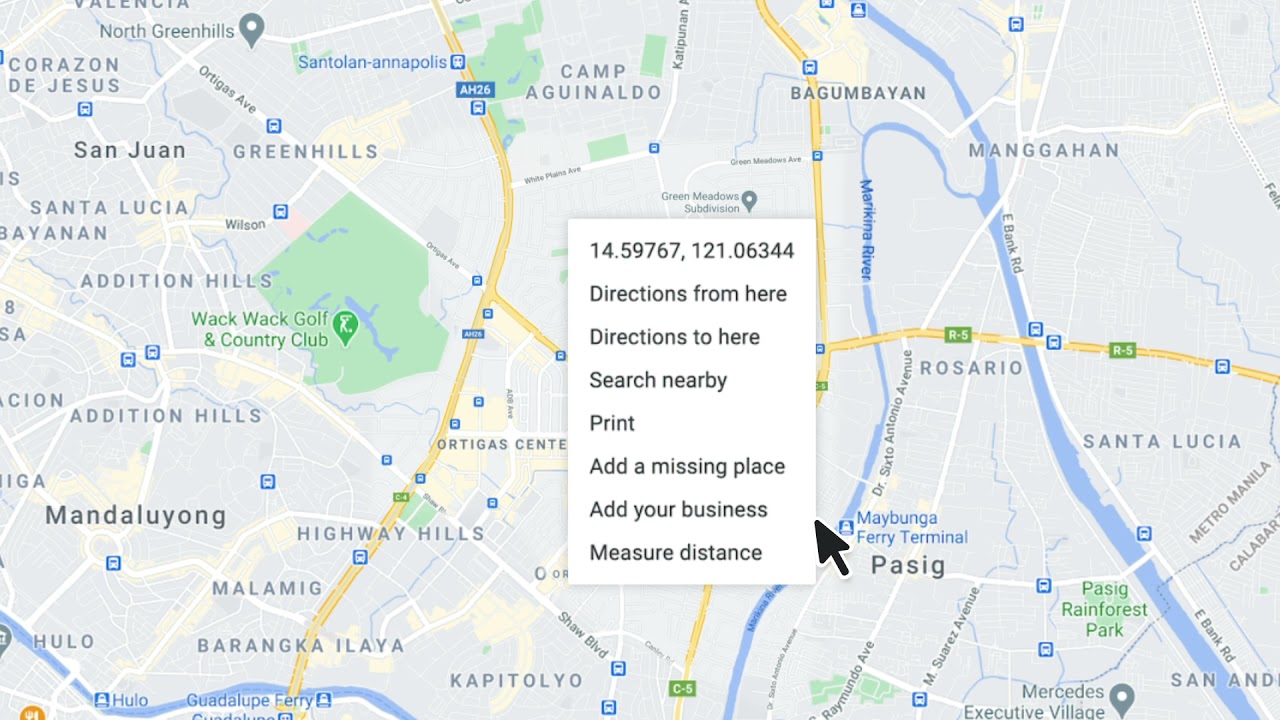
Here’s a video that sums up the GBP verification steps:
Youtube video thumbnail

Further Reading: Learn more about setting up a Google Business Profile.

3. Your Website Is Not Optimized 

Effective website optimization plays a significant role in enhancing your business’s visibility in organic search results. Which positively influences how your business appears on both Google Maps and Search. 

Google’s algorithms consider various factors on a website to determine its relevance and authority. Like relevant content, mobile-friendliness, and user experience. These factors contribute to how well your business ranks in organic search results. 

A higher ranking in search results can lead to better visibility in local searches, including on Google Maps.

It’s a key step toward improving your online visibility, particularly if you’re a new business with a limited online presence

Efforts to optimize both your website and Google Business Profile are interconnected, as both elements can contribute to your overall online visibility.

Here’s a quick optimization checklist for your website:

  1. Homepage clarity: Make sure your homepage clearly explains your business and offerings
  2. Regular updates: Keep your website updated with relevant information about your products and services 
  3. SEO: Follow SEO best practices sitewide, including using relevant keywords, meta tags, and mobile-friendly design

Consider Ruth’s Nutrition’s GBP as an example. 
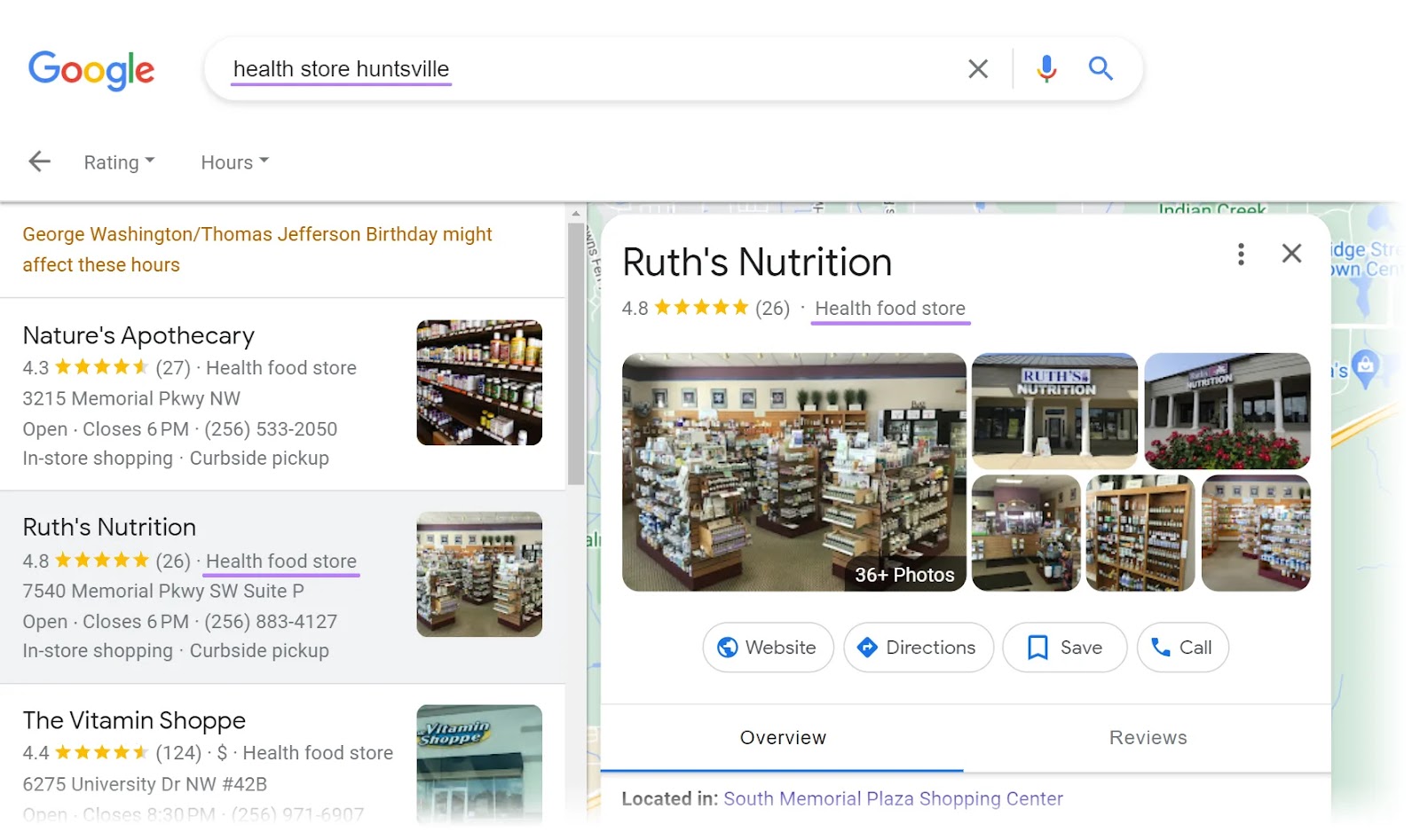
Ruth’s Nutrition’s Google Business Profile with "health food store" category highlighted

The business uses similar keywords across its profile and website to connect both platforms.
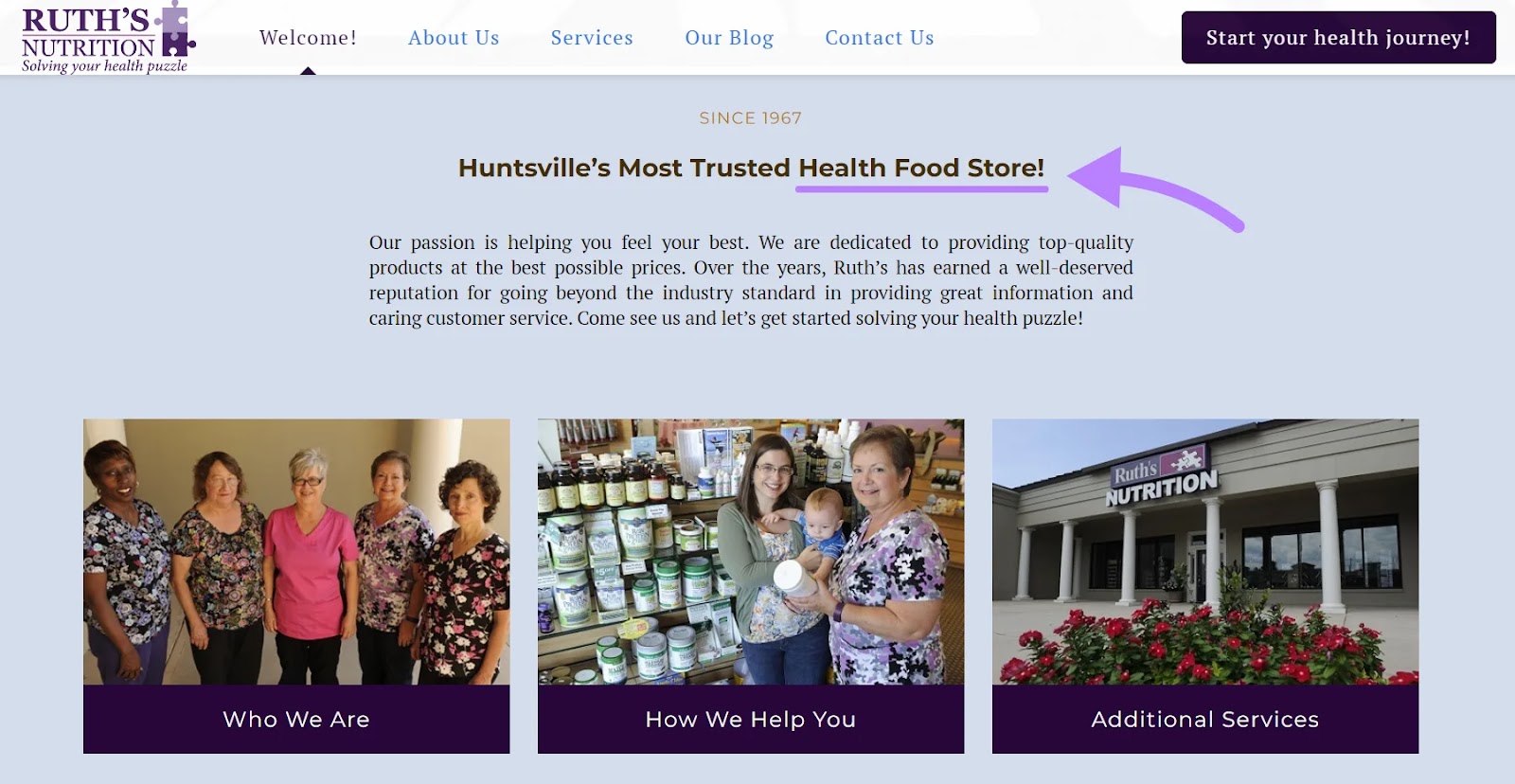
Ruth’s Nutrition’s website with "health food store" keyword highlighted

Pro tip

Regular updates and local SEO strategies can improve your search rankings and attract more customers. 

4. Your Website Uses Too Few, Too Many, or the Wrong Keywords

Using too few keywords may lead to poor discoverability. Using irrelevant or incorrect keywords can attract the wrong audience. Or no audience at all.

Consider The Philadelphia Flower Market, which often appears in the top search results for the keyword “florist shop” for users located in that city. 
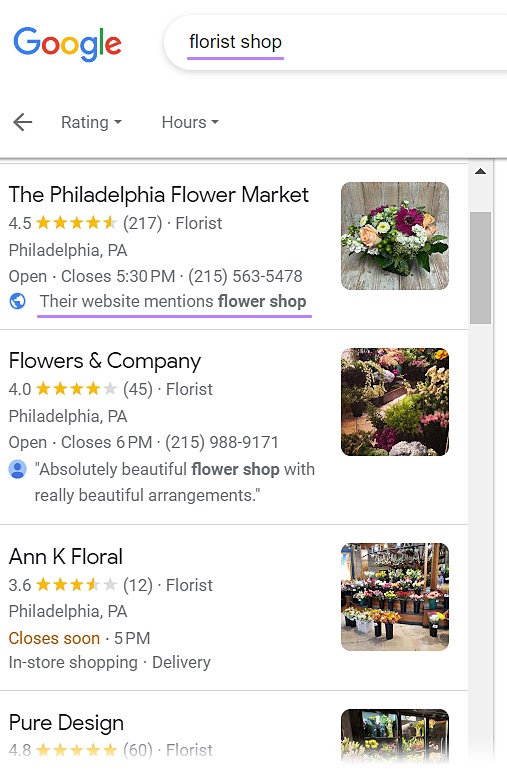
The Philadelphia Flower Market appears in the top search results for "florist shop" search

The website content includes a variation of the specific search query, “flower shop.”

By including relevant keywords in its website content, The Philadelphia Flower Market aligns more closely with users’ search intent. And signals a relevant connection to search engines.

Meanwhile, the GBP listing uses the terms “florist,” “flowers,” and “market.” 

Local SEO: What Is It & How to Do It

What Is Local SEO? 

Local SEO is the process of optimizing your online presence to increase local traffic, visibility, and brand awareness. 

Common local SEO tasks include:

  • Optimizing your Google Business Profile
  • Finding local keywords
  • Creating locally relevant content

Among others.

And any business that has a physical location or serves a geographic area can benefit from local SEO. 

This is an example of a local search result on Google:

an example of a local search result on Google

Local SEO can help your business appear in Google results for searches like these.

This article explains why local SEO is important, how it works, and how to do local SEO. 

Tip: create a free Semrush account so you can follow along. 

Why Is Local SEO Important? 

The best way to get your site in front of people in your area is to use local SEO marketing.

Over 75% of consumers in the United States, France, Germany, and the United Kingdom use Google when looking for business information. 

Making it the most dominant search engine for local search in those (and many other) countries. By far. 

And Google Maps searches for “shopping near me” have grown globally by more than 100% year over year. 

Mobile searches for “store open near me” also grew by over 250% in a recent two-year period. And “where to buy” + “near me” keywords by more than 200%. 

That’s hundreds of millions of searches every day. 

How Local SEO Works 

On top of Google’s usual ranking factors, its local search algorithms use three main factors to help find the best match:

  • Relevance (how closely related a Google Business Profile result is to the words a searcher uses in their query)
  • Distance (how far Google believes a user is from a business when they search)
  • Prominence (how important Google thinks a business is to its potential customers)

Then, Google displays two types of search results for local searches.

The “local pack” results (Google Maps and Business Profiles) and organic results. 

Organic results are the “normal” blue link search results we’re all used to seeing on Google. 

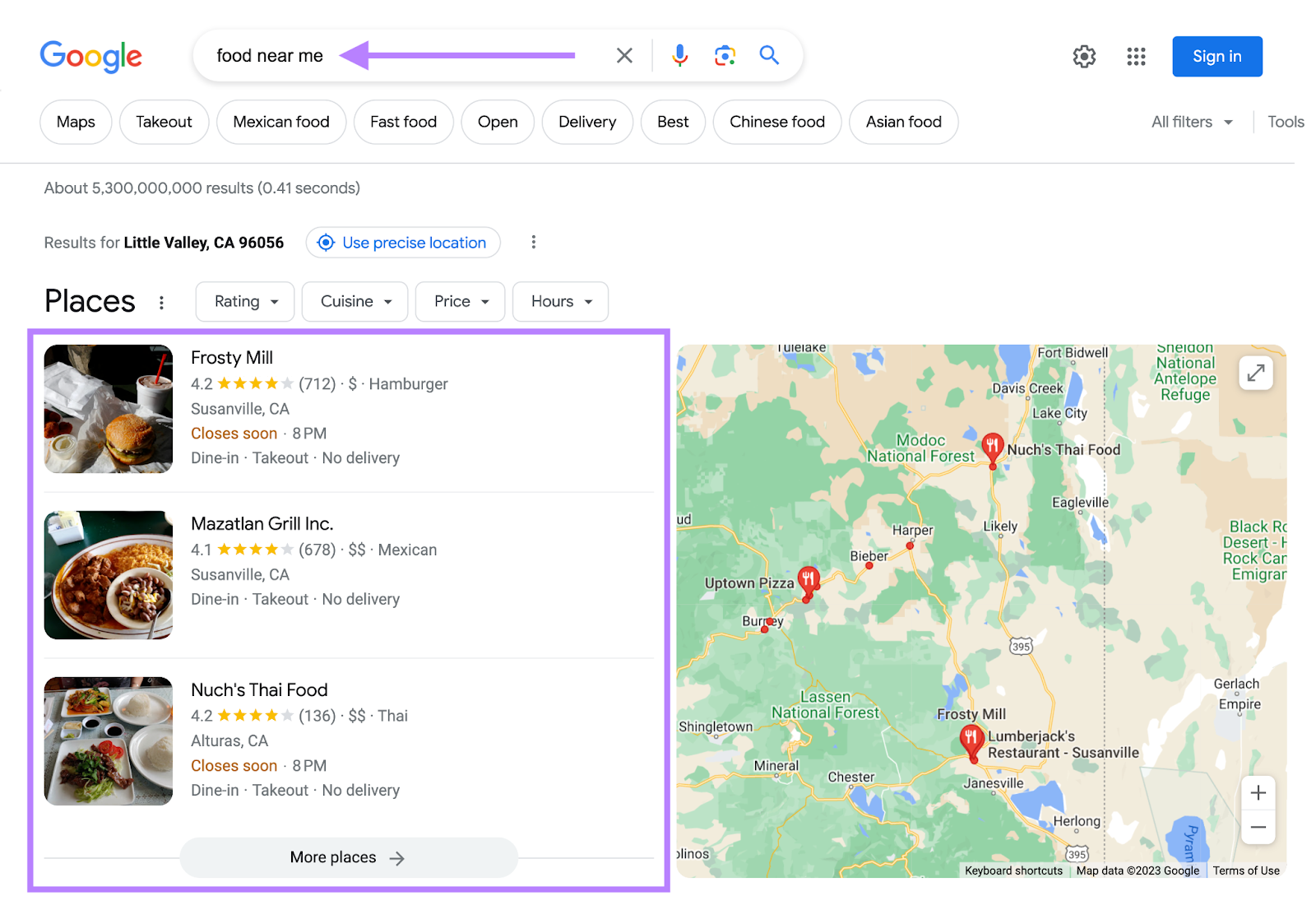
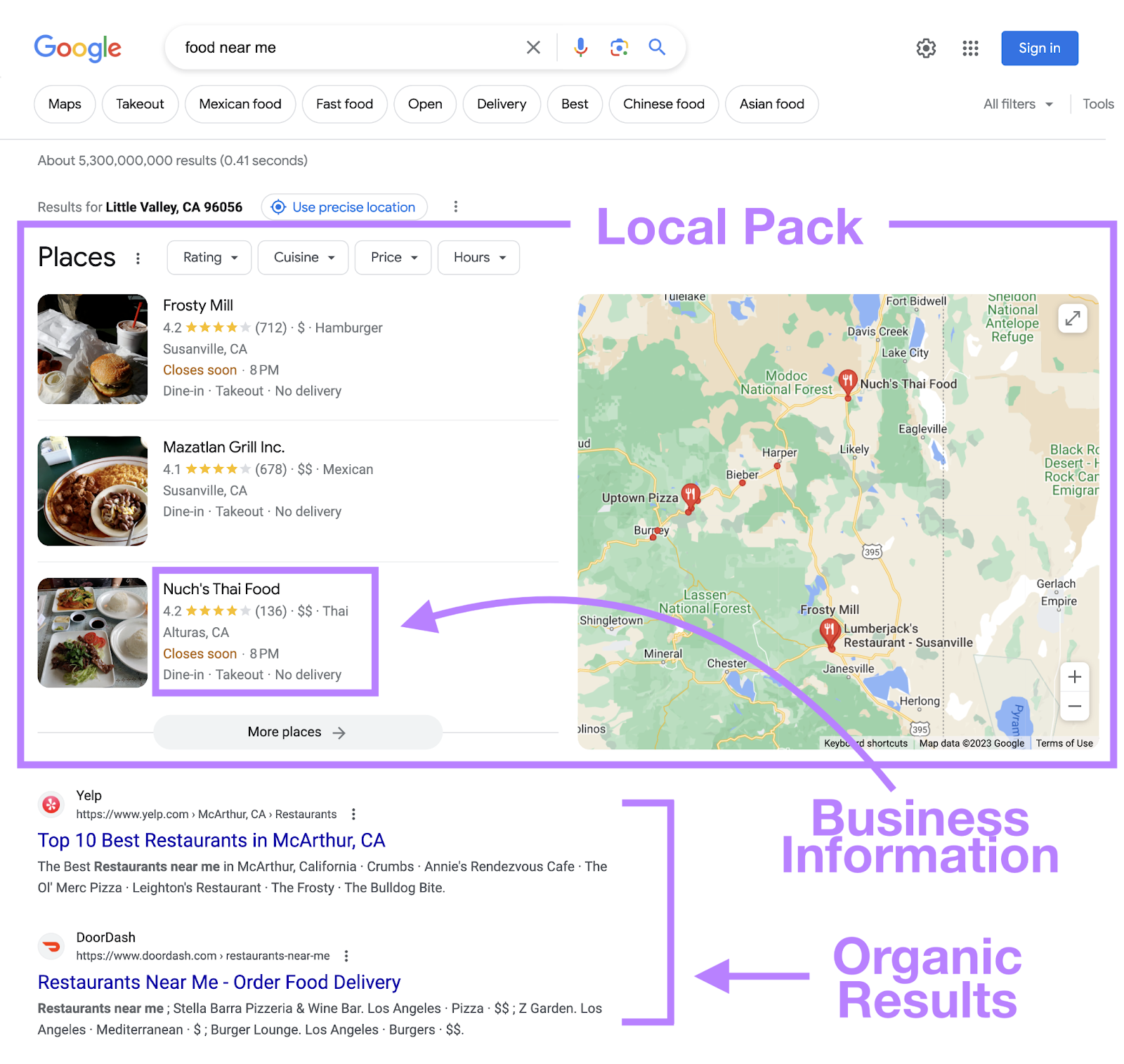
local pack (or map pack) is a Google feature that shows the top local business listings and a map. 

Like this:

local pack in Google search for "food near me"

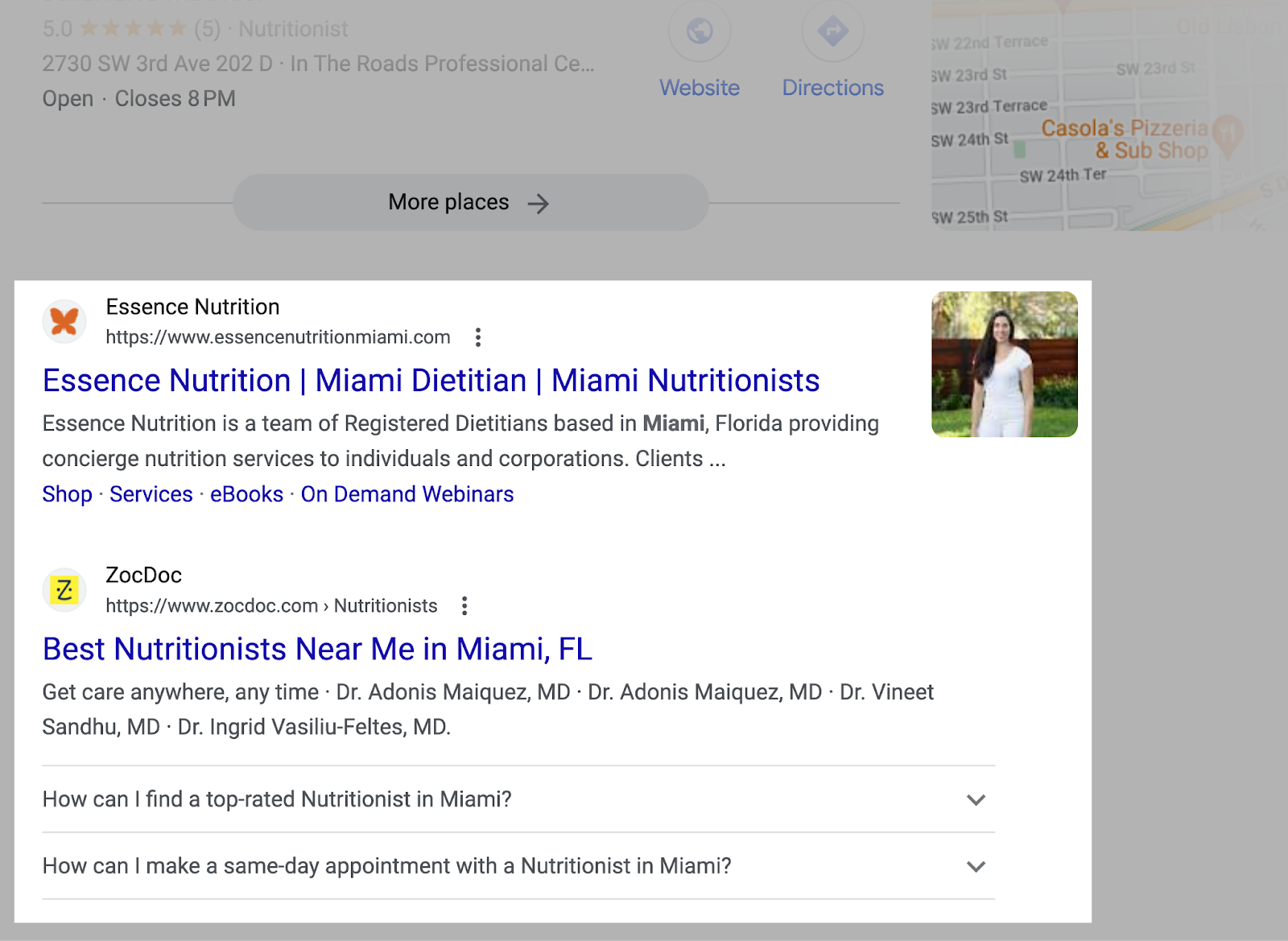
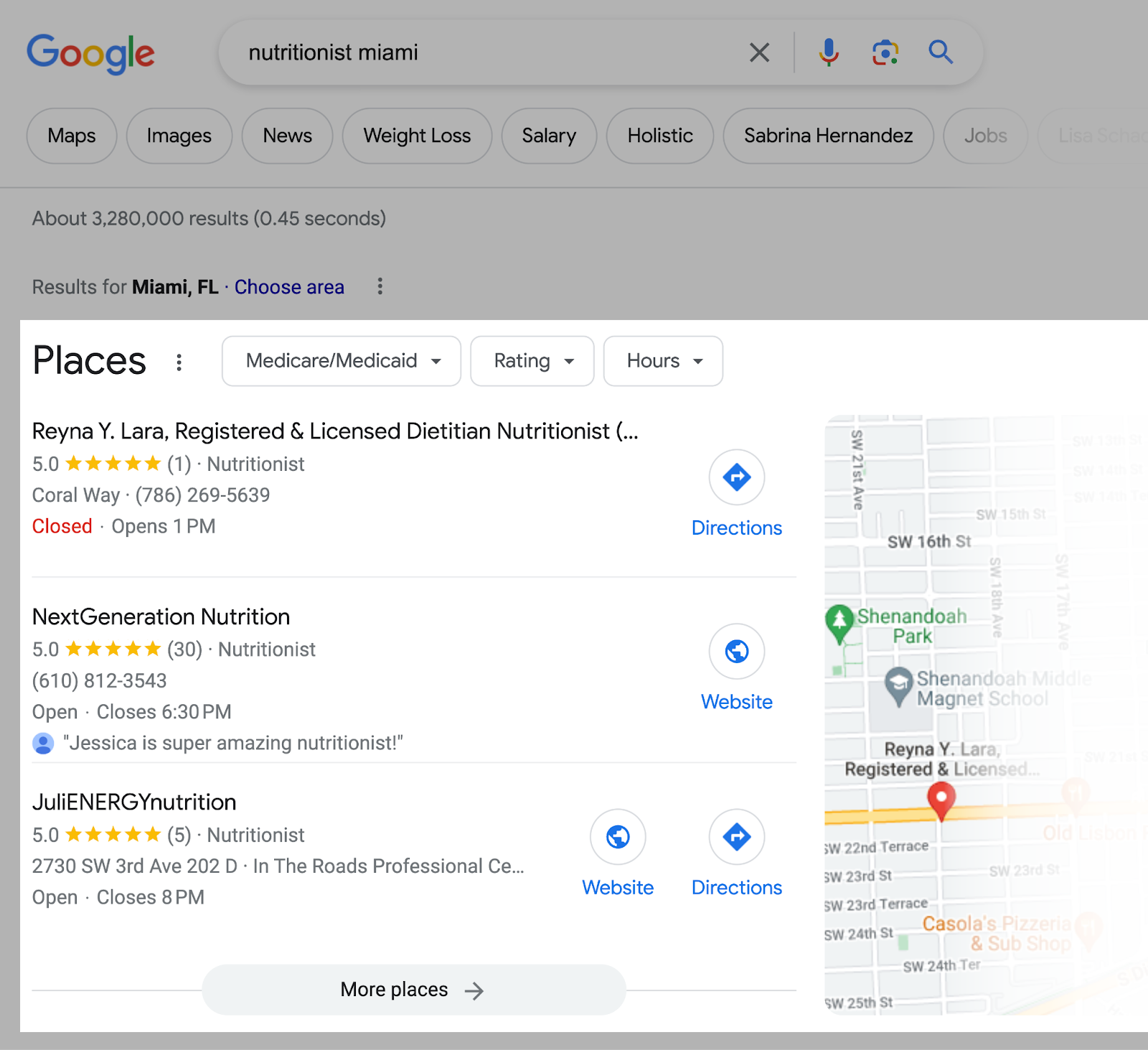
For example, when you search for “nutritionist miami,” Google displays a local pack at the very top.

Google search for “nutritionist miami”

And the “regular” organic results underneath. 

Organic results in Google for “nutritionist miami”

But Google doesn’t just display local results for queries that contain a city, state, or “near me” keyword. 

If Google believes the intent of your search is local, it’ll display local results.

Even if your search isn’t explicitly local. 

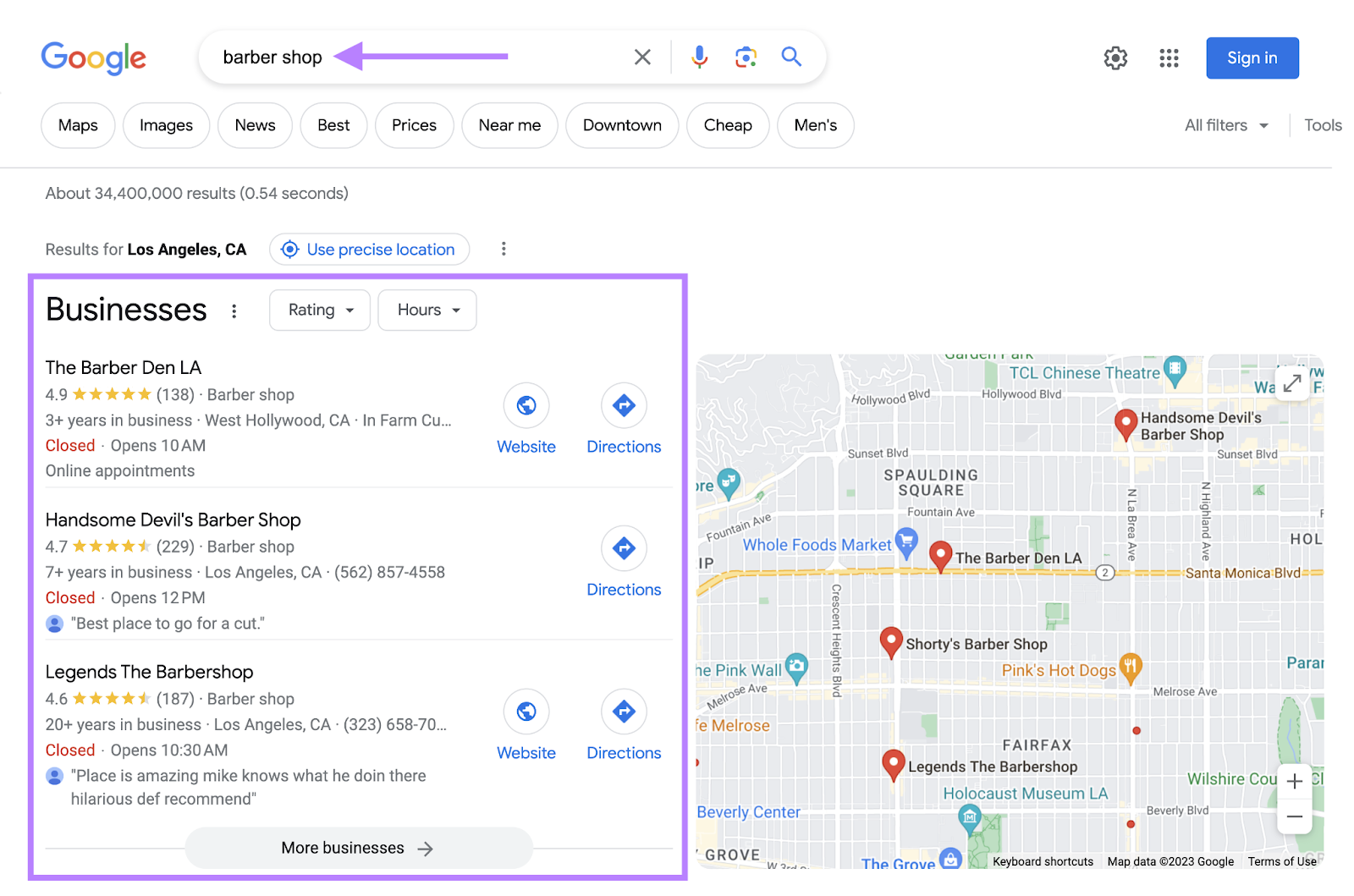
For example, if you were in Los Angeles and searched for “barber shops,” Google would still display a local pack for Los Angeles barber shops. 

Like this:

Google search in Los Angeles for “barber shops”

How to Do Local SEO 

Now it’s time to create a strategy so you can increase your local rankings and boost traffic. The following steps will help you get started. 

Tip: Remember—you can create a free Semrush account to follow along. 

Do Local Keyword Research

Keyword research for local SEO is the process of finding keywords people use when searching for local products and services. 

Ranking for these keywords drives highly targeted local traffic to your site and sends more customers your way. 

To get started, you need a short list of keywords people can use to find your local business. 

Here are a few different ways to start.

Research Your Competitors

Seeing what your competitors are doing is an easy way to start gathering ideas. 

One of the best ways to do that is to use Semrush’s Organic Research tool.

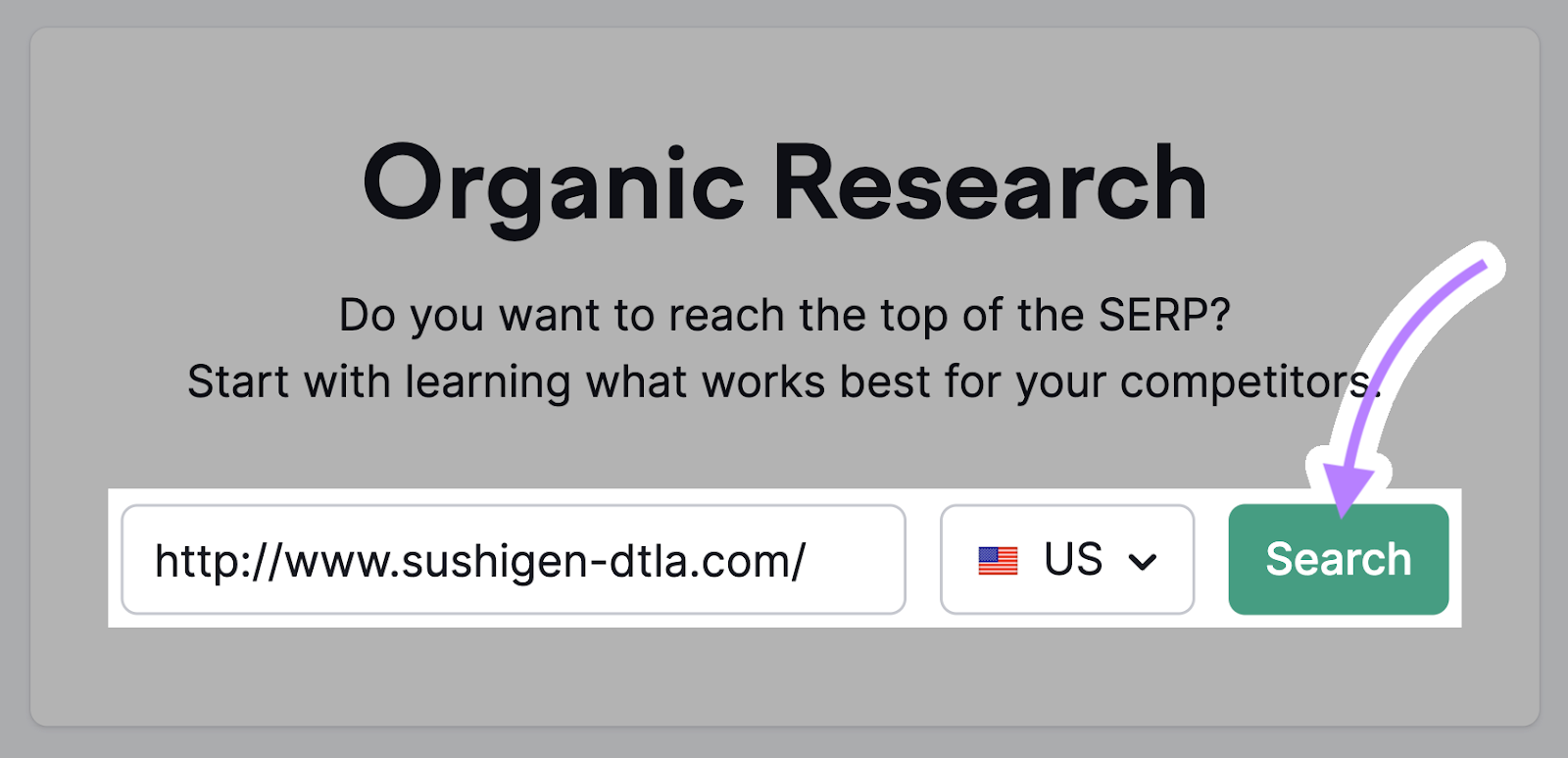
Enter a competing site and click “Search.” 

Like so:

Semrush’s Organic Research tool

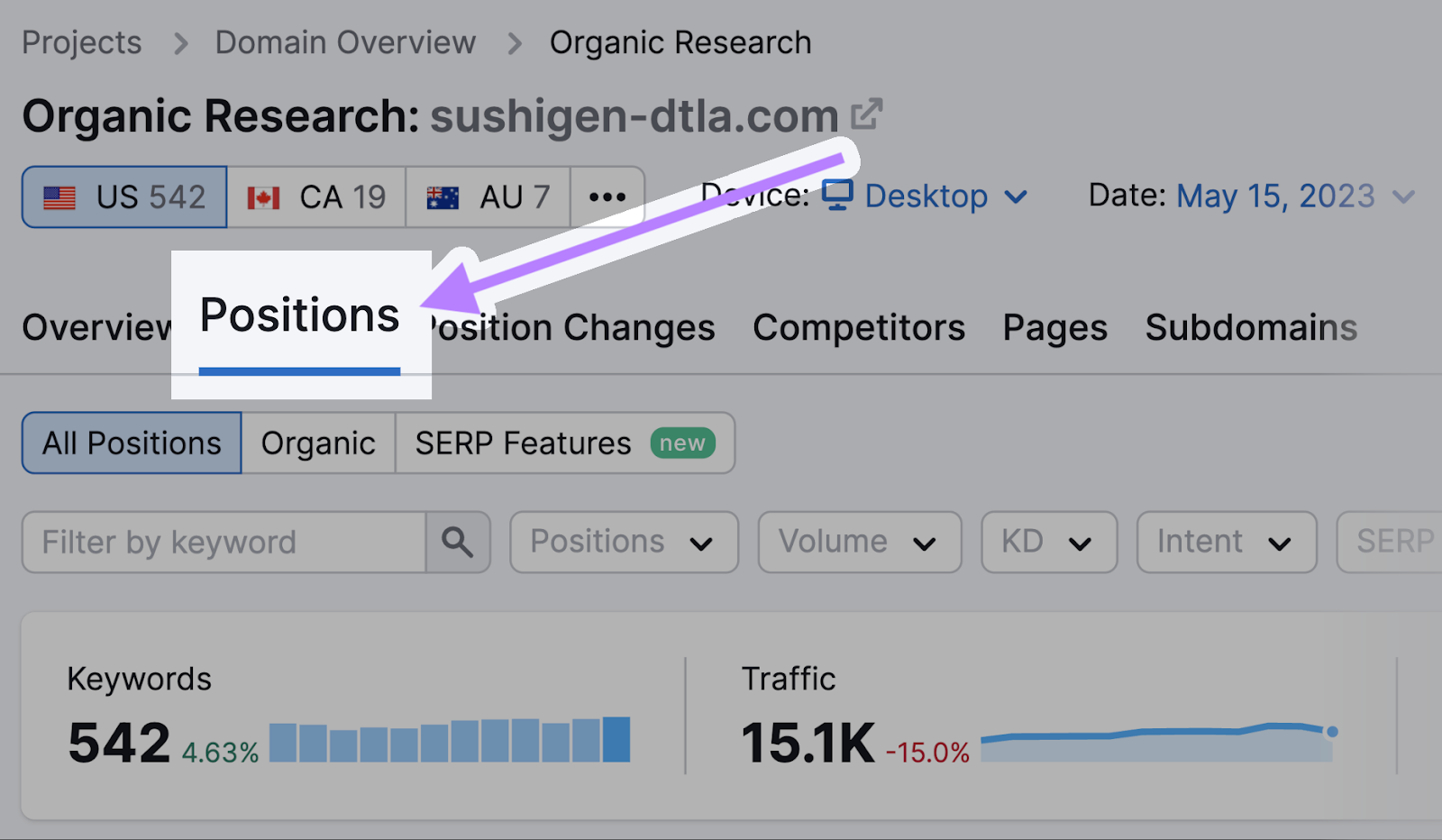
Then, go to the “Positions” tab. 

“Positions” tab

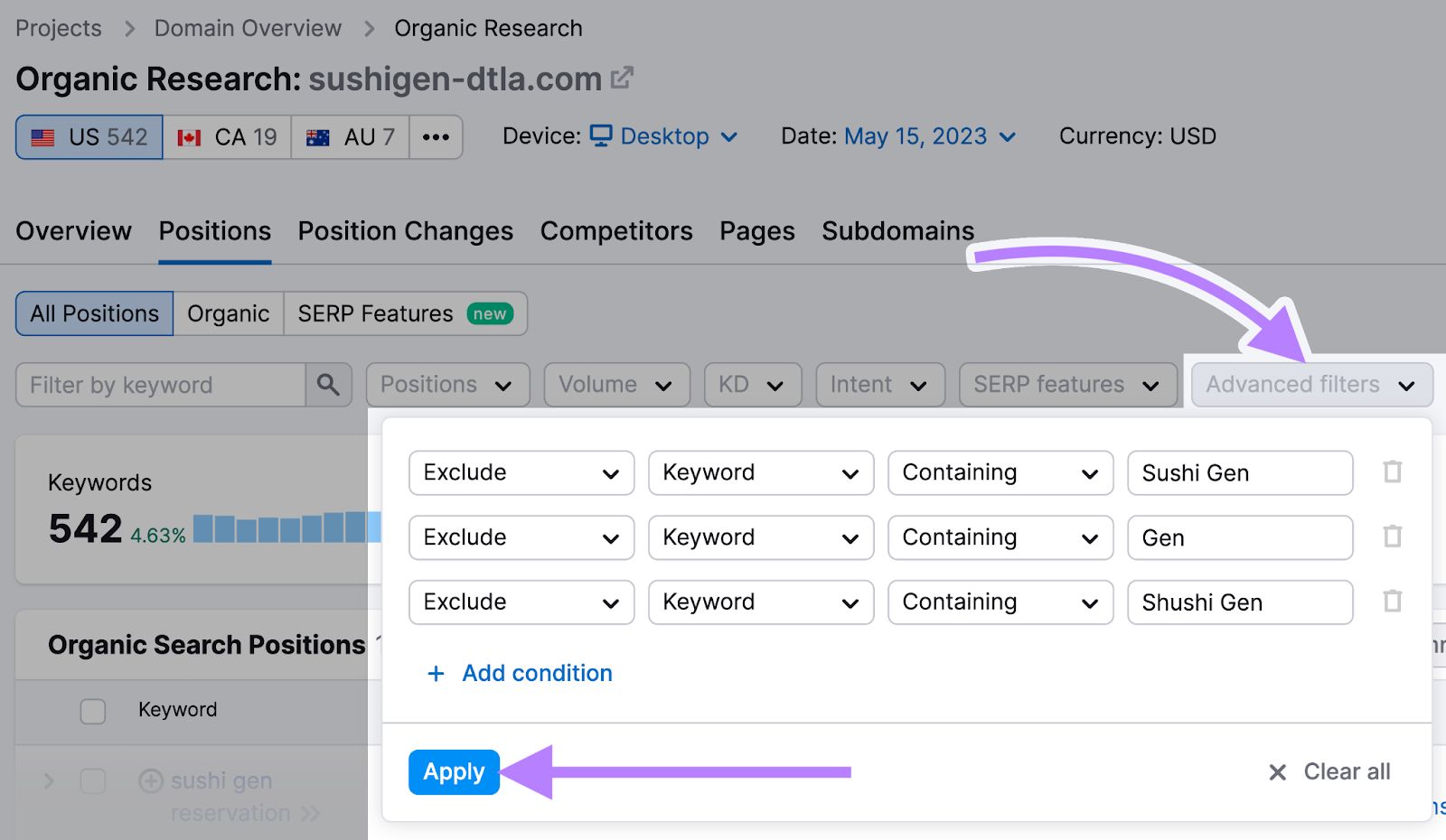
Click on “Advanced filters,” and exclude branded keywords (phrases that contain your competitor’s business name). 

using “Advanced filters” in Organic Research tool

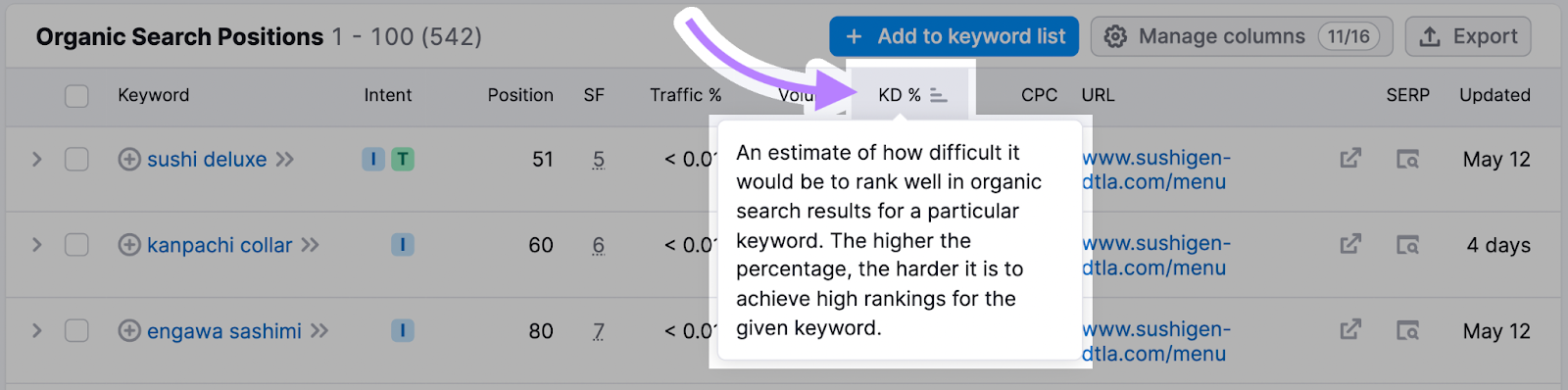
And click the “KD%” column to sort the table by keyword difficulty. 

Like so:

“KD%” column

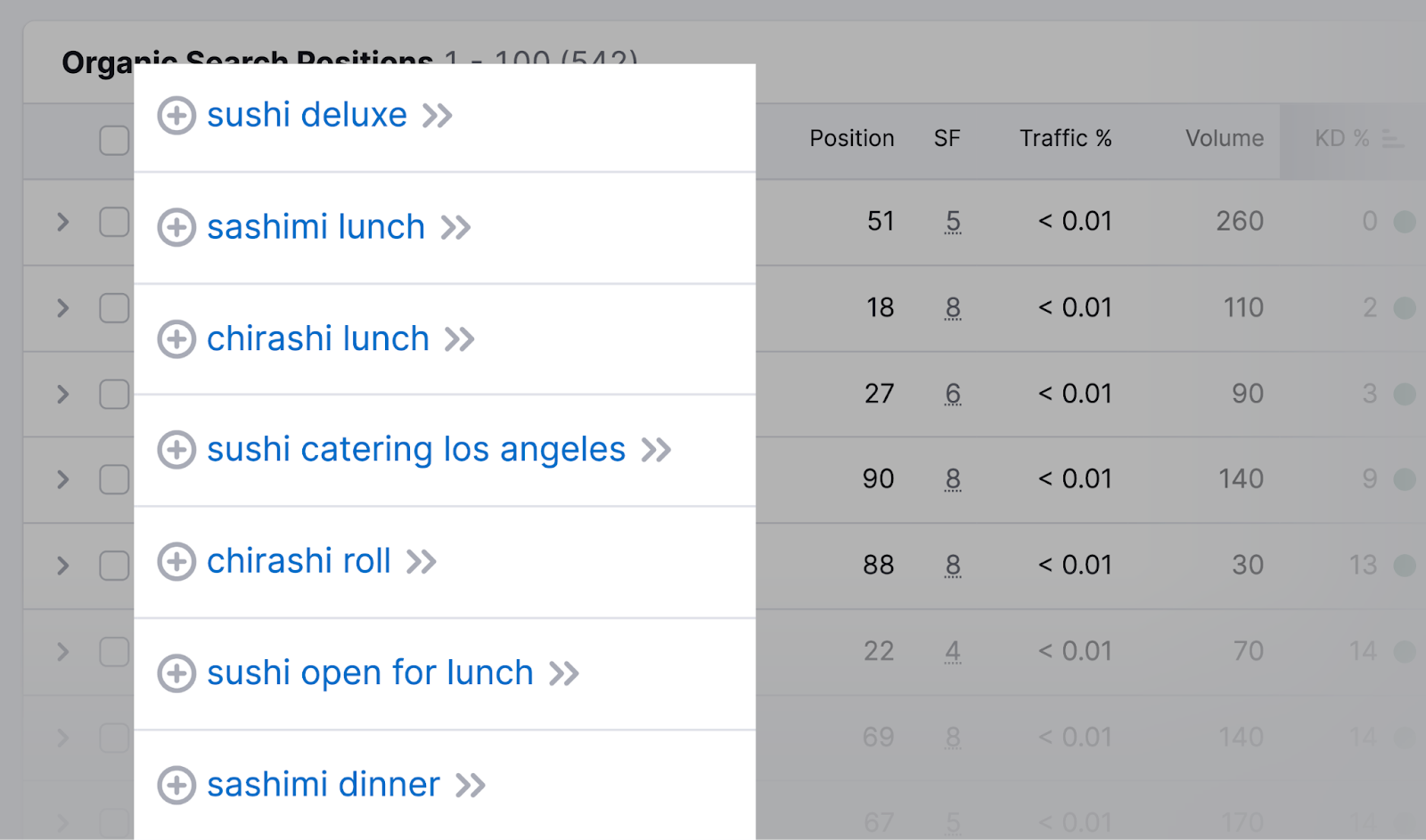
Now you have a list of keywords you might want to target.

a list of keywords results

If your competitors are targeting these keywords, then they’re likely highly relevant to your business, too. 

Check Local Keyword Volume Metrics 

You’ll also want to get a sense of how difficult it is for your content to rank locally for keywords you choose to target. 

Use the local volume metrics feature in the Keyword Overview tool to identify valuable keywords you’ll want to target in your content. 

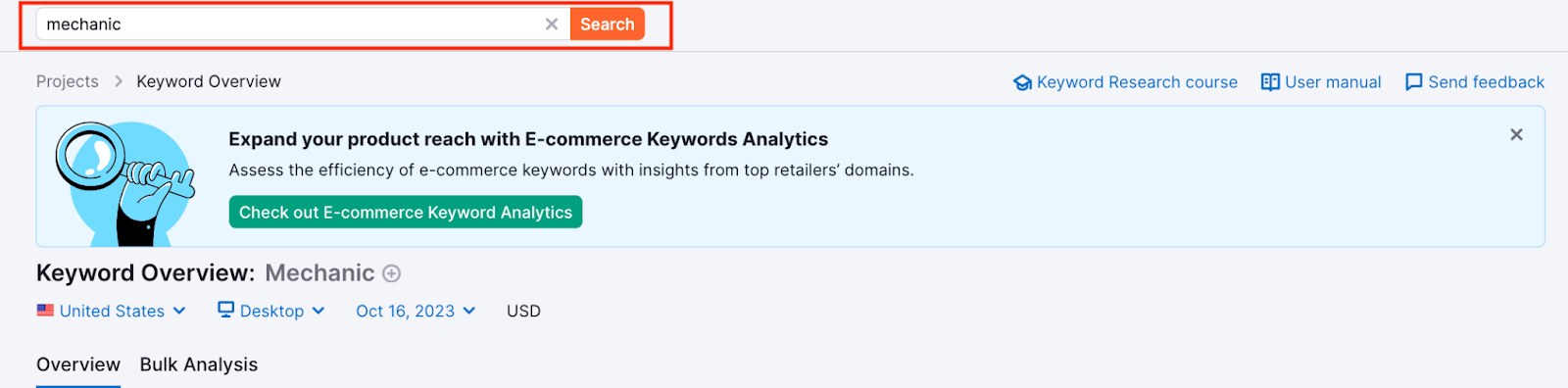
Enter your desired keyword into the search bar at the top of the page and hit “Search.”

ou4RorXHRDM4svf_0XBlmoyvDmdG6ZiaaDcITtX4LMlvNZxWivxzEs1ZHWkJoqnaHSAn60XMTFxNGfPl8AWATXZjVl0DrzHu8rHgjjyzEa_Ib8yIvtfHPQTAr4KGUZPM93lqBeixrZCuBBc6RK2d68k

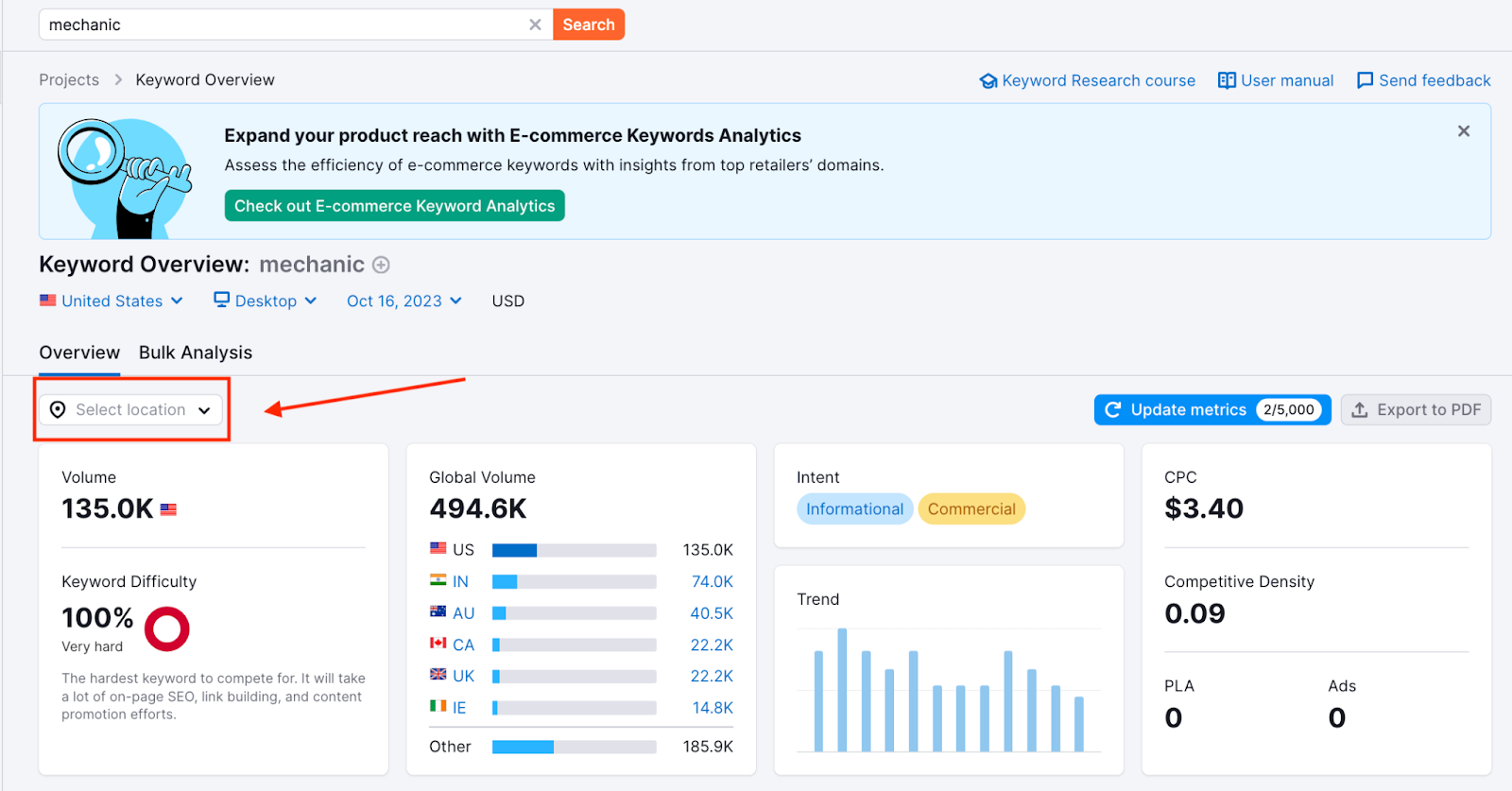
Once the tool delivers the keyword results, click on the drop-down bar labeled “Select location.” 

FvajtJ8WYwtcPnoUMjx9tV10tituXYw_oVRsAVHTuUonlJHsIMD9AiBGE7jVbM_QTyJJppCbz3oPVtOQxIvTLNG69uO2P5UuDy1wDl1XT4bQbkBQMiN0ZusSgegm3htqKs7UzKJnR5ly5NA8ddVgW18

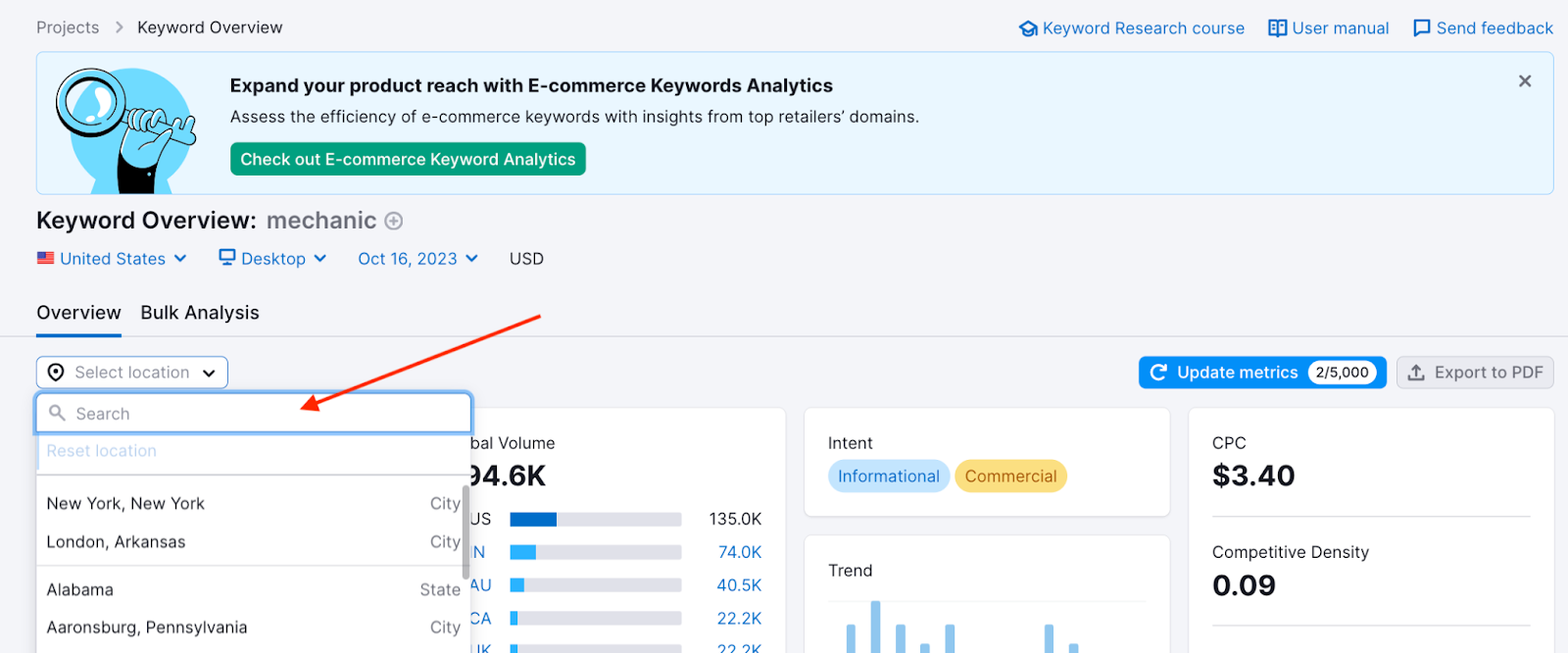
Type in your locale. This could be a state, county, province, city, or municipality. Go as narrow on the location as you wish. 

59Ct9432qkmdX80FXt_27SACwJewRwMvDm2rFJ78NkqnOtv-RNrTxx8d14vPT7-PedwosWoQ5sGx2hrc8nwnuieqUkSkPOvMynXxJ3HrVFbcpB7ne7aQdCpa7XOBzzl9Jj1vz-ixvMVbkuBOuNaNnKw

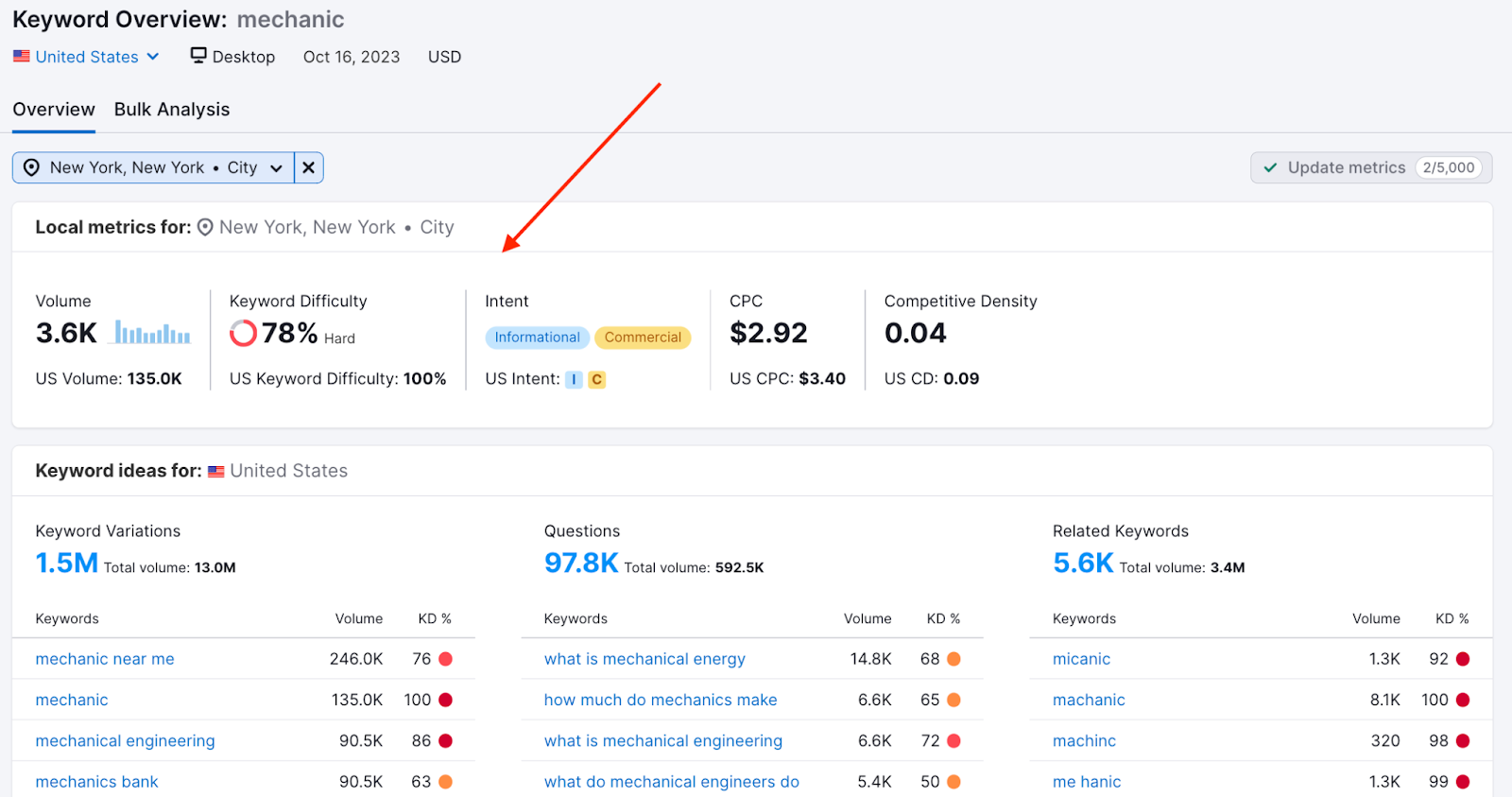
You’ll get local data, as well as the comparative national data. So you can see how easy or difficult it is to rank for your keyword in your exact location. 

Note: Some of these widgets show local data (volume, difficulty, SERP analysis, etc.), while others remain national-level (keyword variations, questions, related keywords).

tgDQGvFDEnQeiHbKXRYnnFw4Sx94snCTVvElkga2kozl7AlYChTAvYEnH_WWO1RJ_jBlprgGjZ_J7uAKKyqEy7B_9a5ZmocdWe9hLmqti_DEYz75JT8E1SJ-p6O-tTiadlQD7RG7068Crj0zJh2mVSE

If you’re a business operating at the local level, this is an essential feature to leverage as you’re building your targeted keyword list. Use the data to get an edge over competitors by optimizing your content for your specific area.

Use Google Autocomplete

Google autocomplete is a feature within Google Search that makes it faster to complete searches when you start to type. 

Its purpose is to save users time by predicting what they’re going to search for.

And it can help you discover valuable long-tail keywords for local SEO.

That’s because Google’s autocomplete predictions depend partly on your location. 

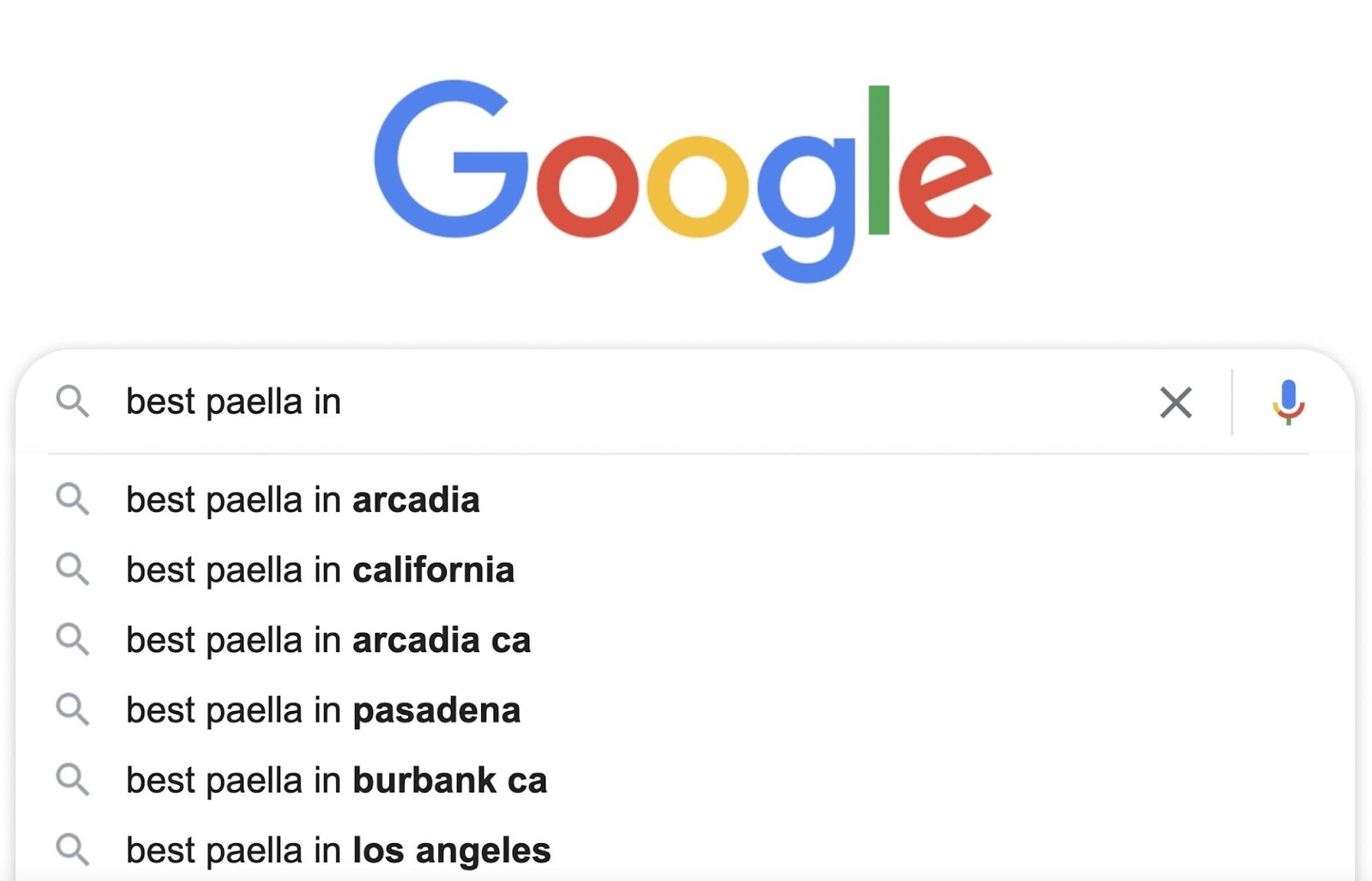
For example, if you’re in Arcadia, California, and you type “best paella in” into the search bar, you’ll see something like this:

Google Autocomplete suggestions for “best paella in” in Arcadia, California

All these locations are near Arcadia or in California. 

So, to find valuable local keywords, start typing in keywords related to your business. 

For example, if you run a cleaning services business, type in “cleaning services” to get a list of local keyword suggestions.

Why Is My Business Not Showing Up on Google? [+ Solutions]

For customers to find your business online, ranking on Google is key. Because 49% of shoppers start their search for a product or service on Google. 

Google not only dominates local business searches. It’s also the gateway for global exposure. Making your business discoverable by Google allows the search engine to direct both local and international customers to your site.

Considering that approximately 74% of in-store shoppers search online for store-related information before visiting, online visibility is vital for your business. 

To boost online visibility, optimize your website for search engines—using relevant keywords and a mobile-friendly design—and maintain an accurate, up-to-date business listing. 

That’s where your Google Business Profile, or GBP, comes in. It looks like this:

Google Business Profile for "Royal Bathrooms"

This profile pops up when someone looks you up or searches for your products or services on Google Search or Google Maps. Bridging the gap between an online presence and your store’s physical location.

Why Is It Important for Businesses to Show Up on Google Maps?

Although consumers rely heavily on online organic searches to find local businesses, Google Maps has an added advantage because it addresses local search queries specifically. 

Say you provide dry cleaning services. When someone searches for dry cleaning in their area on Google Maps, they’ll be able to see a listing with your address, hours of operation, and contact details. All pulled from the information you entered into your Google Business Profile. 

Visibility and accessibility on Google Maps complements your GBP, local, and overall SEO strategy. 

While a general Google Search helps users discover your business online, Google Maps targets those searching in your immediate area and vicinity—effectively capturing local demand.

Google Maps results for "dry cleaners"

Essentially, showing up on Google Maps can significantly increase your business’s foot traffic and local sales.

Further reading8 Google Maps Marketing Tactics to Drive Local Business

Your business will be visible only if you set up your Google Business Profile correctly. If you’ve created one but still aren’t showing up on Google, there may be many reasons why. 

Possible Reasons Why Your Business Isn’t Showing Up on Google

1. You Need to Claim an Existing Business Profile

Your business might not appear on Google Maps if you still need to claim your GBP listing. 

An unclaimed listing means the business information is present on Google Maps but still needs to be verified or managed by the business owner. 

Both claiming and verifying your business listing are essential for managing your online presence and ensuring the accuracy of your information. 

To check and claim ownership of your business, follow some simple steps: 

Step 1: Sign in to GBP 

Log in to GBP on your desktop or the mobile app using your Google Account. Click the Google apps button next to your profile icon, and find “Business Profile Manager” in the top-right corner of the menu.

“Business Profile Manager” selected from Google apps

Step 2: Claim existing ownership of a verified Google Business Profile

If you own and have verified your business, Google will redirect you to the GBP dashboard. If not, move on to step three to claim your business.

Step 3: Access your business profile

Search for your business name and location on Google.com. If your profile appears on the right-hand side, click “Own this business?

“Own this business?” link highlighted under "Arnos Cleaners" business on Google

Step 4: Request for claim 

A prompt will appear on the screen. Click “Manage now.”

“Manage now" selected for "Arnos Cleaners" business

If someone else has already claimed this business, you might see something like this:

"Someone else mat manage this Business Profile" screen

Click “Request Access.” Google will then ask about your level of ownership.

"Request access to manage this business" form in GBP

Fill in the required fields, and tick the option to let the business owner see your details.

If you don’t select this option, you won’t be able to move forward. Once done, hit “Submit.”

Submit your request to Google

You will then get a confirmation prompt. And a date of when you should get ownership of your business profile if the current owner doesn’t respond.

Click “Done” and wait until you get access to your GBP.

"Request sent" screen on Google

Further readingRequest ownership of a Business Profile by Google Support.

Step 5: Verify business ownership 

After you click “Manage now,” the app will prompt you to provide ownership information.

Depending on your business type and circumstances, you may get instant validation or receive a verification code.

"Enter your verification code" screen in GBP

If a verification code is required, you may receive it via regular mail, email, or text. Enter the code into your Google Business dashboard to complete verification.

Then, you’ll gain full ownership of your Google Business Profile.

2. Your Listing Is Not Verified on Google Maps 

Google prioritizes verified businesses to ensure reliability and accuracy in its listings.

Verification can be a part of the initial setup process or it can be completed afterward for existing profiles.

To verify your existing Google Business Profile, follow these steps:

  • Log in: Access your profile at google.com/business and follow Google’s verification steps
  • Verification method: Choose a verification option (phone, text, email, or video)
  • Enter the code: Follow the instructions to verify, typically entering a code sent to you
  • Review period: Verification reviews can take up to seven business days
  • Confirmation: Once verified, you’ll receive a confirmation of your profile’s status

Here’s a video that sums up the GBP verification steps:

Youtube video thumbnail

Further Reading: Learn more about setting up a Google Business Profile.

3. Your Website Is Not Optimized 

Effective website optimization plays a significant role in enhancing your business’s visibility in organic search results. Which positively influences how your business appears on both Google Maps and Search. 

Google’s algorithms consider various factors on a website to determine its relevance and authority. Like relevant content, mobile-friendliness, and user experience. These factors contribute to how well your business ranks in organic search results. 

A higher ranking in search results can lead to better visibility in local searches, including on Google Maps.

It’s a key step toward improving your online visibility, particularly if you’re a new business with a limited online presence

Efforts to optimize both your website and Google Business Profile are interconnected, as both elements can contribute to your overall online visibility.

Here’s a quick optimization checklist for your website:

  1. Homepage clarity: Make sure your homepage clearly explains your business and offerings
  2. Regular updates: Keep your website updated with relevant information about your products and services 
  3. SEO: Follow SEO best practices sitewide, including using relevant keywords, meta tags, and mobile-friendly design

Consider Ruth’s Nutrition’s GBP as an example. 

Ruth’s Nutrition’s Google Business Profile with "health food store" category highlighted

The business uses similar keywords across its profile and website to connect both platforms.

Ruth’s Nutrition’s website with "health food store" keyword highlighted

Pro tip

Regular updates and local SEO strategies can improve your search rankings and attract more customers. 

4. Your Website Uses Too Few, Too Many, or the Wrong Keywords

Using too few keywords may lead to poor discoverability. Using irrelevant or incorrect keywords can attract the wrong audience. Or no audience at all.

Consider The Philadelphia Flower Market, which often appears in the top search results for the keyword “florist shop” for users located in that city. 

The Philadelphia Flower Market appears in the top search results for "florist shop" search

The website content includes a variation of the specific search query, “flower shop.”

By including relevant keywords in its website content, The Philadelphia Flower Market aligns more closely with users’ search intent. And signals a relevant connection to search engines.

Meanwhile, the GBP listing uses the terms “florist,” “flowers,” and “market.” 
On-Page SEO: What It Is and How to Do It

On-page SEO (also called on-site SEO) is the process of optimizing webpages and their content for both search engines and users. It can help rank pages higher on Google and drive more organic traffic. 

Common tasks associated with on-page SEO include optimizing for search intent, title tags, internal links, and URLs.

Below, we’ll cover different techniques for optimizing your site for on-page concerns.

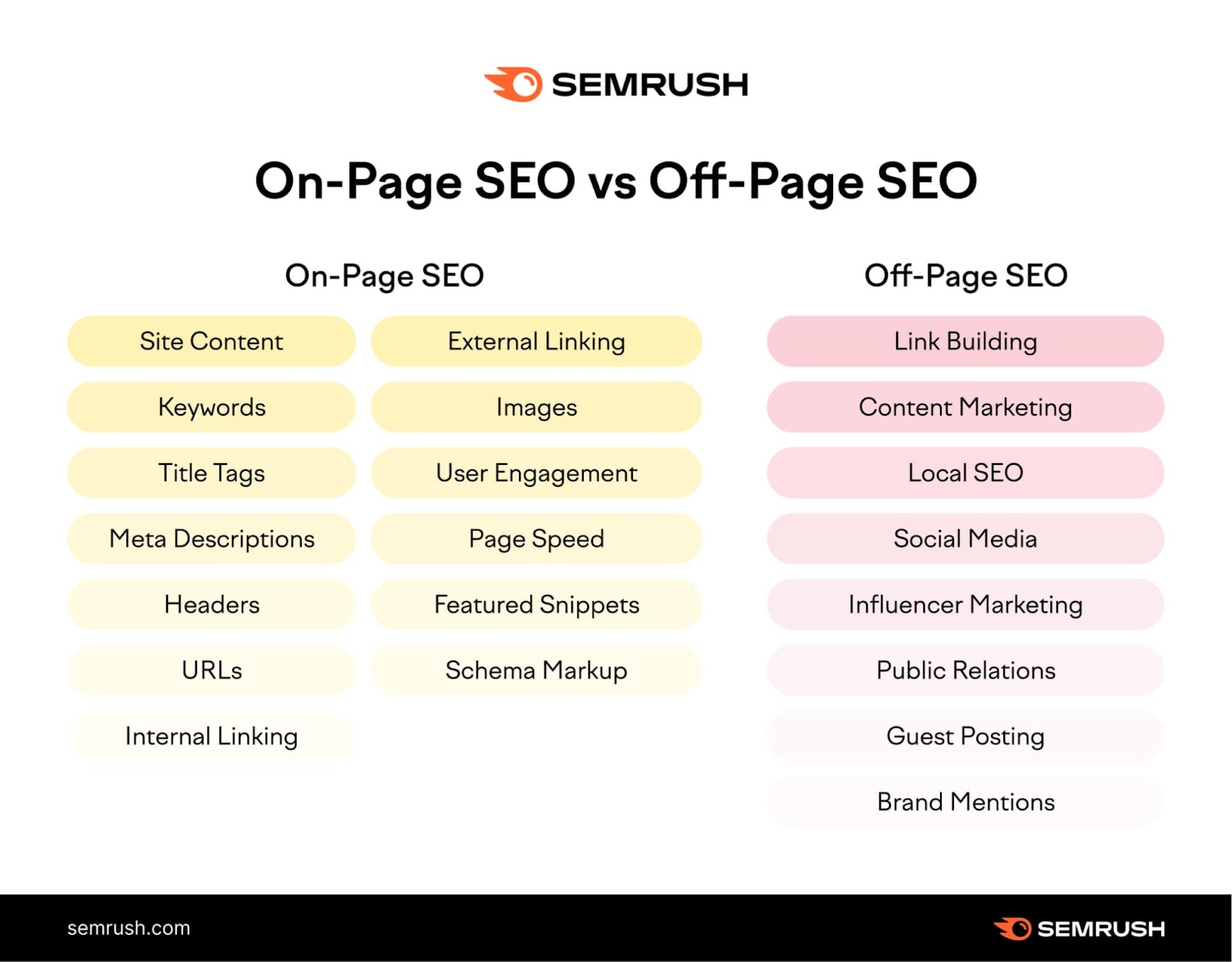
But first, let’s explore the difference between on-page SEO and off-page SEO:

On-Page SEO vs. Off-Page SEO

On-page SEO covers anything you can do on a webpage (or internally) to improve your rankings. 

Off-page SEO covers anything you can optimize outside of your site (or externally) in an attempt to boost your rankings. Backlinks are arguably the biggest off-page SEO factor. Other examples include social media and PR.

Both are important components of any good SEO strategy.

But you have more control over on-page SEO factors. So focusing on those is a good place to start.

On-page SEO vs Off-page SEO

Why Is On-Page SEO Important?

Search engines use keywords and other on-page SEO elements to check whether a page matches a user’s search intent. 

And if the page is relevant and useful, Google serves it to the user.

In other words:

Google pays attention to on-page SEO signals when ranking pages.

The Google algorithm is always changing, but Google continues to prioritize user experience. Google recommends focusing on “people-first content.” 

Meaning creating valuable content that matches user intent is more important than ever.

Now, let’s take a look at how you can update your content to reflect on-page SEO best practices.

Pro tip

To quickly get actionable on-page SEO optimization ideas for your site, run it through On Page SEO Checker.

8PBurtK4KLqV9AYVQTiYYIUUXHukkU562tZAf8cMRcEBtK9gBY4kH-B3T9nHzy3bInYLfEKH62U6_hSibTwGkrzAyS6SqYdrib4WZAKGHeYbPqyxew54dzPayZ9HBCQWOOqsO-5VSRrqwdjgiH_41Mk

9 On-Page SEO Techniques for Your Website

Here are some key on-page optimization techniques you should consider:

  1. Write unique, helpful content 
  2. Place target keywords strategically
  3. Write keyword-rich title tags
  4. Write click-worthy meta descriptions
  5. Use headings and subheadings to structure your page
  6. Optimize URLs
  7. Add internal links
  8. Add external links 
  9. Include and optimize images 

Let’s look at these in more detail.

Tip

Create a free Semrush account (no credit card needed) to follow along with the techniques in this guide. 

1. Write Unique, Helpful Content 

One of the most important on site SEO steps you should take is to create high-quality content that matches your readers’ search intent.

Start by performing keyword research to find relevant topics and target keywords.

For this example, we’ll use the Keyword Magic Tool.

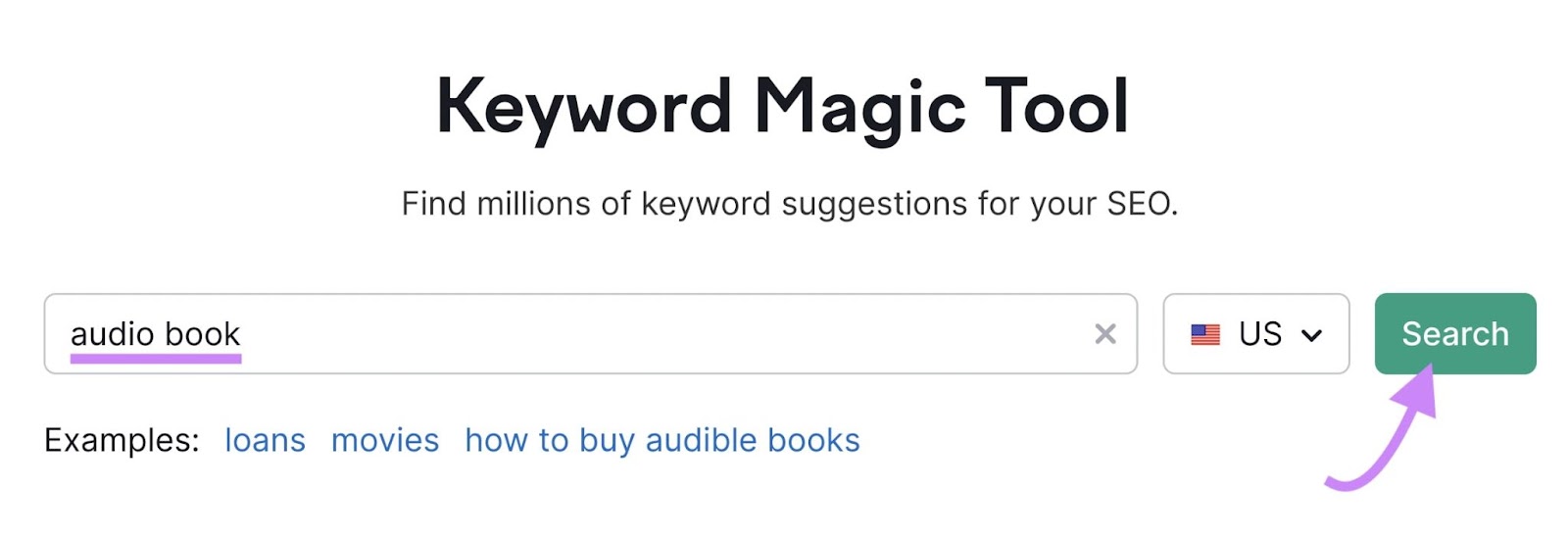
Enter the topic you want to research and click “Search.” We’ll use the keyword “audio book” as our example. 

"audio book" entered into the Keyword Magic Tool search bar

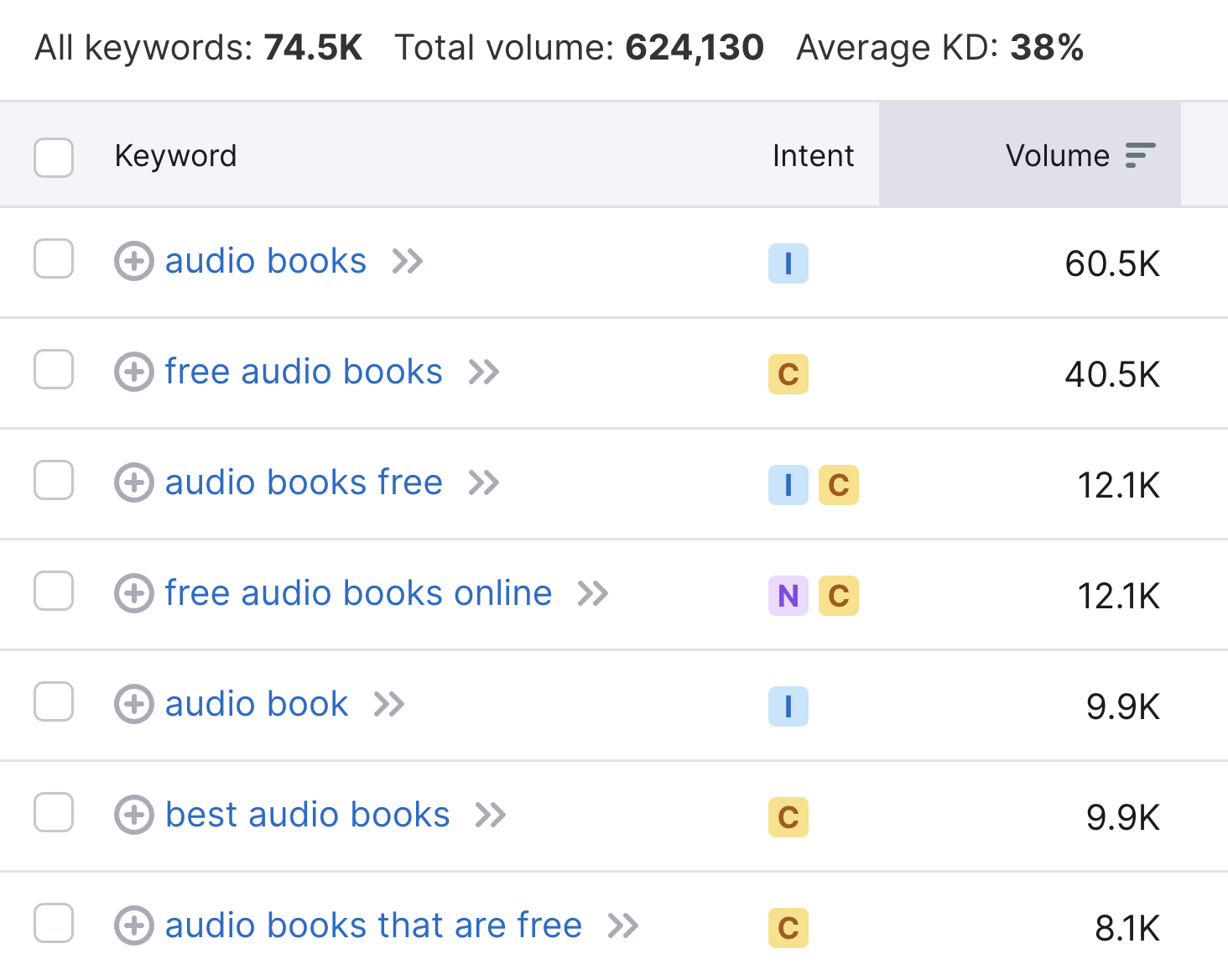
You’ll get a list of keywords related to your seed keyword, sorted by search volume.

A list of keywords related to "audio books"

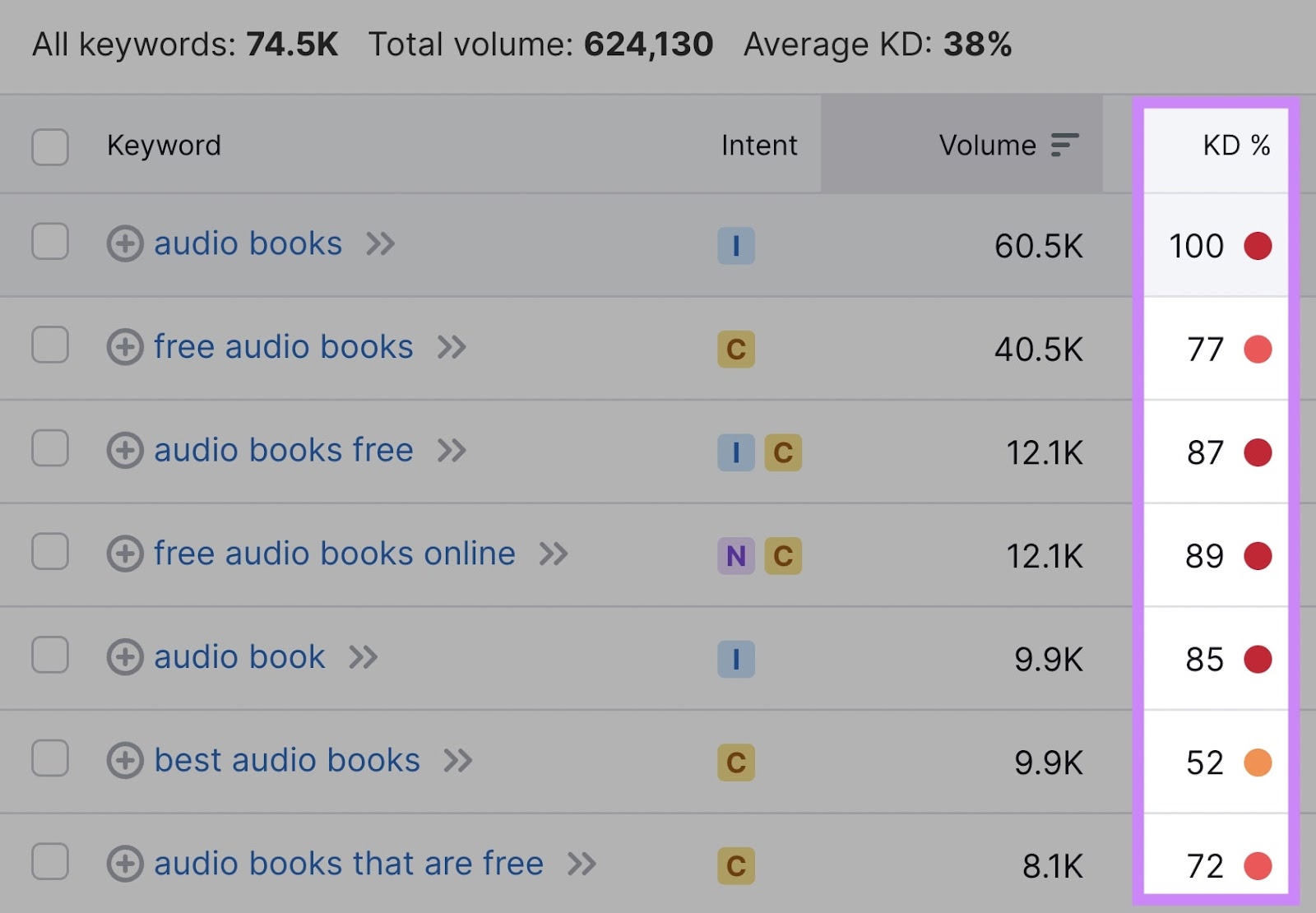
High search volume can be useful to target. 

But pay attention to the keyword difficulty (KD %) level, too. It’s much more difficult to rank for more competitive keywords (which have higher KD % scores).

"KD%" column highlighted in keywords list

Target less competitive long-tail keywords, too. 

They often have lower search volume but lower keyword difficulty. Which means they can be easier to rank for.

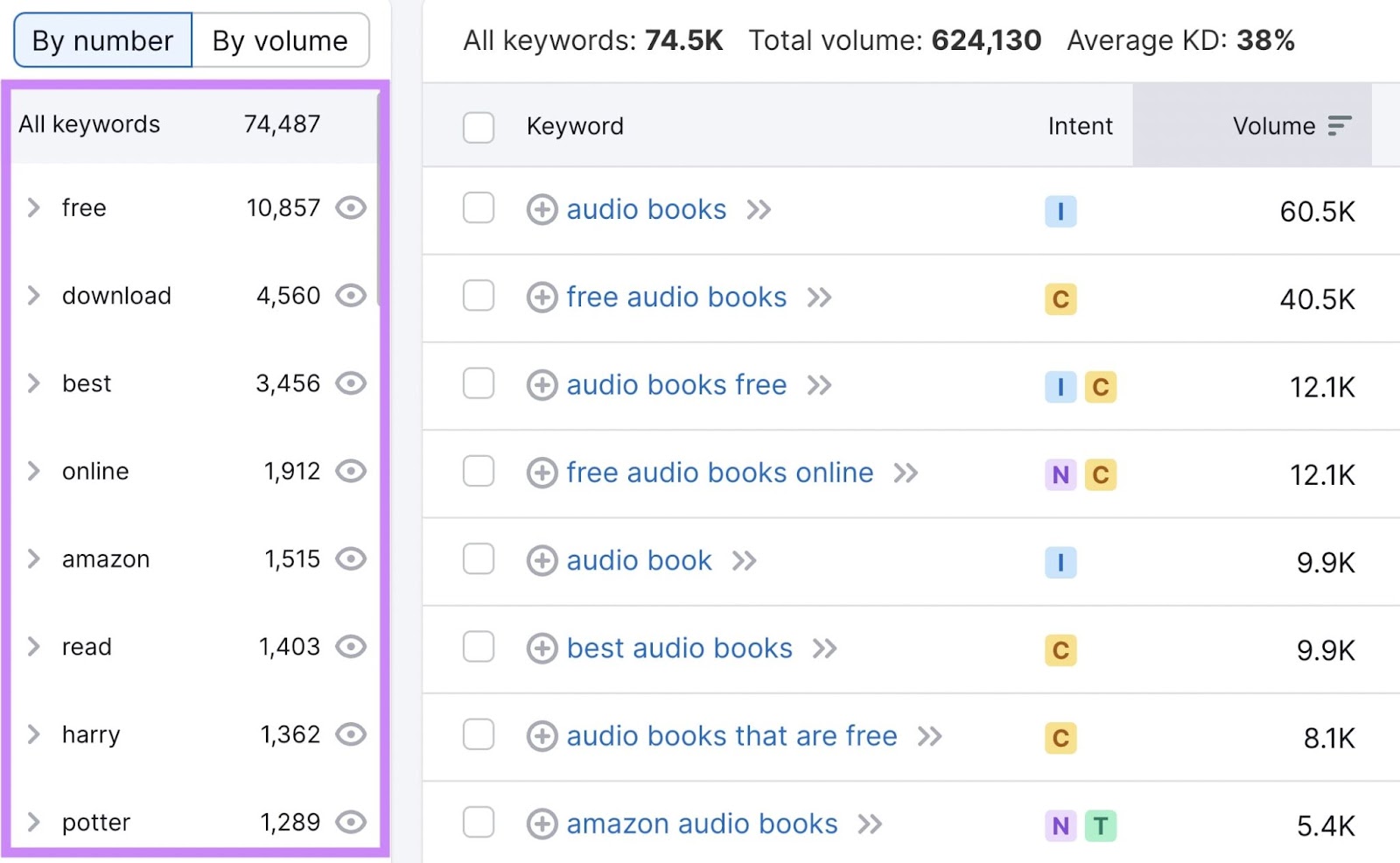
The Keyword Magic Tool automatically sorts related keywords into relevant categories.

They’re located in the left-hand sidebar. You can narrow your research by selecting one.

Here:

Keyword categories highlighted in the left-hand sidebar

Once you’ve selected your keywords, it’s time to create your content.

Read our guide to formatting a blog post when you’re ready to get started.

In the meantime, here are a few best practices to create optimized, high-quality content:

  • Incorporate keywords naturally into your content (and avoid keyword stuffing)
  • Make sure your content matches the search intent of your target keyword
  • Fully answer the query—your content should be useful to users
  • Write unique content that offers something competitors don’t
  • Include visual content (more on that later)

Further reading: What Is Quality Content & How to Create It

2. Place Target Keywords Strategically

So you have your target keywords. Now it’s time to strategically place them in your content. 

Google scans your content to see what a page is about—and readers will likely do the same.

So you should include your target keywords in these key areas:

  • H1
  • First paragraph
  • Subheaders (H2s, H3s, etc.)

This will help Google gain context about the topic of your page. And users will be able to quickly tell whether the page matches their search intent.

You can begin analyzing your content with On Page SEO Checker

Start by configuring the tool for your site.

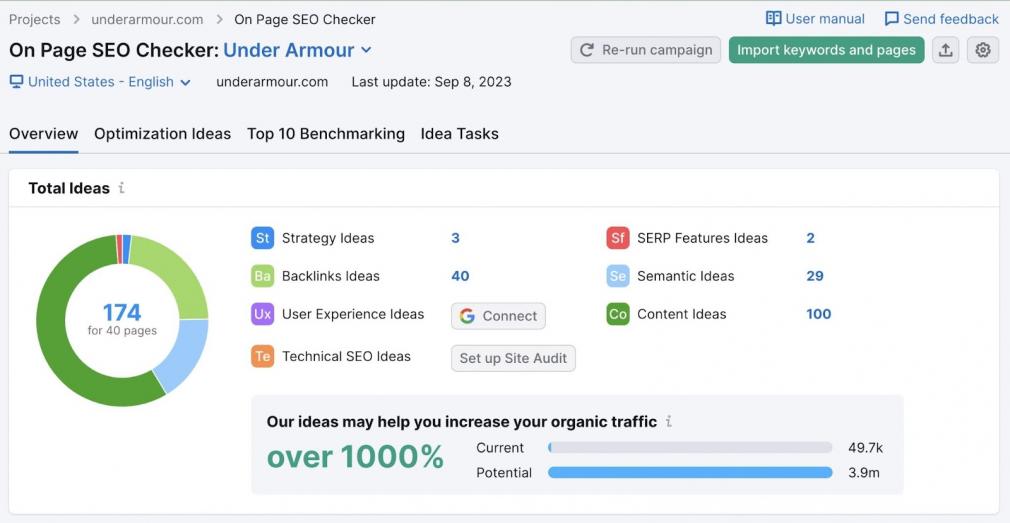
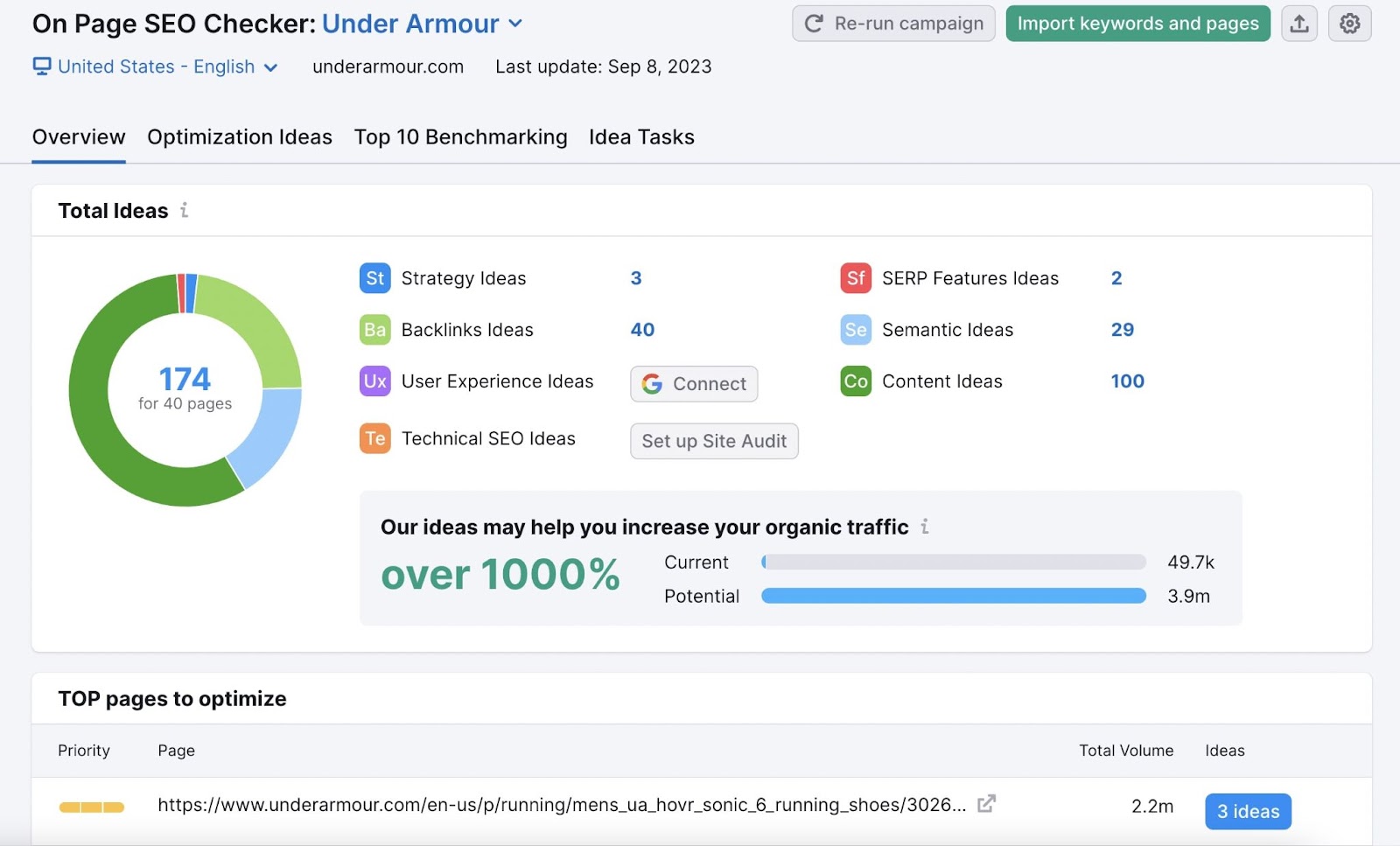
Once you complete the setup, you’ll see a page that looks like this:

On Page SEO Checker overview dashboard

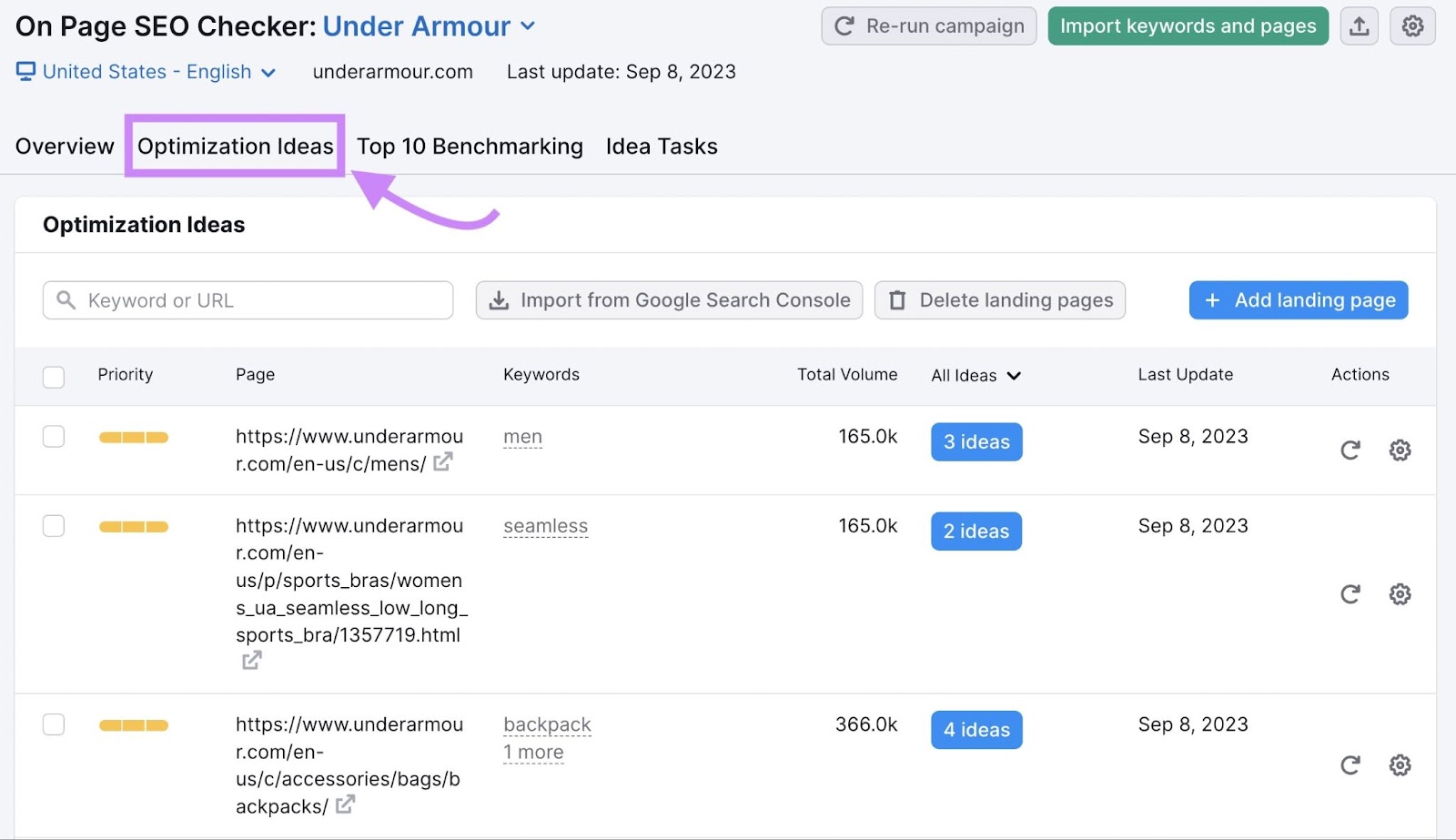
You can click on a specific page from the recommended “TOP pages to optimize” list, or review the “Optimization Ideas” tab for a complete overview.

"Optimization Ideas" tab highlighted in On Page SEO Checker

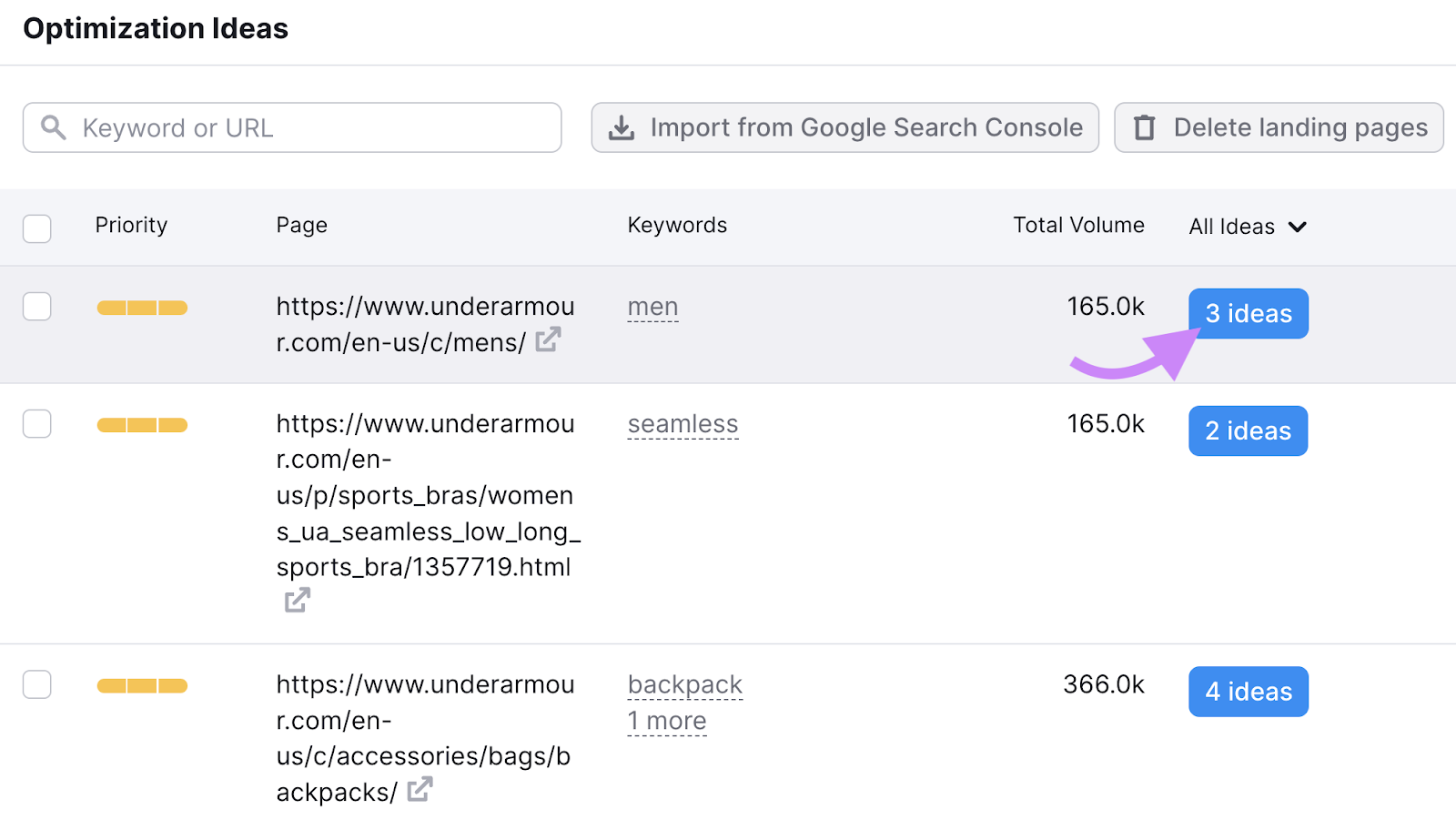
Click on the “# ideas” blue button to see recommendations.

"3 ideas" blue button highlighted under optimization ideas list

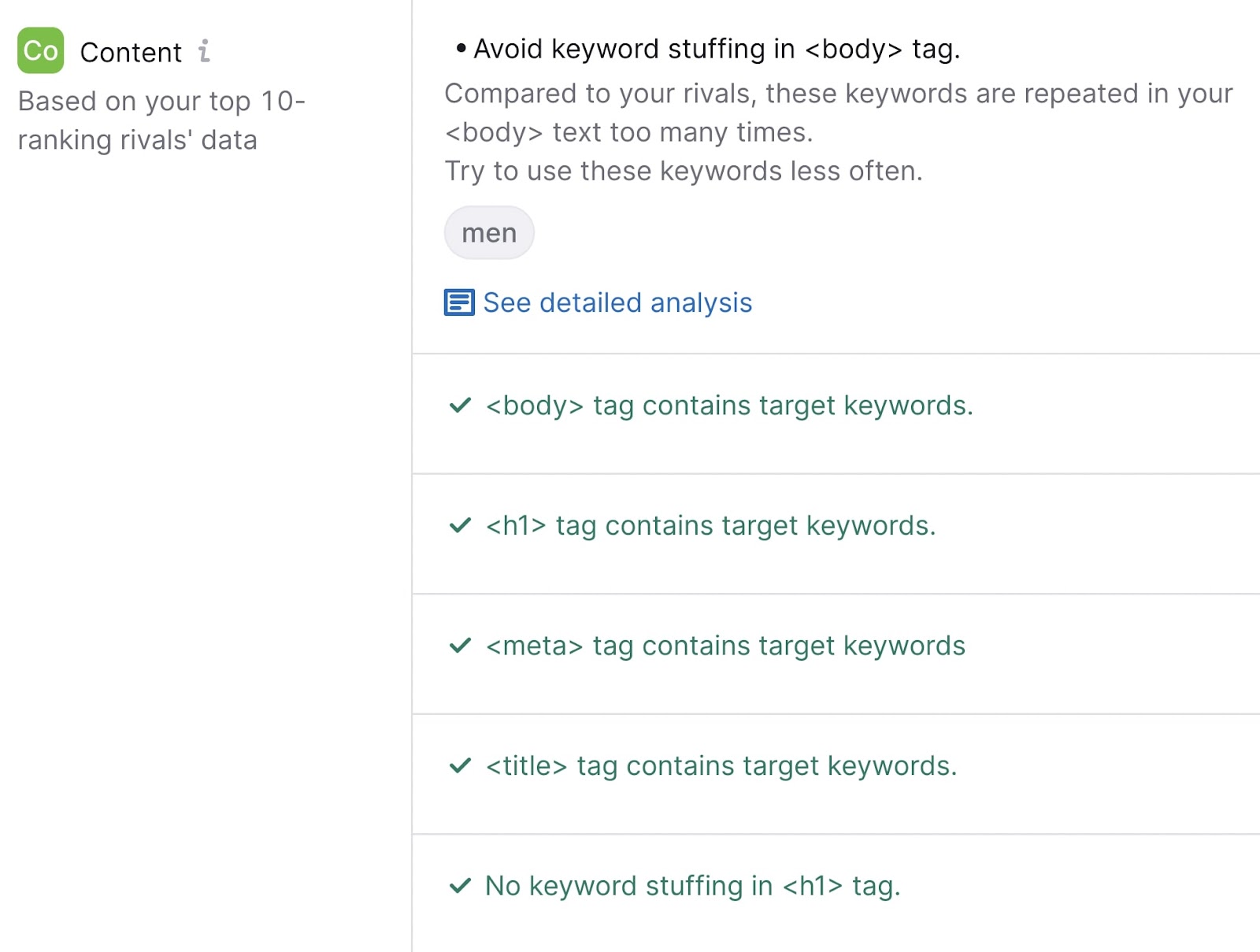
The content section will let you know whether you’ve used your target keywords in key places like the H1 and body of the of the page (and whether keyword stuffing is detected):

"Content" recommendations section in On Page SEO Checker

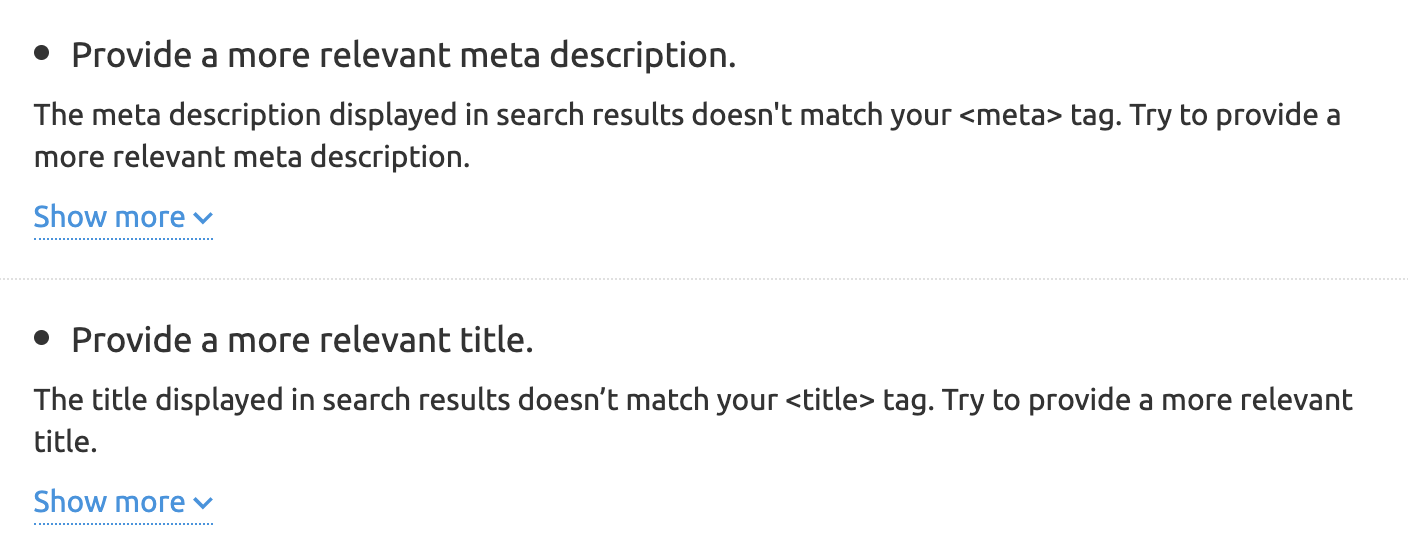
If the tool does detect issues, it will provide recommendations.

Like this:

"Provide a more relevant meta description," and "Provide a more relevant title" ideas

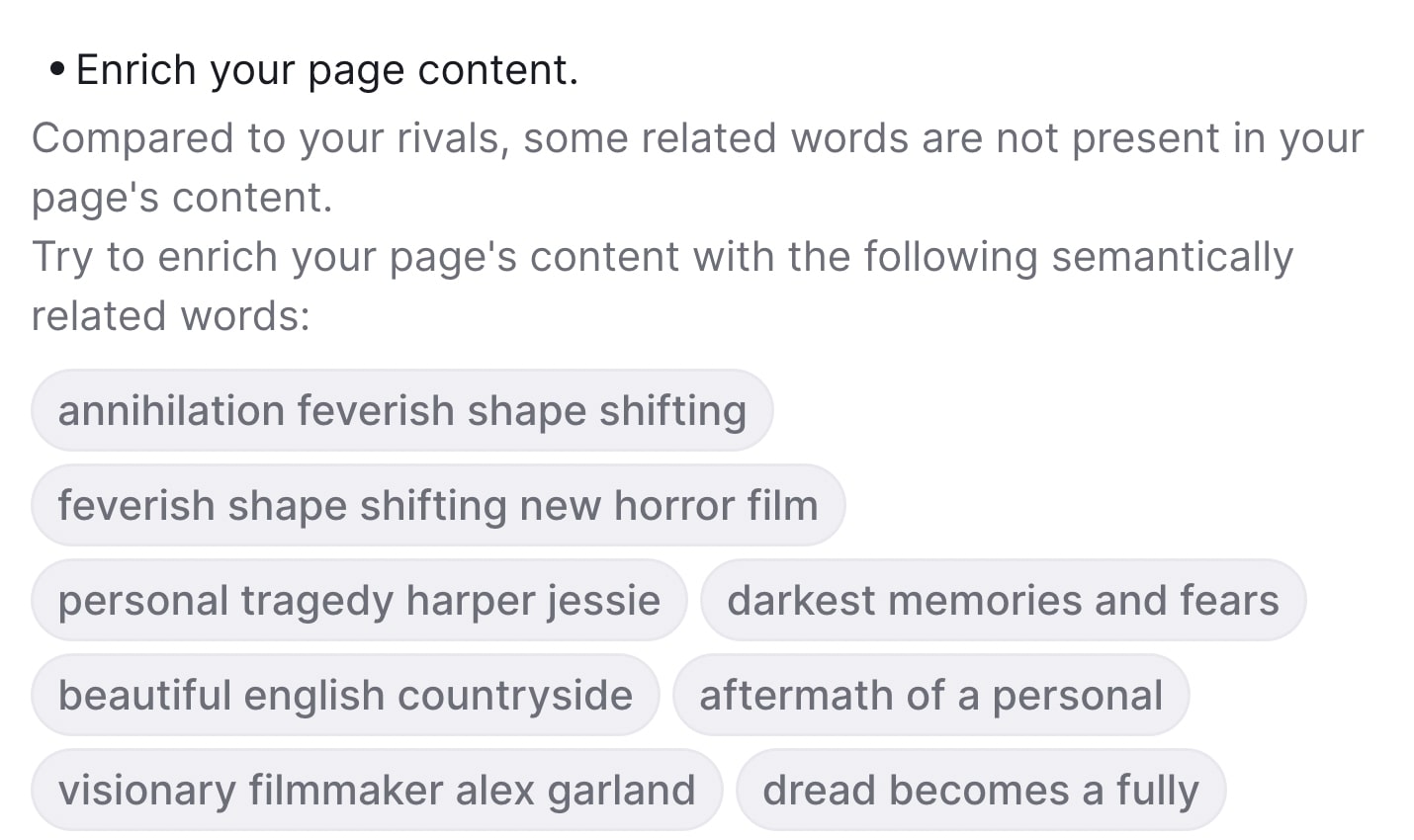
It also provides helpful information about related keywords you can add to your text to further optimize it.

"Enrich your page content" ideas section

Optimize Your Pages to Rank Better

with the On Page SEO Checker

Try for Free →

ADS illustration

3. Write Keyword-Rich Title Tags

Title tags are pieces of HTML code that indicate what the title of a page is. And display that title in search engines, social media posts, and browser tabs.

Additionally,they can influence whether a user decides to click on your page.

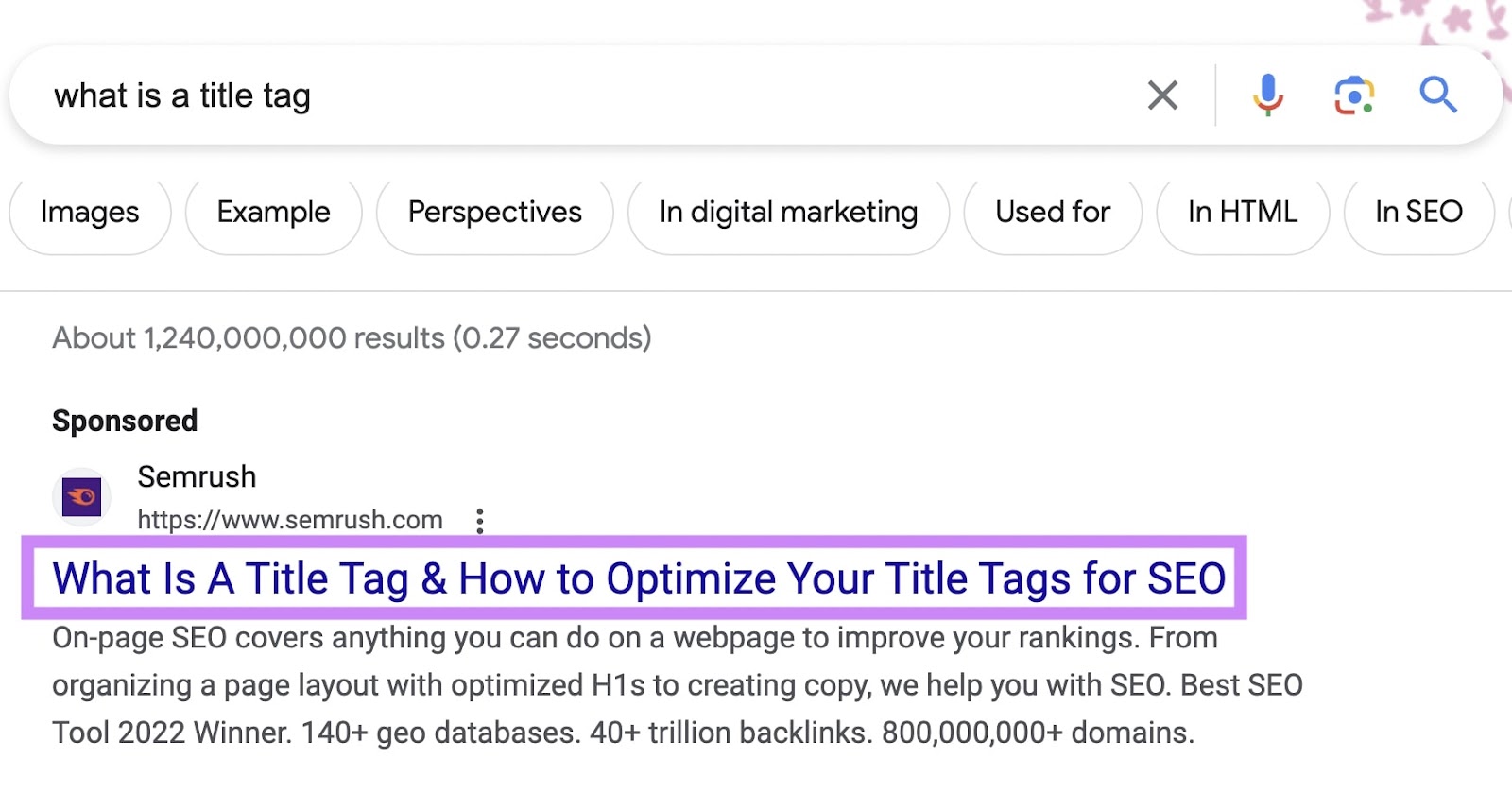
They can look like this on the SERP (search engine results page):

A title tag on SERP that reads "What is a title tag & how to optimize your title tags for SEO"

Here are a few tips to follow when writing your title tags:

  • Keep it brief. We recommend keeping title tags between 50 and 60 characters so Google doesn’t cut them off
  • Include your target keyword. This helps both Google and users determine what your page is about.
  • Be unique. Avoid duplicate title tags so that each individual page’s purpose is clear to Google (and users know what they’re clicking on).

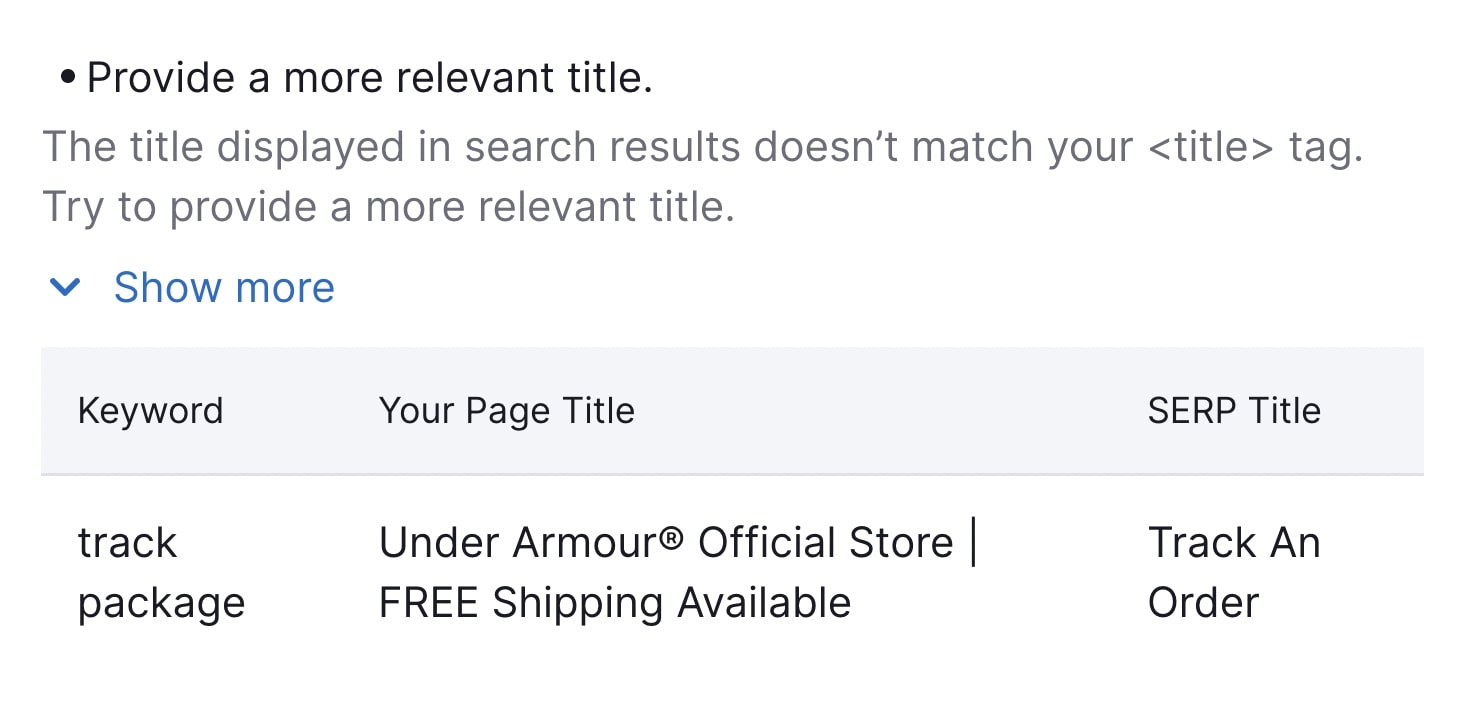
On Page SEO Checker will also provide tips to help you write better title tags. Plus information about what, how, and why to do it. 

"Provide a more relevant title" recommendation section

Further reading: What Is a Title Tag & How to Optimize Title Tags for Google

4. Write Click-Worthy Meta Descriptions

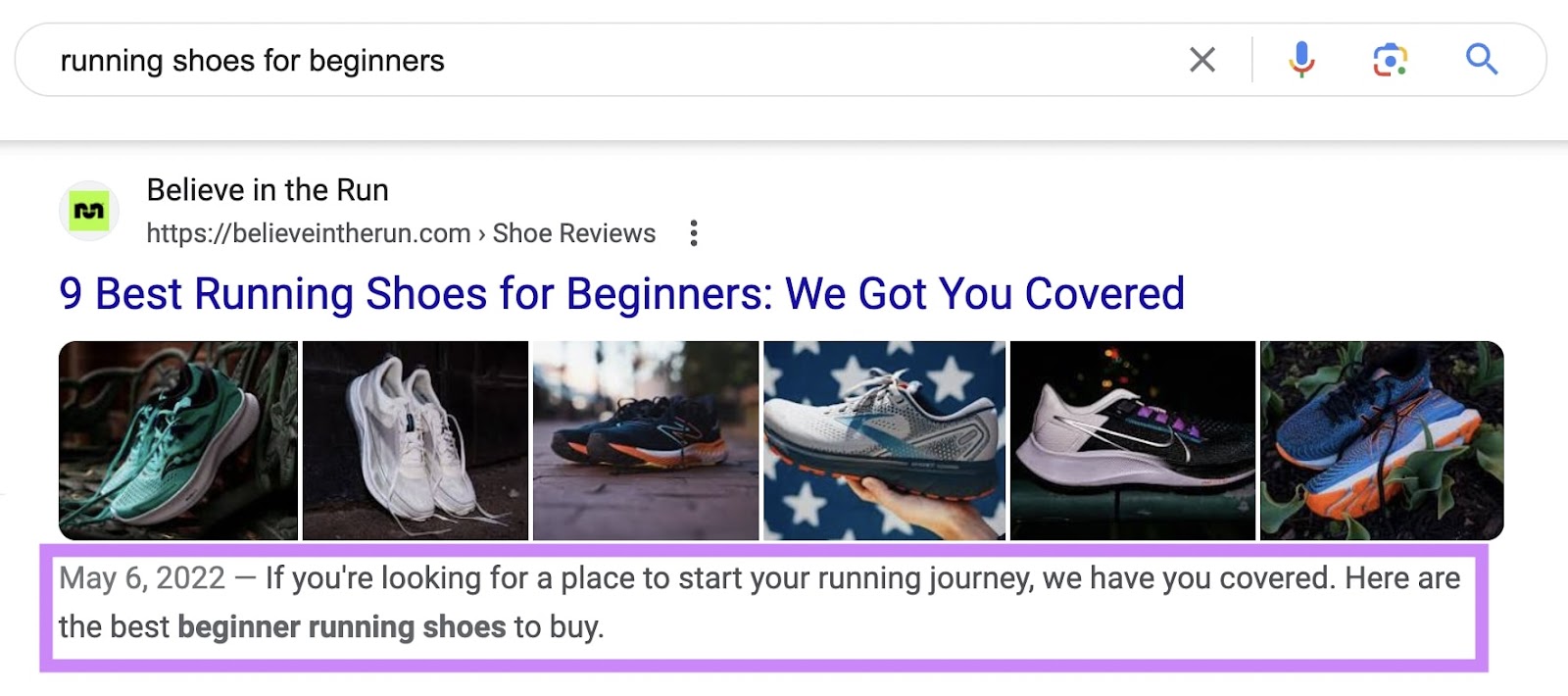
A meta description tag is an HTML element on a site that provides a brief summary of the page. And search engines like Google may use it to generate a snippet (the descriptive text part of a search result). 

It usually shows up on the SERP below your page’s title. Like this:

A meta description on SERP

Meta descriptions don’t directly influence Google rankings. 

Local SEO: What Is It & How to Do It

What Is Local SEO? 

Local SEO is the process of optimizing your online presence to increase local traffic, visibility, and brand awareness. 

Common local SEO tasks include:

  • Optimizing your Google Business Profile
  • Finding local keywords
  • Creating locally relevant content

Among others.

And any business that has a physical location or serves a geographic area can benefit from local SEO. 

This is an example of a local search result on Google:

an example of a local search result on Google

Local SEO can help your business appear in Google results for searches like these.

This article explains why local SEO is important, how it works, and how to do local SEO. 

Tip: create a free Semrush account so you can follow along. 

Why Is Local SEO Important? 

The best way to get your site in front of people in your area is to use local SEO marketing.

Over 75% of consumers in the United States, France, Germany, and the United Kingdom use Google when looking for business information. 

Making it the most dominant search engine for local search in those (and many other) countries. By far. 

And Google Maps searches for “shopping near me” have grown globally by more than 100% year over year. 

Mobile searches for “store open near me” also grew by over 250% in a recent two-year period. And “where to buy” + “near me” keywords by more than 200%. 

That’s hundreds of millions of searches every day. 

How Local SEO Works 

On top of Google’s usual ranking factors, its local search algorithms use three main factors to help find the best match:

  • Relevance (how closely related a Google Business Profile result is to the words a searcher uses in their query)
  • Distance (how far Google believes a user is from a business when they search)
  • Prominence (how important Google thinks a business is to its potential customers)

Then, Google displays two types of search results for local searches.

The “local pack” results (Google Maps and Business Profiles) and organic results. 

Organic results are the “normal” blue link search results we’re all used to seeing on Google. 

local pack (or map pack) is a Google feature that shows the top local business listings and a map. 

Like this:

local pack in Google search for "food near me"

For example, when you search for “nutritionist miami,” Google displays a local pack at the very top.

Google search for “nutritionist miami”

And the “regular” organic results underneath. 

Organic results in Google for “nutritionist miami”

But Google doesn’t just display local results for queries that contain a city, state, or “near me” keyword. 

If Google believes the intent of your search is local, it’ll display local results.

Even if your search isn’t explicitly local. 

For example, if you were in Los Angeles and searched for “barber shops,” Google would still display a local pack for Los Angeles barber shops. 

Like this:

Google search in Los Angeles for “barber shops”

How to Do Local SEO 

Now it’s time to create a strategy so you can increase your local rankings and boost traffic. The following steps will help you get started. 

Tip: Remember—you can create a free Semrush account to follow along. 

Do Local Keyword Research

Keyword research for local SEO is the process of finding keywords people use when searching for local products and services. 

Ranking for these keywords drives highly targeted local traffic to your site and sends more customers your way. 

To get started, you need a short list of keywords people can use to find your local business. 

Here are a few different ways to start.

Research Your Competitors

Seeing what your competitors are doing is an easy way to start gathering ideas. 

One of the best ways to do that is to use Semrush’s Organic Research tool.

Enter a competing site and click “Search.” 

Like so:

Semrush’s Organic Research tool

Then, go to the “Positions” tab. 

“Positions” tab

Click on “Advanced filters,” and exclude branded keywords (phrases that contain your competitor’s business name). 

using “Advanced filters” in Organic Research tool

And click the “KD%” column to sort the table by keyword difficulty. 

Like so:

“KD%” column

Now you have a list of keywords you might want to target.

a list of keywords results

If your competitors are targeting these keywords, then they’re likely highly relevant to your business, too. 

Check Local Keyword Volume Metrics 

You’ll also want to get a sense of how difficult it is for your content to rank locally for keywords you choose to target. 

Use the local volume metrics feature in the Keyword Overview tool to identify valuable keywords you’ll want to target in your content. 

Enter your desired keyword into the search bar at the top of the page and hit “Search.”

ou4RorXHRDM4svf_0XBlmoyvDmdG6ZiaaDcITtX4LMlvNZxWivxzEs1ZHWkJoqnaHSAn60XMTFxNGfPl8AWATXZjVl0DrzHu8rHgjjyzEa_Ib8yIvtfHPQTAr4KGUZPM93lqBeixrZCuBBc6RK2d68k

Once the tool delivers the keyword results, click on the drop-down bar labeled “Select location.” 

FvajtJ8WYwtcPnoUMjx9tV10tituXYw_oVRsAVHTuUonlJHsIMD9AiBGE7jVbM_QTyJJppCbz3oPVtOQxIvTLNG69uO2P5UuDy1wDl1XT4bQbkBQMiN0ZusSgegm3htqKs7UzKJnR5ly5NA8ddVgW18

Type in your locale. This could be a state, county, province, city, or municipality. Go as narrow on the location as you wish. 

59Ct9432qkmdX80FXt_27SACwJewRwMvDm2rFJ78NkqnOtv-RNrTxx8d14vPT7-PedwosWoQ5sGx2hrc8nwnuieqUkSkPOvMynXxJ3HrVFbcpB7ne7aQdCpa7XOBzzl9Jj1vz-ixvMVbkuBOuNaNnKw

You’ll get local data, as well as the comparative national data. So you can see how easy or difficult it is to rank for your keyword in your exact location. 

Note: Some of these widgets show local data (volume, difficulty, SERP analysis, etc.), while others remain national-level (keyword variations, questions, related keywords).

tgDQGvFDEnQeiHbKXRYnnFw4Sx94snCTVvElkga2kozl7AlYChTAvYEnH_WWO1RJ_jBlprgGjZ_J7uAKKyqEy7B_9a5ZmocdWe9hLmqti_DEYz75JT8E1SJ-p6O-tTiadlQD7RG7068Crj0zJh2mVSE

If you’re a business operating at the local level, this is an essential feature to leverage as you’re building your targeted keyword list. Use the data to get an edge over competitors by optimizing your content for your specific area.

Use Google Autocomplete

Google autocomplete is a feature within Google Search that makes it faster to complete searches when you start to type. 

Its purpose is to save users time by predicting what they’re going to search for.

And it can help you discover valuable long-tail keywords for local SEO.

That’s because Google’s autocomplete predictions depend partly on your location. 

For example, if you’re in Arcadia, California, and you type “best paella in” into the search bar, you’ll see something like this:

Google Autocomplete suggestions for “best paella in” in Arcadia, California

All these locations are near Arcadia or in California. 

So, to find valuable local keywords, start typing in keywords related to your business. 

For example, if you run a cleaning services business, type in “cleaning services” to get a list of local keyword suggestions.

Why Is My Business Not Showing Up on Google? [+ Solutions]

For customers to find your business online, ranking on Google is key. Because 49% of shoppers start their search for a product or service on Google. 

Google not only dominates local business searches. It’s also the gateway for global exposure. Making your business discoverable by Google allows the search engine to direct both local and international customers to your site.

Considering that approximately 74% of in-store shoppers search online for store-related information before visiting, online visibility is vital for your business. 

To boost online visibility, optimize your website for search engines—using relevant keywords and a mobile-friendly design—and maintain an accurate, up-to-date business listing. 

That’s where your Google Business Profile, or GBP, comes in. It looks like this:

Google Business Profile for "Royal Bathrooms"

This profile pops up when someone looks you up or searches for your products or services on Google Search or Google Maps. Bridging the gap between an online presence and your store’s physical location.

Why Is It Important for Businesses to Show Up on Google Maps?

Although consumers rely heavily on online organic searches to find local businesses, Google Maps has an added advantage because it addresses local search queries specifically. 

Say you provide dry cleaning services. When someone searches for dry cleaning in their area on Google Maps, they’ll be able to see a listing with your address, hours of operation, and contact details. All pulled from the information you entered into your Google Business Profile. 

Visibility and accessibility on Google Maps complements your GBP, local, and overall SEO strategy. 

While a general Google Search helps users discover your business online, Google Maps targets those searching in your immediate area and vicinity—effectively capturing local demand.

Google Maps results for "dry cleaners"

Essentially, showing up on Google Maps can significantly increase your business’s foot traffic and local sales.

Further reading8 Google Maps Marketing Tactics to Drive Local Business

Your business will be visible only if you set up your Google Business Profile correctly. If you’ve created one but still aren’t showing up on Google, there may be many reasons why. 

Possible Reasons Why Your Business Isn’t Showing Up on Google

1. You Need to Claim an Existing Business Profile

Your business might not appear on Google Maps if you still need to claim your GBP listing. 

An unclaimed listing means the business information is present on Google Maps but still needs to be verified or managed by the business owner. 

Both claiming and verifying your business listing are essential for managing your online presence and ensuring the accuracy of your information. 

To check and claim ownership of your business, follow some simple steps: 

Step 1: Sign in to GBP 

Log in to GBP on your desktop or the mobile app using your Google Account. Click the Google apps button next to your profile icon, and find “Business Profile Manager” in the top-right corner of the menu.

“Business Profile Manager” selected from Google apps

Step 2: Claim existing ownership of a verified Google Business Profile

If you own and have verified your business, Google will redirect you to the GBP dashboard. If not, move on to step three to claim your business.

Step 3: Access your business profile

Search for your business name and location on Google.com. If your profile appears on the right-hand side, click “Own this business?

“Own this business?” link highlighted under "Arnos Cleaners" business on Google

Step 4: Request for claim 

A prompt will appear on the screen. Click “Manage now.”

“Manage now" selected for "Arnos Cleaners" business

If someone else has already claimed this business, you might see something like this:

"Someone else mat manage this Business Profile" screen

Click “Request Access.” Google will then ask about your level of ownership.

"Request access to manage this business" form in GBP

Fill in the required fields, and tick the option to let the business owner see your details.

If you don’t select this option, you won’t be able to move forward. Once done, hit “Submit.”

Submit your request to Google

You will then get a confirmation prompt. And a date of when you should get ownership of your business profile if the current owner doesn’t respond.

Click “Done” and wait until you get access to your GBP.

"Request sent" screen on Google

Further readingRequest ownership of a Business Profile by Google Support.

Step 5: Verify business ownership 

After you click “Manage now,” the app will prompt you to provide ownership information.

Depending on your business type and circumstances, you may get instant validation or receive a verification code.

"Enter your verification code" screen in GBP

If a verification code is required, you may receive it via regular mail, email, or text. Enter the code into your Google Business dashboard to complete verification.

Then, you’ll gain full ownership of your Google Business Profile.

2. Your Listing Is Not Verified on Google Maps 

Google prioritizes verified businesses to ensure reliability and accuracy in its listings.

Verification can be a part of the initial setup process or it can be completed afterward for existing profiles.

To verify your existing Google Business Profile, follow these steps:

  • Log in: Access your profile at google.com/business and follow Google’s verification steps
  • Verification method: Choose a verification option (phone, text, email, or video)
  • Enter the code: Follow the instructions to verify, typically entering a code sent to you
  • Review period: Verification reviews can take up to seven business days
  • Confirmation: Once verified, you’ll receive a confirmation of your profile’s status

Here’s a video that sums up the GBP verification steps:

Youtube video thumbnail

Further Reading: Learn more about setting up a Google Business Profile.

3. Your Website Is Not Optimized 

Effective website optimization plays a significant role in enhancing your business’s visibility in organic search results. Which positively influences how your business appears on both Google Maps and Search. 

Google’s algorithms consider various factors on a website to determine its relevance and authority. Like relevant content, mobile-friendliness, and user experience. These factors contribute to how well your business ranks in organic search results. 

A higher ranking in search results can lead to better visibility in local searches, including on Google Maps.

It’s a key step toward improving your online visibility, particularly if you’re a new business with a limited online presence

Efforts to optimize both your website and Google Business Profile are interconnected, as both elements can contribute to your overall online visibility.

Here’s a quick optimization checklist for your website:

  1. Homepage clarity: Make sure your homepage clearly explains your business and offerings
  2. Regular updates: Keep your website updated with relevant information about your products and services 
  3. SEO: Follow SEO best practices sitewide, including using relevant keywords, meta tags, and mobile-friendly design

Consider Ruth’s Nutrition’s GBP as an example. 

Ruth’s Nutrition’s Google Business Profile with "health food store" category highlighted

The business uses similar keywords across its profile and website to connect both platforms.

Ruth’s Nutrition’s website with "health food store" keyword highlighted

Pro tip

Regular updates and local SEO strategies can improve your search rankings and attract more customers. 

4. Your Website Uses Too Few, Too Many, or the Wrong Keywords

Using too few keywords may lead to poor discoverability. Using irrelevant or incorrect keywords can attract the wrong audience. Or no audience at all.

Consider The Philadelphia Flower Market, which often appears in the top search results for the keyword “florist shop” for users located in that city. 

The Philadelphia Flower Market appears in the top search results for "florist shop" search

The website content includes a variation of the specific search query, “flower shop.”

By including relevant keywords in its website content, The Philadelphia Flower Market aligns more closely with users’ search intent. And signals a relevant connection to search engines.

Meanwhile, the GBP listing uses the terms “florist,” “flowers,” and “market.” 
On-Page SEO: What It Is and How to Do It

On-page SEO (also called on-site SEO) is the process of optimizing webpages and their content for both search engines and users. It can help rank pages higher on Google and drive more organic traffic. 

Common tasks associated with on-page SEO include optimizing for search intent, title tags, internal links, and URLs.

Below, we’ll cover different techniques for optimizing your site for on-page concerns.

But first, let’s explore the difference between on-page SEO and off-page SEO:

On-Page SEO vs. Off-Page SEO

On-page SEO covers anything you can do on a webpage (or internally) to improve your rankings. 

Off-page SEO covers anything you can optimize outside of your site (or externally) in an attempt to boost your rankings. Backlinks are arguably the biggest off-page SEO factor. Other examples include social media and PR.

Both are important components of any good SEO strategy.

But you have more control over on-page SEO factors. So focusing on those is a good place to start.

On-page SEO vs Off-page SEO

Why Is On-Page SEO Important?

Search engines use keywords and other on-page SEO elements to check whether a page matches a user’s search intent. 

And if the page is relevant and useful, Google serves it to the user.

In other words:

Google pays attention to on-page SEO signals when ranking pages.

The Google algorithm is always changing, but Google continues to prioritize user experience. Google recommends focusing on “people-first content.” 

Meaning creating valuable content that matches user intent is more important than ever.

Now, let’s take a look at how you can update your content to reflect on-page SEO best practices.

Pro tip

To quickly get actionable on-page SEO optimization ideas for your site, run it through On Page SEO Checker.

8PBurtK4KLqV9AYVQTiYYIUUXHukkU562tZAf8cMRcEBtK9gBY4kH-B3T9nHzy3bInYLfEKH62U6_hSibTwGkrzAyS6SqYdrib4WZAKGHeYbPqyxew54dzPayZ9HBCQWOOqsO-5VSRrqwdjgiH_41Mk

9 On-Page SEO Techniques for Your Website

Here are some key on-page optimization techniques you should consider:

  1. Write unique, helpful content 
  2. Place target keywords strategically
  3. Write keyword-rich title tags
  4. Write click-worthy meta descriptions
  5. Use headings and subheadings to structure your page
  6. Optimize URLs
  7. Add internal links
  8. Add external links 
  9. Include and optimize images 

Let’s look at these in more detail.

Tip

Create a free Semrush account (no credit card needed) to follow along with the techniques in this guide. 

1. Write Unique, Helpful Content 

One of the most important on site SEO steps you should take is to create high-quality content that matches your readers’ search intent.

Start by performing keyword research to find relevant topics and target keywords.

For this example, we’ll use the Keyword Magic Tool.

Enter the topic you want to research and click “Search.” We’ll use the keyword “audio book” as our example. 

"audio book" entered into the Keyword Magic Tool search bar

You’ll get a list of keywords related to your seed keyword, sorted by search volume.

A list of keywords related to "audio books"

High search volume can be useful to target. 

But pay attention to the keyword difficulty (KD %) level, too. It’s much more difficult to rank for more competitive keywords (which have higher KD % scores).

"KD%" column highlighted in keywords list

Target less competitive long-tail keywords, too. 

They often have lower search volume but lower keyword difficulty. Which means they can be easier to rank for.

The Keyword Magic Tool automatically sorts related keywords into relevant categories.

They’re located in the left-hand sidebar. You can narrow your research by selecting one.

Here:

Keyword categories highlighted in the left-hand sidebar

Once you’ve selected your keywords, it’s time to create your content.

Read our guide to formatting a blog post when you’re ready to get started.

In the meantime, here are a few best practices to create optimized, high-quality content:

  • Incorporate keywords naturally into your content (and avoid keyword stuffing)
  • Make sure your content matches the search intent of your target keyword
  • Fully answer the query—your content should be useful to users
  • Write unique content that offers something competitors don’t
  • Include visual content (more on that later)

Further reading: What Is Quality Content & How to Create It

2. Place Target Keywords Strategically

So you have your target keywords. Now it’s time to strategically place them in your content. 

Google scans your content to see what a page is about—and readers will likely do the same.

So you should include your target keywords in these key areas:

  • H1
  • First paragraph
  • Subheaders (H2s, H3s, etc.)

This will help Google gain context about the topic of your page. And users will be able to quickly tell whether the page matches their search intent.

You can begin analyzing your content with On Page SEO Checker

Start by configuring the tool for your site.

Once you complete the setup, you’ll see a page that looks like this:

On Page SEO Checker overview dashboard

You can click on a specific page from the recommended “TOP pages to optimize” list, or review the “Optimization Ideas” tab for a complete overview.

"Optimization Ideas" tab highlighted in On Page SEO Checker

Click on the “# ideas” blue button to see recommendations.

"3 ideas" blue button highlighted under optimization ideas list

The content section will let you know whether you’ve used your target keywords in key places like the H1 and body of the of the page (and whether keyword stuffing is detected):

"Content" recommendations section in On Page SEO Checker

If the tool does detect issues, it will provide recommendations.

Like this:

"Provide a more relevant meta description," and "Provide a more relevant title" ideas

It also provides helpful information about related keywords you can add to your text to further optimize it.

"Enrich your page content" ideas section

Optimize Your Pages to Rank Better

with the On Page SEO Checker

Try for Free →

ADS illustration

3. Write Keyword-Rich Title Tags

Title tags are pieces of HTML code that indicate what the title of a page is. And display that title in search engines, social media posts, and browser tabs.

Additionally,they can influence whether a user decides to click on your page.

They can look like this on the SERP (search engine results page):

A title tag on SERP that reads "What is a title tag & how to optimize your title tags for SEO"

Here are a few tips to follow when writing your title tags:

  • Keep it brief. We recommend keeping title tags between 50 and 60 characters so Google doesn’t cut them off
  • Include your target keyword. This helps both Google and users determine what your page is about.
  • Be unique. Avoid duplicate title tags so that each individual page’s purpose is clear to Google (and users know what they’re clicking on).

On Page SEO Checker will also provide tips to help you write better title tags. Plus information about what, how, and why to do it. 

"Provide a more relevant title" recommendation section

Further reading: What Is a Title Tag & How to Optimize Title Tags for Google

4. Write Click-Worthy Meta Descriptions

A meta description tag is an HTML element on a site that provides a brief summary of the page. And search engines like Google may use it to generate a snippet (the descriptive text part of a search result). 

It usually shows up on the SERP below your page’s title. Like this:

A meta description on SERP

Meta descriptions don’t directly influence Google rankings. 

Local SEO: What Is It & How to Do It

What Is Local SEO? 

Local SEO is the process of optimizing your online presence to increase local traffic, visibility, and brand awareness. 

Common local SEO tasks include:

  • Optimizing your Google Business Profile
  • Finding local keywords
  • Creating locally relevant content

Among others.

And any business that has a physical location or serves a geographic area can benefit from local SEO. 

This is an example of a local search result on Google:

an example of a local search result on Google

Local SEO can help your business appear in Google results for searches like these.

This article explains why local SEO is important, how it works, and how to do local SEO. 

Tip: create a free Semrush account so you can follow along. 

Why Is Local SEO Important? 

The best way to get your site in front of people in your area is to use local SEO marketing.

Over 75% of consumers in the United States, France, Germany, and the United Kingdom use Google when looking for business information. 

Making it the most dominant search engine for local search in those (and many other) countries. By far. 

And Google Maps searches for “shopping near me” have grown globally by more than 100% year over year. 

Mobile searches for “store open near me” also grew by over 250% in a recent two-year period. And “where to buy” + “near me” keywords by more than 200%. 

That’s hundreds of millions of searches every day. 

How Local SEO Works 

On top of Google’s usual ranking factors, its local search algorithms use three main factors to help find the best match:

  • Relevance (how closely related a Google Business Profile result is to the words a searcher uses in their query)
  • Distance (how far Google believes a user is from a business when they search)
  • Prominence (how important Google thinks a business is to its potential customers)

Then, Google displays two types of search results for local searches.

The “local pack” results (Google Maps and Business Profiles) and organic results. 

Organic results are the “normal” blue link search results we’re all used to seeing on Google. 

local pack (or map pack) is a Google feature that shows the top local business listings and a map. 

Like this:

local pack in Google search for "food near me"

For example, when you search for “nutritionist miami,” Google displays a local pack at the very top.

Google search for “nutritionist miami”

And the “regular” organic results underneath. 

Organic results in Google for “nutritionist miami”

But Google doesn’t just display local results for queries that contain a city, state, or “near me” keyword. 

If Google believes the intent of your search is local, it’ll display local results.

Even if your search isn’t explicitly local. 

For example, if you were in Los Angeles and searched for “barber shops,” Google would still display a local pack for Los Angeles barber shops. 

Like this:

Google search in Los Angeles for “barber shops”

How to Do Local SEO 

Now it’s time to create a strategy so you can increase your local rankings and boost traffic. The following steps will help you get started. 

Tip: Remember—you can create a free Semrush account to follow along. 

Do Local Keyword Research

Keyword research for local SEO is the process of finding keywords people use when searching for local products and services. 

Ranking for these keywords drives highly targeted local traffic to your site and sends more customers your way. 

To get started, you need a short list of keywords people can use to find your local business. 

Here are a few different ways to start.

Research Your Competitors

Seeing what your competitors are doing is an easy way to start gathering ideas. 

One of the best ways to do that is to use Semrush’s Organic Research tool.

Enter a competing site and click “Search.” 

Like so:

Semrush’s Organic Research tool

Then, go to the “Positions” tab. 

“Positions” tab

Click on “Advanced filters,” and exclude branded keywords (phrases that contain your competitor’s business name). 

using “Advanced filters” in Organic Research tool

And click the “KD%” column to sort the table by keyword difficulty. 

Like so:

“KD%” column

Now you have a list of keywords you might want to target.

a list of keywords results

If your competitors are targeting these keywords, then they’re likely highly relevant to your business, too. 

Check Local Keyword Volume Metrics 

You’ll also want to get a sense of how difficult it is for your content to rank locally for keywords you choose to target. 

Use the local volume metrics feature in the Keyword Overview tool to identify valuable keywords you’ll want to target in your content. 

Enter your desired keyword into the search bar at the top of the page and hit “Search.”

ou4RorXHRDM4svf_0XBlmoyvDmdG6ZiaaDcITtX4LMlvNZxWivxzEs1ZHWkJoqnaHSAn60XMTFxNGfPl8AWATXZjVl0DrzHu8rHgjjyzEa_Ib8yIvtfHPQTAr4KGUZPM93lqBeixrZCuBBc6RK2d68k

Once the tool delivers the keyword results, click on the drop-down bar labeled “Select location.” 

FvajtJ8WYwtcPnoUMjx9tV10tituXYw_oVRsAVHTuUonlJHsIMD9AiBGE7jVbM_QTyJJppCbz3oPVtOQxIvTLNG69uO2P5UuDy1wDl1XT4bQbkBQMiN0ZusSgegm3htqKs7UzKJnR5ly5NA8ddVgW18

Type in your locale. This could be a state, county, province, city, or municipality. Go as narrow on the location as you wish. 

59Ct9432qkmdX80FXt_27SACwJewRwMvDm2rFJ78NkqnOtv-RNrTxx8d14vPT7-PedwosWoQ5sGx2hrc8nwnuieqUkSkPOvMynXxJ3HrVFbcpB7ne7aQdCpa7XOBzzl9Jj1vz-ixvMVbkuBOuNaNnKw

You’ll get local data, as well as the comparative national data. So you can see how easy or difficult it is to rank for your keyword in your exact location. 

Note: Some of these widgets show local data (volume, difficulty, SERP analysis, etc.), while others remain national-level (keyword variations, questions, related keywords).

tgDQGvFDEnQeiHbKXRYnnFw4Sx94snCTVvElkga2kozl7AlYChTAvYEnH_WWO1RJ_jBlprgGjZ_J7uAKKyqEy7B_9a5ZmocdWe9hLmqti_DEYz75JT8E1SJ-p6O-tTiadlQD7RG7068Crj0zJh2mVSE

If you’re a business operating at the local level, this is an essential feature to leverage as you’re building your targeted keyword list. Use the data to get an edge over competitors by optimizing your content for your specific area.

Use Google Autocomplete

Google autocomplete is a feature within Google Search that makes it faster to complete searches when you start to type. 

Its purpose is to save users time by predicting what they’re going to search for.

And it can help you discover valuable long-tail keywords for local SEO.

That’s because Google’s autocomplete predictions depend partly on your location. 

For example, if you’re in Arcadia, California, and you type “best paella in” into the search bar, you’ll see something like this:

Google Autocomplete suggestions for “best paella in” in Arcadia, California

All these locations are near Arcadia or in California. 

So, to find valuable local keywords, start typing in keywords related to your business. 

For example, if you run a cleaning services business, type in “cleaning services” to get a list of local keyword suggestions.

Why Is My Business Not Showing Up on Google? [+ Solutions]

For customers to find your business online, ranking on Google is key. Because 49% of shoppers start their search for a product or service on Google. 

Google not only dominates local business searches. It’s also the gateway for global exposure. Making your business discoverable by Google allows the search engine to direct both local and international customers to your site.

Considering that approximately 74% of in-store shoppers search online for store-related information before visiting, online visibility is vital for your business. 

To boost online visibility, optimize your website for search engines—using relevant keywords and a mobile-friendly design—and maintain an accurate, up-to-date business listing. 

That’s where your Google Business Profile, or GBP, comes in. It looks like this:

Google Business Profile for "Royal Bathrooms"

This profile pops up when someone looks you up or searches for your products or services on Google Search or Google Maps. Bridging the gap between an online presence and your store’s physical location.

Why Is It Important for Businesses to Show Up on Google Maps?

Although consumers rely heavily on online organic searches to find local businesses, Google Maps has an added advantage because it addresses local search queries specifically. 

Say you provide dry cleaning services. When someone searches for dry cleaning in their area on Google Maps, they’ll be able to see a listing with your address, hours of operation, and contact details. All pulled from the information you entered into your Google Business Profile. 

Visibility and accessibility on Google Maps complements your GBP, local, and overall SEO strategy. 

While a general Google Search helps users discover your business online, Google Maps targets those searching in your immediate area and vicinity—effectively capturing local demand.

Google Maps results for "dry cleaners"

Essentially, showing up on Google Maps can significantly increase your business’s foot traffic and local sales.

Further reading8 Google Maps Marketing Tactics to Drive Local Business

Your business will be visible only if you set up your Google Business Profile correctly. If you’ve created one but still aren’t showing up on Google, there may be many reasons why. 

Possible Reasons Why Your Business Isn’t Showing Up on Google

1. You Need to Claim an Existing Business Profile

Your business might not appear on Google Maps if you still need to claim your GBP listing. 

An unclaimed listing means the business information is present on Google Maps but still needs to be verified or managed by the business owner. 

Both claiming and verifying your business listing are essential for managing your online presence and ensuring the accuracy of your information. 

To check and claim ownership of your business, follow some simple steps: 

Step 1: Sign in to GBP 

Log in to GBP on your desktop or the mobile app using your Google Account. Click the Google apps button next to your profile icon, and find “Business Profile Manager” in the top-right corner of the menu.

“Business Profile Manager” selected from Google apps

Step 2: Claim existing ownership of a verified Google Business Profile

If you own and have verified your business, Google will redirect you to the GBP dashboard. If not, move on to step three to claim your business.

Step 3: Access your business profile

Search for your business name and location on Google.com. If your profile appears on the right-hand side, click “Own this business?

“Own this business?” link highlighted under "Arnos Cleaners" business on Google

Step 4: Request for claim 

A prompt will appear on the screen. Click “Manage now.”

“Manage now" selected for "Arnos Cleaners" business

If someone else has already claimed this business, you might see something like this:

"Someone else mat manage this Business Profile" screen

Click “Request Access.” Google will then ask about your level of ownership.

"Request access to manage this business" form in GBP

Fill in the required fields, and tick the option to let the business owner see your details.

If you don’t select this option, you won’t be able to move forward. Once done, hit “Submit.”

Submit your request to Google

You will then get a confirmation prompt. And a date of when you should get ownership of your business profile if the current owner doesn’t respond.

Click “Done” and wait until you get access to your GBP.

"Request sent" screen on Google

Further readingRequest ownership of a Business Profile by Google Support.

Step 5: Verify business ownership 

After you click “Manage now,” the app will prompt you to provide ownership information.

Depending on your business type and circumstances, you may get instant validation or receive a verification code.

"Enter your verification code" screen in GBP

If a verification code is required, you may receive it via regular mail, email, or text. Enter the code into your Google Business dashboard to complete verification.

Then, you’ll gain full ownership of your Google Business Profile.

2. Your Listing Is Not Verified on Google Maps 

Google prioritizes verified businesses to ensure reliability and accuracy in its listings.

Verification can be a part of the initial setup process or it can be completed afterward for existing profiles.

To verify your existing Google Business Profile, follow these steps:

  • Log in: Access your profile at google.com/business and follow Google’s verification steps
  • Verification method: Choose a verification option (phone, text, email, or video)
  • Enter the code: Follow the instructions to verify, typically entering a code sent to you
  • Review period: Verification reviews can take up to seven business days
  • Confirmation: Once verified, you’ll receive a confirmation of your profile’s status

Here’s a video that sums up the GBP verification steps:

Youtube video thumbnail

Further Reading: Learn more about setting up a Google Business Profile.

3. Your Website Is Not Optimized 

Effective website optimization plays a significant role in enhancing your business’s visibility in organic search results. Which positively influences how your business appears on both Google Maps and Search. 

Google’s algorithms consider various factors on a website to determine its relevance and authority. Like relevant content, mobile-friendliness, and user experience. These factors contribute to how well your business ranks in organic search results. 

A higher ranking in search results can lead to better visibility in local searches, including on Google Maps.

It’s a key step toward improving your online visibility, particularly if you’re a new business with a limited online presence

Efforts to optimize both your website and Google Business Profile are interconnected, as both elements can contribute to your overall online visibility.

Here’s a quick optimization checklist for your website:

  1. Homepage clarity: Make sure your homepage clearly explains your business and offerings
  2. Regular updates: Keep your website updated with relevant information about your products and services 
  3. SEO: Follow SEO best practices sitewide, including using relevant keywords, meta tags, and mobile-friendly design

Consider Ruth’s Nutrition’s GBP as an example. 

Ruth’s Nutrition’s Google Business Profile with "health food store" category highlighted

The business uses similar keywords across its profile and website to connect both platforms.

Ruth’s Nutrition’s website with "health food store" keyword highlighted

Pro tip

Regular updates and local SEO strategies can improve your search rankings and attract more customers. 

4. Your Website Uses Too Few, Too Many, or the Wrong Keywords

Using too few keywords may lead to poor discoverability. Using irrelevant or incorrect keywords can attract the wrong audience. Or no audience at all.

Consider The Philadelphia Flower Market, which often appears in the top search results for the keyword “florist shop” for users located in that city. 

The Philadelphia Flower Market appears in the top search results for "florist shop" search

The website content includes a variation of the specific search query, “flower shop.”

By including relevant keywords in its website content, The Philadelphia Flower Market aligns more closely with users’ search intent. And signals a relevant connection to search engines.

Meanwhile, the GBP listing uses the terms “florist,” “flowers,” and “market.” 
On-Page SEO: What It Is and How to Do It

On-page SEO (also called on-site SEO) is the process of optimizing webpages and their content for both search engines and users. It can help rank pages higher on Google and drive more organic traffic. 

Common tasks associated with on-page SEO include optimizing for search intent, title tags, internal links, and URLs.

Below, we’ll cover different techniques for optimizing your site for on-page concerns.

But first, let’s explore the difference between on-page SEO and off-page SEO:

On-Page SEO vs. Off-Page SEO

On-page SEO covers anything you can do on a webpage (or internally) to improve your rankings. 

Off-page SEO covers anything you can optimize outside of your site (or externally) in an attempt to boost your rankings. Backlinks are arguably the biggest off-page SEO factor. Other examples include social media and PR.

Both are important components of any good SEO strategy.

But you have more control over on-page SEO factors. So focusing on those is a good place to start.

On-page SEO vs Off-page SEO

Why Is On-Page SEO Important?

Search engines use keywords and other on-page SEO elements to check whether a page matches a user’s search intent. 

And if the page is relevant and useful, Google serves it to the user.

In other words:

Google pays attention to on-page SEO signals when ranking pages.

The Google algorithm is always changing, but Google continues to prioritize user experience. Google recommends focusing on “people-first content.” 

Meaning creating valuable content that matches user intent is more important than ever.

Now, let’s take a look at how you can update your content to reflect on-page SEO best practices.

Pro tip

To quickly get actionable on-page SEO optimization ideas for your site, run it through On Page SEO Checker.

8PBurtK4KLqV9AYVQTiYYIUUXHukkU562tZAf8cMRcEBtK9gBY4kH-B3T9nHzy3bInYLfEKH62U6_hSibTwGkrzAyS6SqYdrib4WZAKGHeYbPqyxew54dzPayZ9HBCQWOOqsO-5VSRrqwdjgiH_41Mk

9 On-Page SEO Techniques for Your Website

Here are some key on-page optimization techniques you should consider:

  1. Write unique, helpful content 
  2. Place target keywords strategically
  3. Write keyword-rich title tags
  4. Write click-worthy meta descriptions
  5. Use headings and subheadings to structure your page
  6. Optimize URLs
  7. Add internal links
  8. Add external links 
  9. Include and optimize images 

Let’s look at these in more detail.

Tip

Create a free Semrush account (no credit card needed) to follow along with the techniques in this guide. 

1. Write Unique, Helpful Content 

One of the most important on site SEO steps you should take is to create high-quality content that matches your readers’ search intent.

Start by performing keyword research to find relevant topics and target keywords.

For this example, we’ll use the Keyword Magic Tool.

Enter the topic you want to research and click “Search.” We’ll use the keyword “audio book” as our example. 

"audio book" entered into the Keyword Magic Tool search bar

You’ll get a list of keywords related to your seed keyword, sorted by search volume.

A list of keywords related to "audio books"

High search volume can be useful to target. 

But pay attention to the keyword difficulty (KD %) level, too. It’s much more difficult to rank for more competitive keywords (which have higher KD % scores).

"KD%" column highlighted in keywords list

Target less competitive long-tail keywords, too. 

They often have lower search volume but lower keyword difficulty. Which means they can be easier to rank for.

The Keyword Magic Tool automatically sorts related keywords into relevant categories.

They’re located in the left-hand sidebar. You can narrow your research by selecting one.

Here:

Keyword categories highlighted in the left-hand sidebar

Once you’ve selected your keywords, it’s time to create your content.

Read our guide to formatting a blog post when you’re ready to get started.

In the meantime, here are a few best practices to create optimized, high-quality content:

  • Incorporate keywords naturally into your content (and avoid keyword stuffing)
  • Make sure your content matches the search intent of your target keyword
  • Fully answer the query—your content should be useful to users
  • Write unique content that offers something competitors don’t
  • Include visual content (more on that later)

Further reading: What Is Quality Content & How to Create It

2. Place Target Keywords Strategically

So you have your target keywords. Now it’s time to strategically place them in your content. 

Google scans your content to see what a page is about—and readers will likely do the same.

So you should include your target keywords in these key areas:

  • H1
  • First paragraph
  • Subheaders (H2s, H3s, etc.)

This will help Google gain context about the topic of your page. And users will be able to quickly tell whether the page matches their search intent.

You can begin analyzing your content with On Page SEO Checker

Start by configuring the tool for your site.

Once you complete the setup, you’ll see a page that looks like this:

On Page SEO Checker overview dashboard

You can click on a specific page from the recommended “TOP pages to optimize” list, or review the “Optimization Ideas” tab for a complete overview.

"Optimization Ideas" tab highlighted in On Page SEO Checker

Click on the “# ideas” blue button to see recommendations.

"3 ideas" blue button highlighted under optimization ideas list

The content section will let you know whether you’ve used your target keywords in key places like the H1 and body of the of the page (and whether keyword stuffing is detected):

"Content" recommendations section in On Page SEO Checker

If the tool does detect issues, it will provide recommendations.

Like this:

"Provide a more relevant meta description," and "Provide a more relevant title" ideas

It also provides helpful information about related keywords you can add to your text to further optimize it.

"Enrich your page content" ideas section

Optimize Your Pages to Rank Better

with the On Page SEO Checker

Try for Free →

ADS illustration

3. Write Keyword-Rich Title Tags

Title tags are pieces of HTML code that indicate what the title of a page is. And display that title in search engines, social media posts, and browser tabs.

Additionally,they can influence whether a user decides to click on your page.

They can look like this on the SERP (search engine results page):

A title tag on SERP that reads "What is a title tag & how to optimize your title tags for SEO"

Here are a few tips to follow when writing your title tags:

  • Keep it brief. We recommend keeping title tags between 50 and 60 characters so Google doesn’t cut them off
  • Include your target keyword. This helps both Google and users determine what your page is about.
  • Be unique. Avoid duplicate title tags so that each individual page’s purpose is clear to Google (and users know what they’re clicking on).

On Page SEO Checker will also provide tips to help you write better title tags. Plus information about what, how, and why to do it. 

"Provide a more relevant title" recommendation section

Further reading: What Is a Title Tag & How to Optimize Title Tags for Google

4. Write Click-Worthy Meta Descriptions

A meta description tag is an HTML element on a site that provides a brief summary of the page. And search engines like Google may use it to generate a snippet (the descriptive text part of a search result). 

It usually shows up on the SERP below your page’s title. Like this:

A meta description on SERP

Meta descriptions don’t directly influence Google rankings. 

On-Page SEO: What It Is and How to Do It

On-page SEO (also called on-site SEO) is the process of optimizing webpages and their content for both search engines and users. It can help rank pages higher on Google and drive more organic traffic. 

Common tasks associated with on-page SEO include optimizing for search intent, title tags, internal links, and URLs.

Below, we’ll cover different techniques for optimizing your site for on-page concerns.

But first, let’s explore the difference between on-page SEO and off-page SEO:

On-Page SEO vs. Off-Page SEO

On-page SEO covers anything you can do on a webpage (or internally) to improve your rankings. 

Off-page SEO covers anything you can optimize outside of your site (or externally) in an attempt to boost your rankings. Backlinks are arguably the biggest off-page SEO factor. Other examples include social media and PR.

Both are important components of any good SEO strategy.

But you have more control over on-page SEO factors. So focusing on those is a good place to start.

On-page SEO vs Off-page SEO

Why Is On-Page SEO Important?

Search engines use keywords and other on-page SEO elements to check whether a page matches a user’s search intent. 

And if the page is relevant and useful, Google serves it to the user.

In other words:

Google pays attention to on-page SEO signals when ranking pages.

The Google algorithm is always changing, but Google continues to prioritize user experience. Google recommends focusing on “people-first content.” 

Meaning creating valuable content that matches user intent is more important than ever.

Now, let’s take a look at how you can update your content to reflect on-page SEO best practices.

Pro tip

To quickly get actionable on-page SEO optimization ideas for your site, run it through On Page SEO Checker.

8PBurtK4KLqV9AYVQTiYYIUUXHukkU562tZAf8cMRcEBtK9gBY4kH-B3T9nHzy3bInYLfEKH62U6_hSibTwGkrzAyS6SqYdrib4WZAKGHeYbPqyxew54dzPayZ9HBCQWOOqsO-5VSRrqwdjgiH_41Mk

9 On-Page SEO Techniques for Your Website

Here are some key on-page optimization techniques you should consider:

  1. Write unique, helpful content 
  2. Place target keywords strategically
  3. Write keyword-rich title tags
  4. Write click-worthy meta descriptions
  5. Use headings and subheadings to structure your page
  6. Optimize URLs
  7. Add internal links
  8. Add external links 
  9. Include and optimize images 

Let’s look at these in more detail.

Tip

Create a free Semrush account (no credit card needed) to follow along with the techniques in this guide. 

1. Write Unique, Helpful Content 

One of the most important on site SEO steps you should take is to create high-quality content that matches your readers’ search intent.

Start by performing keyword research to find relevant topics and target keywords.

For this example, we’ll use the Keyword Magic Tool.

Enter the topic you want to research and click “Search.” We’ll use the keyword “audio book” as our example. 

"audio book" entered into the Keyword Magic Tool search bar

You’ll get a list of keywords related to your seed keyword, sorted by search volume.

A list of keywords related to "audio books"

High search volume can be useful to target. 

But pay attention to the keyword difficulty (KD %) level, too. It’s much more difficult to rank for more competitive keywords (which have higher KD % scores).

"KD%" column highlighted in keywords list

Target less competitive long-tail keywords, too. 

They often have lower search volume but lower keyword difficulty. Which means they can be easier to rank for.

The Keyword Magic Tool automatically sorts related keywords into relevant categories.

They’re located in the left-hand sidebar. You can narrow your research by selecting one.

Here:

Keyword categories highlighted in the left-hand sidebar

Once you’ve selected your keywords, it’s time to create your content.

Read our guide to formatting a blog post when you’re ready to get started.

In the meantime, here are a few best practices to create optimized, high-quality content:

  • Incorporate keywords naturally into your content (and avoid keyword stuffing)
  • Make sure your content matches the search intent of your target keyword
  • Fully answer the query—your content should be useful to users
  • Write unique content that offers something competitors don’t
  • Include visual content (more on that later)

Further reading: What Is Quality Content & How to Create It

2. Place Target Keywords Strategically

So you have your target keywords. Now it’s time to strategically place them in your content. 

Google scans your content to see what a page is about—and readers will likely do the same.

So you should include your target keywords in these key areas:

  • H1
  • First paragraph
  • Subheaders (H2s, H3s, etc.)

This will help Google gain context about the topic of your page. And users will be able to quickly tell whether the page matches their search intent.

You can begin analyzing your content with On Page SEO Checker

Start by configuring the tool for your site.

Once you complete the setup, you’ll see a page that looks like this:

On Page SEO Checker overview dashboard

You can click on a specific page from the recommended “TOP pages to optimize” list, or review the “Optimization Ideas” tab for a complete overview.

"Optimization Ideas" tab highlighted in On Page SEO Checker

Click on the “# ideas” blue button to see recommendations.

"3 ideas" blue button highlighted under optimization ideas list

The content section will let you know whether you’ve used your target keywords in key places like the H1 and body of the of the page (and whether keyword stuffing is detected):

"Content" recommendations section in On Page SEO Checker

If the tool does detect issues, it will provide recommendations.

Like this:

"Provide a more relevant meta description," and "Provide a more relevant title" ideas

It also provides helpful information about related keywords you can add to your text to further optimize it.

"Enrich your page content" ideas section

Optimize Your Pages to Rank Better

with the On Page SEO Checker

Try for Free →

ADS illustration

3. Write Keyword-Rich Title Tags

Title tags are pieces of HTML code that indicate what the title of a page is. And display that title in search engines, social media posts, and browser tabs.

Additionally,they can influence whether a user decides to click on your page.

They can look like this on the SERP (search engine results page):

A title tag on SERP that reads "What is a title tag & how to optimize your title tags for SEO"

Here are a few tips to follow when writing your title tags:

  • Keep it brief. We recommend keeping title tags between 50 and 60 characters so Google doesn’t cut them off
  • Include your target keyword. This helps both Google and users determine what your page is about.
  • Be unique. Avoid duplicate title tags so that each individual page’s purpose is clear to Google (and users know what they’re clicking on).

On Page SEO Checker will also provide tips to help you write better title tags. Plus information about what, how, and why to do it. 

"Provide a more relevant title" recommendation section

Further reading: What Is a Title Tag & How to Optimize Title Tags for Google

4. Write Click-Worthy Meta Descriptions

A meta description tag is an HTML element on a site that provides a brief summary of the page. And search engines like Google may use it to generate a snippet (the descriptive text part of a search result). 

It usually shows up on the SERP below your page’s title. Like this:

A meta description on SERP

Meta descriptions don’t directly influence Google rankings. 

Local SEO: What Is It & How to Do It

What Is Local SEO? 

Local SEO is the process of optimizing your online presence to increase local traffic, visibility, and brand awareness. 

Common local SEO tasks include:

  • Optimizing your Google Business Profile
  • Finding local keywords
  • Creating locally relevant content

Among others.

And any business that has a physical location or serves a geographic area can benefit from local SEO. 

This is an example of a local search result on Google:

an example of a local search result on Google

Local SEO can help your business appear in Google results for searches like these.

This article explains why local SEO is important, how it works, and how to do local SEO. 

Tip: create a free Semrush account so you can follow along. 

Why Is Local SEO Important? 

The best way to get your site in front of people in your area is to use local SEO marketing.

Over 75% of consumers in the United States, France, Germany, and the United Kingdom use Google when looking for business information. 

Making it the most dominant search engine for local search in those (and many other) countries. By far. 

And Google Maps searches for “shopping near me” have grown globally by more than 100% year over year. 

Mobile searches for “store open near me” also grew by over 250% in a recent two-year period. And “where to buy” + “near me” keywords by more than 200%. 

That’s hundreds of millions of searches every day. 

How Local SEO Works 

On top of Google’s usual ranking factors, its local search algorithms use three main factors to help find the best match:

  • Relevance (how closely related a Google Business Profile result is to the words a searcher uses in their query)
  • Distance (how far Google believes a user is from a business when they search)
  • Prominence (how important Google thinks a business is to its potential customers)

Then, Google displays two types of search results for local searches.

The “local pack” results (Google Maps and Business Profiles) and organic results. 

Organic results are the “normal” blue link search results we’re all used to seeing on Google. 

local pack (or map pack) is a Google feature that shows the top local business listings and a map. 

Like this:

local pack in Google search for "food near me"

For example, when you search for “nutritionist miami,” Google displays a local pack at the very top.

Google search for “nutritionist miami”

And the “regular” organic results underneath. 

Organic results in Google for “nutritionist miami”

But Google doesn’t just display local results for queries that contain a city, state, or “near me” keyword. 

If Google believes the intent of your search is local, it’ll display local results.

Even if your search isn’t explicitly local. 

For example, if you were in Los Angeles and searched for “barber shops,” Google would still display a local pack for Los Angeles barber shops. 

Like this:

Google search in Los Angeles for “barber shops”

How to Do Local SEO 

Now it’s time to create a strategy so you can increase your local rankings and boost traffic. The following steps will help you get started. 

Tip: Remember—you can create a free Semrush account to follow along. 

Do Local Keyword Research

Keyword research for local SEO is the process of finding keywords people use when searching for local products and services. 

Ranking for these keywords drives highly targeted local traffic to your site and sends more customers your way. 

To get started, you need a short list of keywords people can use to find your local business. 

Here are a few different ways to start.

Research Your Competitors

Seeing what your competitors are doing is an easy way to start gathering ideas. 

One of the best ways to do that is to use Semrush’s Organic Research tool.

Enter a competing site and click “Search.” 

Like so:

Semrush’s Organic Research tool

Then, go to the “Positions” tab. 

“Positions” tab

Click on “Advanced filters,” and exclude branded keywords (phrases that contain your competitor’s business name). 

using “Advanced filters” in Organic Research tool

And click the “KD%” column to sort the table by keyword difficulty. 

Like so:

“KD%” column

Now you have a list of keywords you might want to target.

a list of keywords results

If your competitors are targeting these keywords, then they’re likely highly relevant to your business, too. 

Check Local Keyword Volume Metrics 

You’ll also want to get a sense of how difficult it is for your content to rank locally for keywords you choose to target. 

Use the local volume metrics feature in the Keyword Overview tool to identify valuable keywords you’ll want to target in your content. 

Enter your desired keyword into the search bar at the top of the page and hit “Search.”

ou4RorXHRDM4svf_0XBlmoyvDmdG6ZiaaDcITtX4LMlvNZxWivxzEs1ZHWkJoqnaHSAn60XMTFxNGfPl8AWATXZjVl0DrzHu8rHgjjyzEa_Ib8yIvtfHPQTAr4KGUZPM93lqBeixrZCuBBc6RK2d68k

Once the tool delivers the keyword results, click on the drop-down bar labeled “Select location.” 

FvajtJ8WYwtcPnoUMjx9tV10tituXYw_oVRsAVHTuUonlJHsIMD9AiBGE7jVbM_QTyJJppCbz3oPVtOQxIvTLNG69uO2P5UuDy1wDl1XT4bQbkBQMiN0ZusSgegm3htqKs7UzKJnR5ly5NA8ddVgW18

Type in your locale. This could be a state, county, province, city, or municipality. Go as narrow on the location as you wish. 

59Ct9432qkmdX80FXt_27SACwJewRwMvDm2rFJ78NkqnOtv-RNrTxx8d14vPT7-PedwosWoQ5sGx2hrc8nwnuieqUkSkPOvMynXxJ3HrVFbcpB7ne7aQdCpa7XOBzzl9Jj1vz-ixvMVbkuBOuNaNnKw

You’ll get local data, as well as the comparative national data. So you can see how easy or difficult it is to rank for your keyword in your exact location. 

Note: Some of these widgets show local data (volume, difficulty, SERP analysis, etc.), while others remain national-level (keyword variations, questions, related keywords).

tgDQGvFDEnQeiHbKXRYnnFw4Sx94snCTVvElkga2kozl7AlYChTAvYEnH_WWO1RJ_jBlprgGjZ_J7uAKKyqEy7B_9a5ZmocdWe9hLmqti_DEYz75JT8E1SJ-p6O-tTiadlQD7RG7068Crj0zJh2mVSE

If you’re a business operating at the local level, this is an essential feature to leverage as you’re building your targeted keyword list. Use the data to get an edge over competitors by optimizing your content for your specific area.

Use Google Autocomplete

Google autocomplete is a feature within Google Search that makes it faster to complete searches when you start to type. 

Its purpose is to save users time by predicting what they’re going to search for.

And it can help you discover valuable long-tail keywords for local SEO.

That’s because Google’s autocomplete predictions depend partly on your location. 

For example, if you’re in Arcadia, California, and you type “best paella in” into the search bar, you’ll see something like this:

Google Autocomplete suggestions for “best paella in” in Arcadia, California

All these locations are near Arcadia or in California. 

So, to find valuable local keywords, start typing in keywords related to your business. 

For example, if you run a cleaning services business, type in “cleaning services” to get a list of local keyword suggestions.